Reports
The full campaign report, and the three ways to export it.
The campaign report is the shareable view of a campaign: creators, publications, reach, engagement, spend and attributed results on one page. Agencies use it to report to a client.
Before you start
- Your workspace must be on an active plan. A past-due or suspended workspace cannot export a report.
- Export before you complete the campaign. Cyrqle stops refreshing post numbers once a campaign is Completed, Paid, Closed or Cancelled.
Open the report
Click the Report chip at the right of the campaign tab bar. The report opens on its own page, outside the campaign tabs.
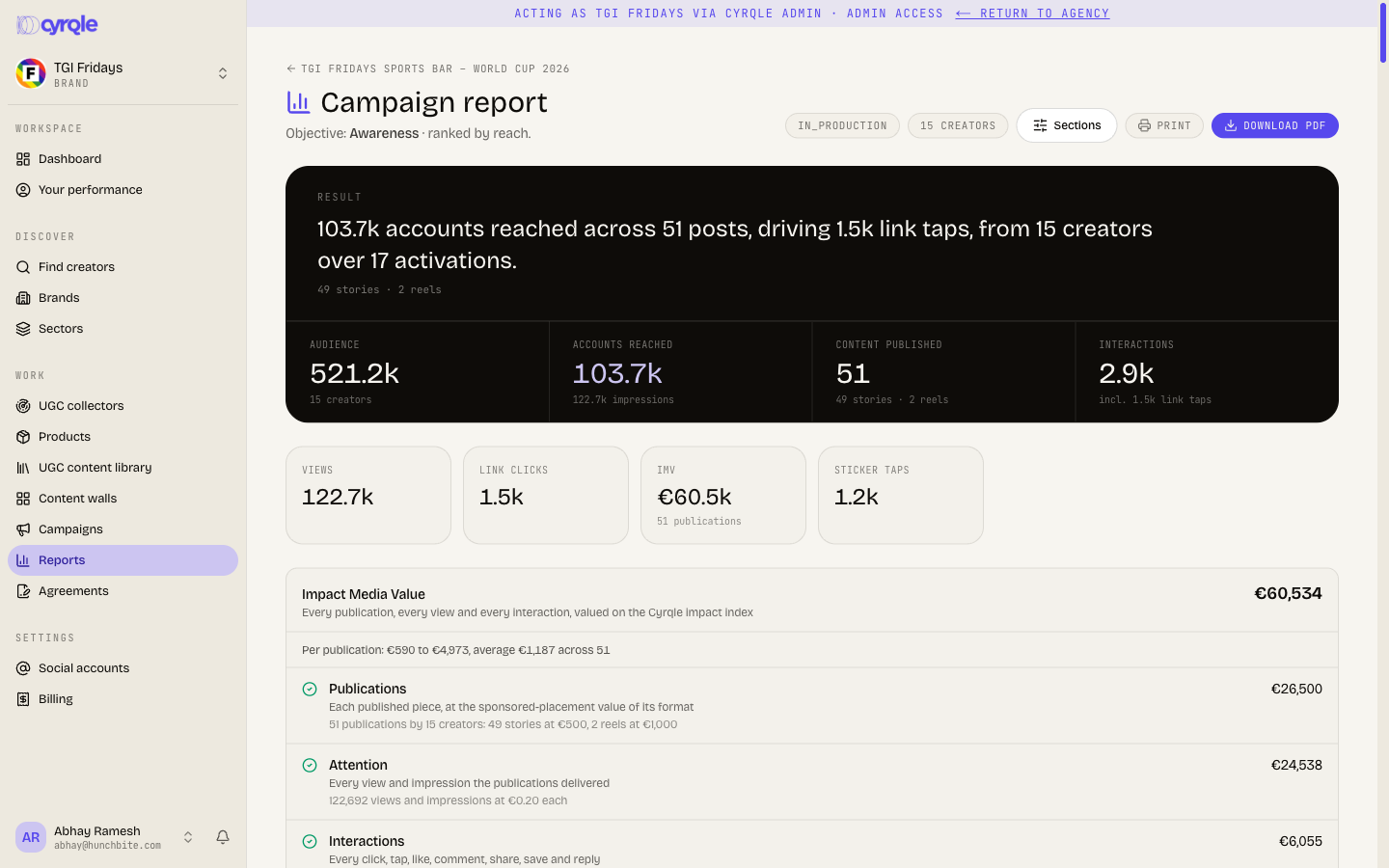
This screenshot was taken while the campaign was still In production, before any post was published. The Creator leaderboard and Publications sections had no CSV button yet — see Pitfalls.
What the report page offers
The top right of the page always carries three controls:
- Sections — a popover that switches individual cards on or off. A card with no data is listed but disabled, so you can see it was dropped for lack of data rather than missing by accident.
- Print — opens your browser's print dialog for a copy of the page as it looks.
- Download PDF — renders a separate, designed report on the server. The button reads Building PDF… while it works.
There is no CSV button up here. CSV export lives inside three tables further down the page, and each button only appears once that table has rows:
| Section | CSV button | Appears once |
|---|---|---|
| Creator leaderboard | CSV → creators.csv | At least one creator is on the roster |
| Publications | CSV → publications.csv | At least one post is published and tracked |
| All posts (bottom, full data table) | CSV (count) → <campaign-name>-posts.csv | At least one post is published and tracked |
Export the report
Filter a table first
Use each table's own Platform / Format chips (Publications, All posts) or search (Creator leaderboard). Every CSV export follows what is on screen in that table only.
Click Download PDF
Cyrqle renders the report on the server. The button reads Building PDF… while it works, which takes a few seconds.
Or click CSV on a table
Scroll to the Creator leaderboard, Publications or All posts section and click its CSV button. Each one exports one row per item with the metrics Cyrqle holds for that table.
Or click Print
Print opens your browser's print dialog for a copy of the page as it looks.
Pitfalls
- No CSV button until there is data. Each CSV button belongs to its table, not to the page. Before any post is published, the Publications and All posts sections show an empty state instead of a table, so their CSV buttons are not there yet. The Creator leaderboard CSV needs at least one creator on the roster.
- The three CSV exports do not agree. Each table exports its own on-screen filter, and Publications and All posts list the same posts through different columns. Check the filters on each table before you export it.
- The printed page and the PDF do not match. Print copies the page as it looks. Download PDF renders a separate designed report on the server. Use the PDF for anything you send to a client.
- Hidden posts are dropped from the report and kept on the Posts tab, so report totals do not match the Posts tab.
- The designed campaign report downloads as a PDF only. The per-table exports are CSV only.