Your dashboard
The workspace home screen that greets you, surfaces everything waiting on you, and shortcuts you to your most common tasks.
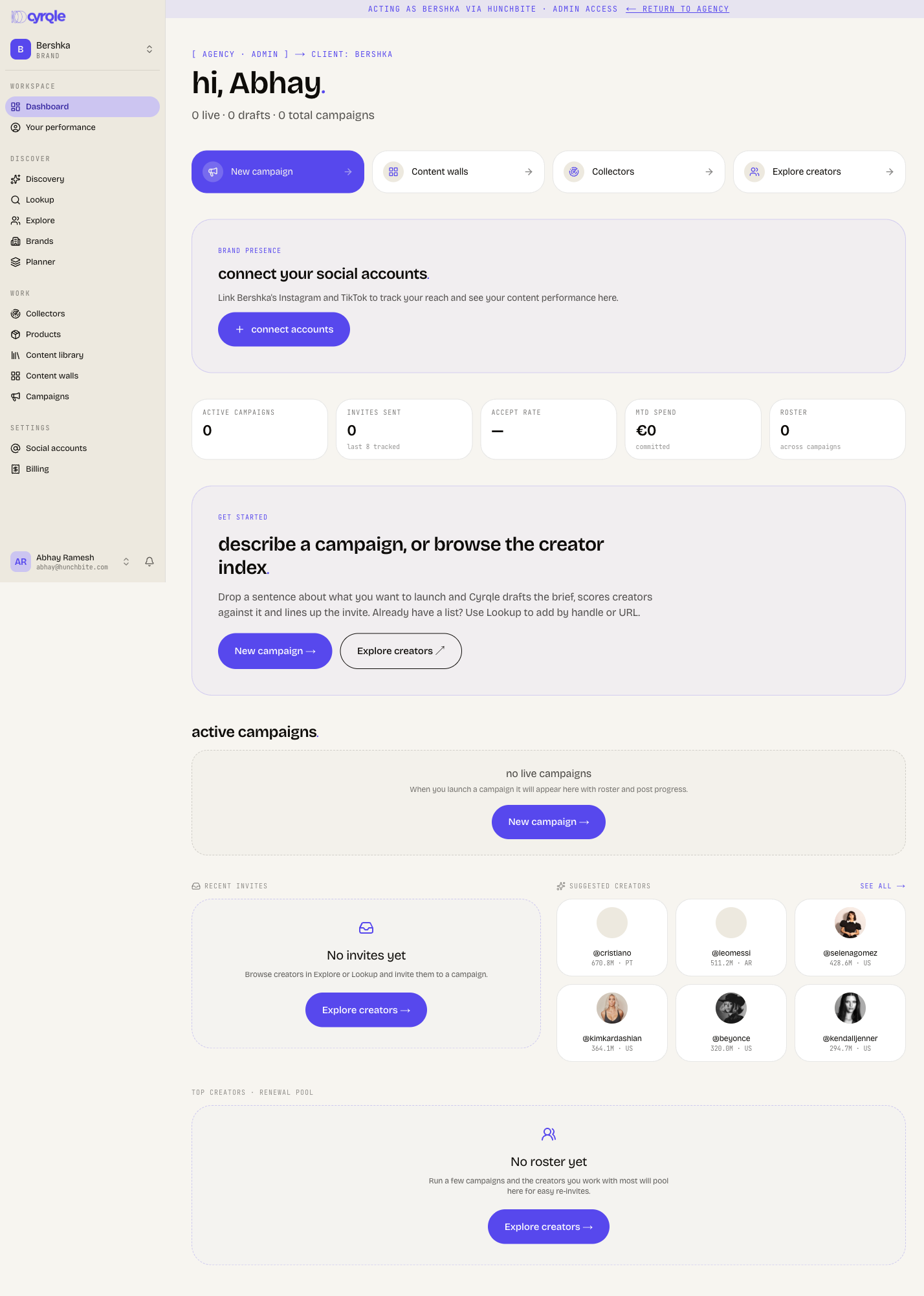
Your dashboard is the home screen of your workspace. You land here whenever you open Cyrqle or click your workspace name. It opens with a personal greeting ("hi, [your first name]") and a one-line summary of your campaigns, then walks down the page from the items that need your decision today to your live campaigns, recent invites, and suggested creators.
Everything on this page is scoped to the workspace you are currently in. If you manage more than one brand, switch workspaces first and the dashboard refreshes to that brand's numbers.
The dashboard paints in stages. The greeting, quick actions, and key numbers appear first; the campaign and creator sections fill in a moment later as they load. A brief shimmer in those areas is normal.
Read the attention feed
The most important block on the page is the attention card. Its heading counts the open items ("1 thing needs you" or "3 things need you") with the note "across all campaigns" on the right, because it pulls together work from every campaign you run, not just one.
Each row is a single click that drops you exactly where the next move is yours. The feed surfaces things like:
- A creator countered your offer (shown with the deal headline, for example
· €300 + 10%) and it is "your move". - A creator accepted your invitation and it is time to "start the negotiation".
- A contract is waiting for you to "Sign the contract".
- A creator's draft is ready, prompting you to "Review @handle's draft".
Up to five rows show at once. If there are more, a line at the bottom reads "+ N more — open a campaign to see all". Each row shows how long ago it changed (for example "2h ago") and an arrow to follow through.
If nothing needs you, this card simply does not appear. That is the goal state, not an error.
Billing items, when they apply
Directly below the attention feed, a separate amber "billing things need you" card appears only if there is a billing signal to act on, such as a failed payment ("Payment failed"), a trial ending soon ("Trial ends in Nd"), or a usage cap you are approaching or have reached. Each row links to your billing settings or the upgrade page. A matching banner may also sit across the very top of the page for the single most urgent billing alert.
Scan your key numbers
A strip of tiles gives you the headline numbers for the workspace at a glance:
Prop
Type
Just under the greeting, a sentence restates your campaign mix in plain words, for example "2 live · 1 drafts · 5 total campaigns".
Further down, when you have at least one campaign, three operator tiles break your pipeline into where each deal sits:
- your move — creators waiting on your action.
- awaiting reply — outreach in flight.
- producing — under contract or live.
Jump to common tasks
A row of quick-action buttons sits near the top of the page so you never have to hunt through the menu:
- New campaign (the highlighted purple button) — start a fresh campaign.
- Content walls — your collected, on-brand content.
- Collectors — the sources feeding your content.
- Explore creators — browse the creator index.
If you closed a brief before finishing it, a "Pick up where you left off" card links you straight back into that draft, showing its title and when you last edited it, with a "Continue" button.
The first time you use a workspace (no campaigns and no drafts yet), a "get started" welcome panel replaces the busier sections and offers two starting points: "New campaign" and "Explore creators".
Work down the page
Below the numbers, the dashboard lays out the rest of your workspace at a glance. Each section streams in and links onward:
- active campaigns — your live campaigns as cards, with a "see all" link when you have more than fit here.
- Recent invites — the latest creators you invited (or an "Explore creators" prompt if you have not invited anyone yet).
- Suggested creators — fresh matches from the creator index, with a "see all" link.
- Needs your attention — campaigns that have a creator waiting on you, each showing how many are waiting on you, how many are awaiting reply, and the amount committed.
- Top creators · renewal pool — strong past collaborators worth re-engaging.
Tips
- Treat the attention feed as your daily to-do list. If it is empty, you are caught up; nothing is hidden behind it.
- The numbers count only the current workspace. Switch workspaces to see a different brand's figures.
- "Accept rate" and "Invites sent" look at your last eight tracked invites, so they describe recent momentum rather than all-time totals.
- An empty section (for example "No invites yet" or "No roster yet") means you have not done that activity yet, not that something is broken.