Planner
Build a cluster of creators, watch a live forecast update as you go, then push it straight into a campaign.
The Planner is where you assemble a shortlist of creators before you commit to a campaign. You browse Cyrqle's creator index on the left, drop the creators you like into a cluster on the right, and a live forecast (estimated reach, cost band, and average engagement) updates with every creator you add or remove. When the cluster looks right, you save it or hand it straight to the campaign wizard.
Before you start
You need to be signed in to a workspace as a brand or agency member. The Planner draws on Cyrqle's creator index, so the more creators are indexed for your market, the more there is to browse. Nothing you build is saved to your account until you press a Save button, so feel free to experiment.
The Planner is not a calendar
Despite the name, the Planner does not show a calendar, timeline, or go-live dates. It is a creator shortlisting and forecasting tool. Scheduling and launch windows live inside each campaign once you create one.
Open the Planner
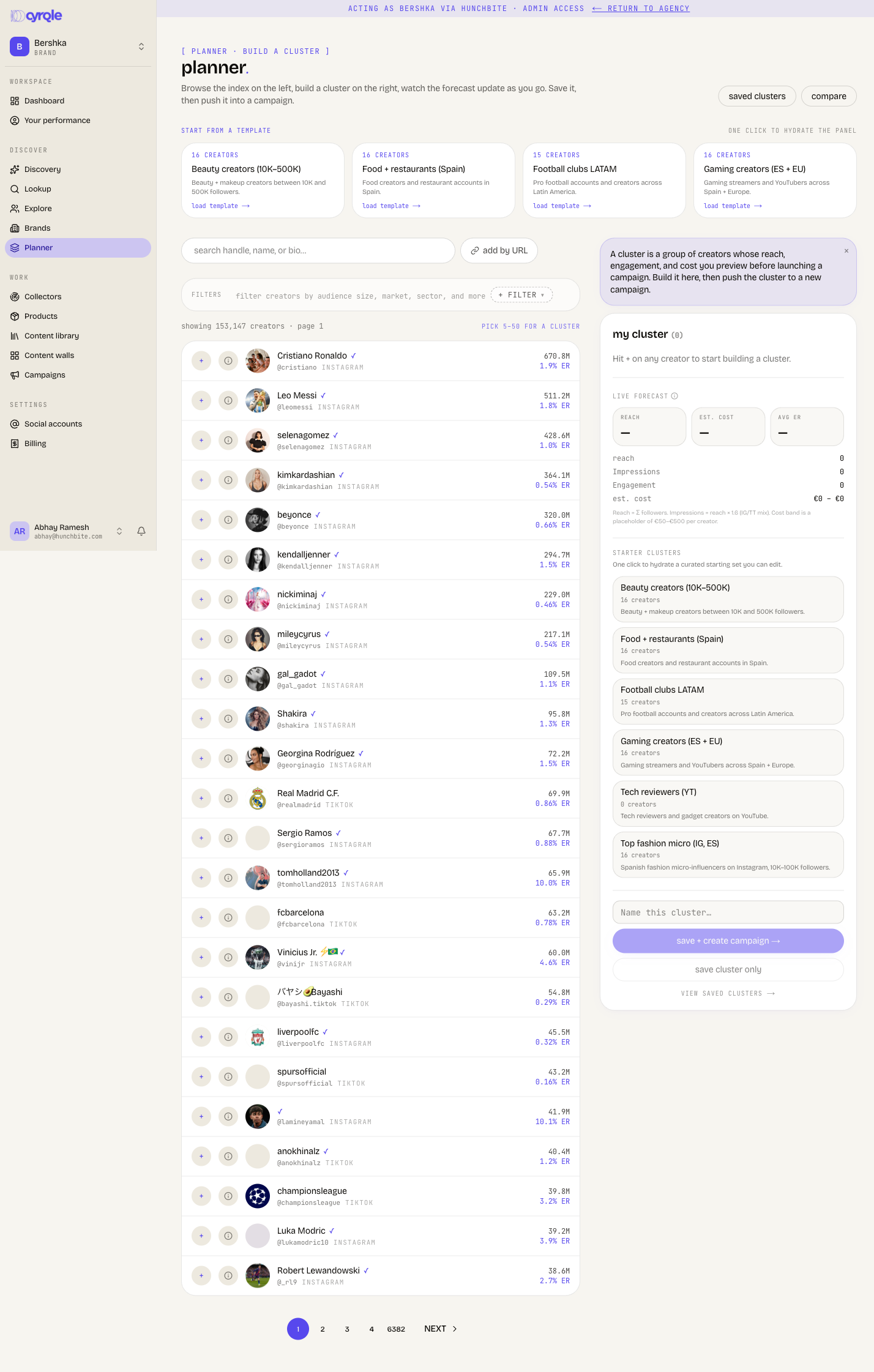
From your workspace, go to the Planner. The page header reads "planner build a cluster".
On your first visit a short purple banner explains the flow. Dismiss it with the × and it will not return on that browser.
Build a cluster
The screen is split into two columns: browse on the left, your cluster on the right.
Find creators. Type in the search box at the top left to filter the creator index as you type, or use the filter controls to narrow by criteria. You can also paste a creator's profile URL using the add-by-URL control to pull a specific creator in.
Add them to your cluster. Each creator row has an add button. Clicking it drops that creator into the "my cluster" panel on the right. The count next to the panel title goes up by one.
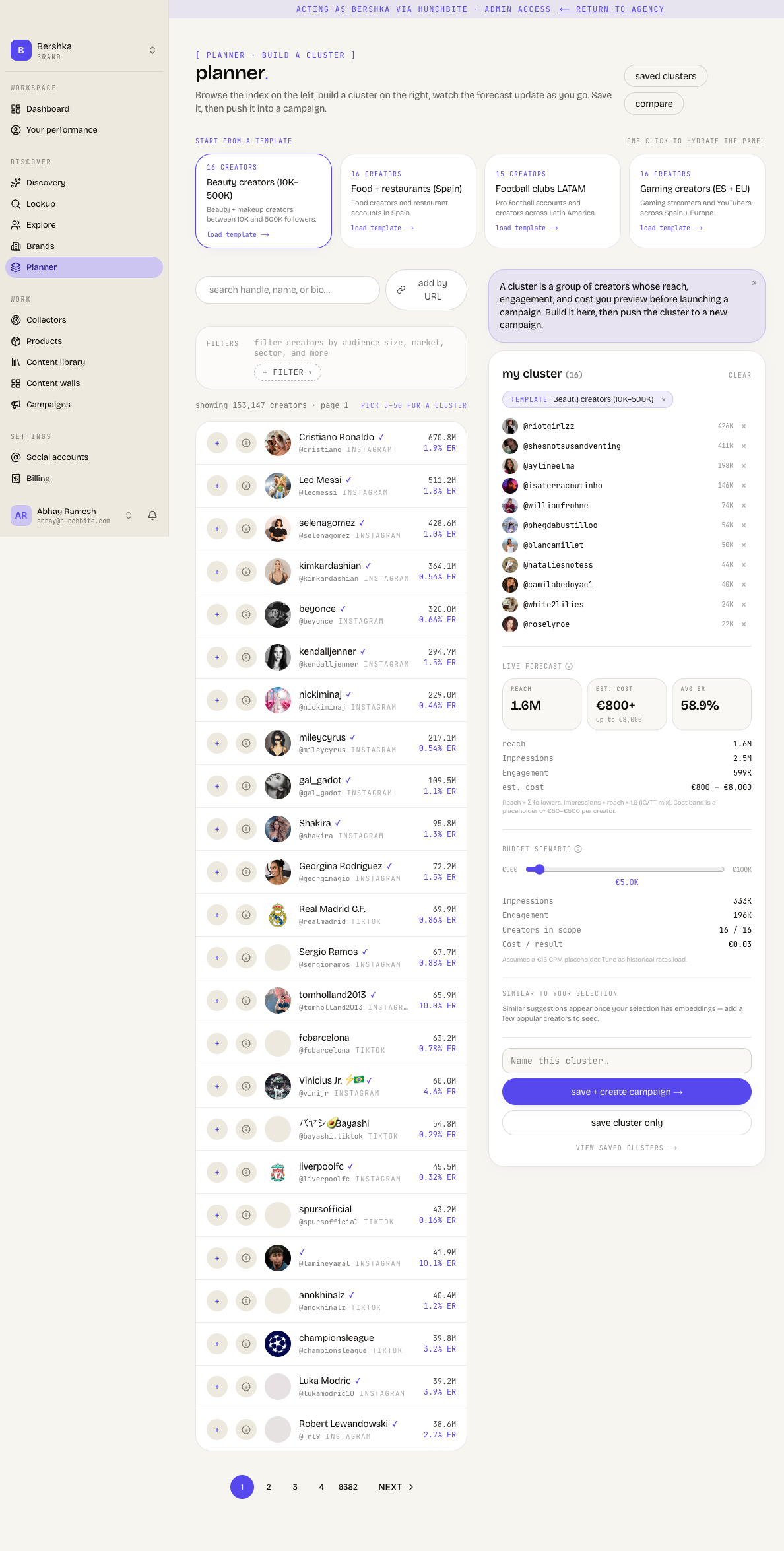
Review and trim. Each member in the cluster shows their handle and follower count. Click a member to preview their full profile in a side drawer, or use the × on the row to remove them. "clear" empties the whole cluster.
Read the live forecast
As soon as your cluster has members, the panel shows a "live forecast" with three headline tiles and a detail breakdown.
The sum of every selected creator's follower count. This is a naive ceiling: overlapping audiences are not netted out, so treat it as an upper bound.
A placeholder band of 50 to 500 EUR per creator. It is shown as a starting figure ("from") with an upper bound. Cyrqle notes this is a placeholder that will refine once historical rate data is available per creator.
A simple average of engagement rate across the creators that have engagement data. Creators without data are skipped.
Below the tiles, a detail list repeats reach and cost and adds estimated impressions (reach multiplied by 1.6, an Instagram/TikTok repost-rate average) and total engagement. Hover the info icon next to "live forecast" or any tile to see exactly how each number is calculated. A "—" instead of a number means there is no creator data behind that figure yet, rather than a true zero.
Try a budget scenario
Once your cluster has members, a budget slider lets you explore what-if scenarios against the forecast. This is a scratchpad only; moving it does not change your saved cluster.
Use templates and suggestions
You do not have to start from a blank cluster.
- Starter templates. When the cluster is empty, Cyrqle offers system-built starter clusters. Click one to load its creators into your panel. A "template" chip shows which preset seeded the draft; clearing the chip is cosmetic and does not remove the creators. There is also a templates rail above the work area for one-click hydration.
- Similar to your selection. Once you have at least two creators in the cluster, Cyrqle suggests similar creators you can inspect and add.
Save your cluster or send it to a campaign
When the cluster is ready, give it a name (8 to 80 characters) in the field at the bottom of the panel, then choose how to finish.
Save and create campaign (the large purple button) saves the cluster and takes you straight into the new-campaign wizard with this cluster pre-attached. This is the main hand-off path.
Save cluster only (the outlined button) saves the cluster and opens its detail page, without starting a campaign. Use this when you are still planning.
After either save, your in-progress draft is cleared from the panel.
Your draft is remembered locally
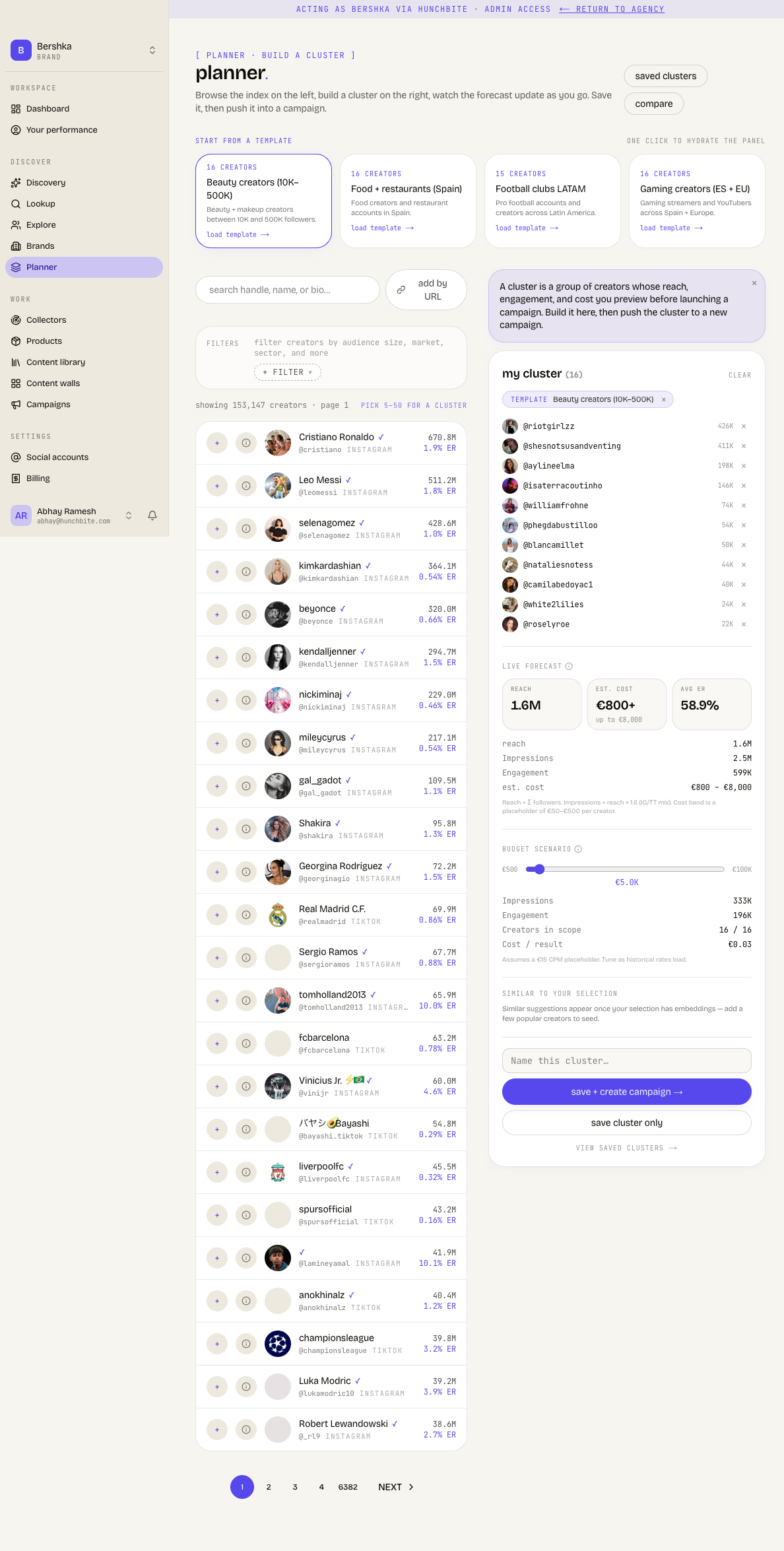
A cluster you are building is kept in your browser as you go, so you can leave and come back without losing it. It only becomes a saved, shareable cluster once you press Save. If you build in a different browser or clear browser data, the in-progress draft will not follow you.
Manage saved clusters
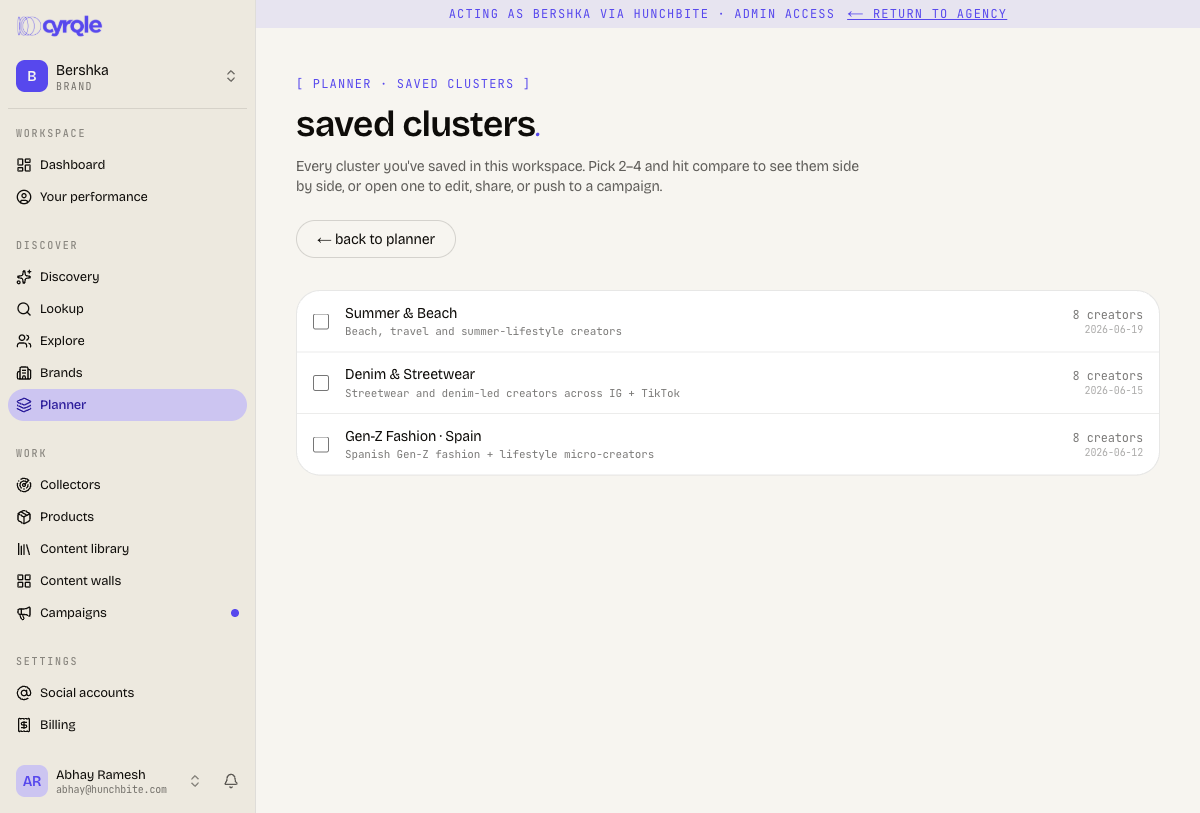
Use "saved clusters" in the page header to open the index of everything you have saved in this workspace.
Each row shows the cluster name, description, and member count. Open a cluster to edit it, share or fork it, or push it to a campaign.
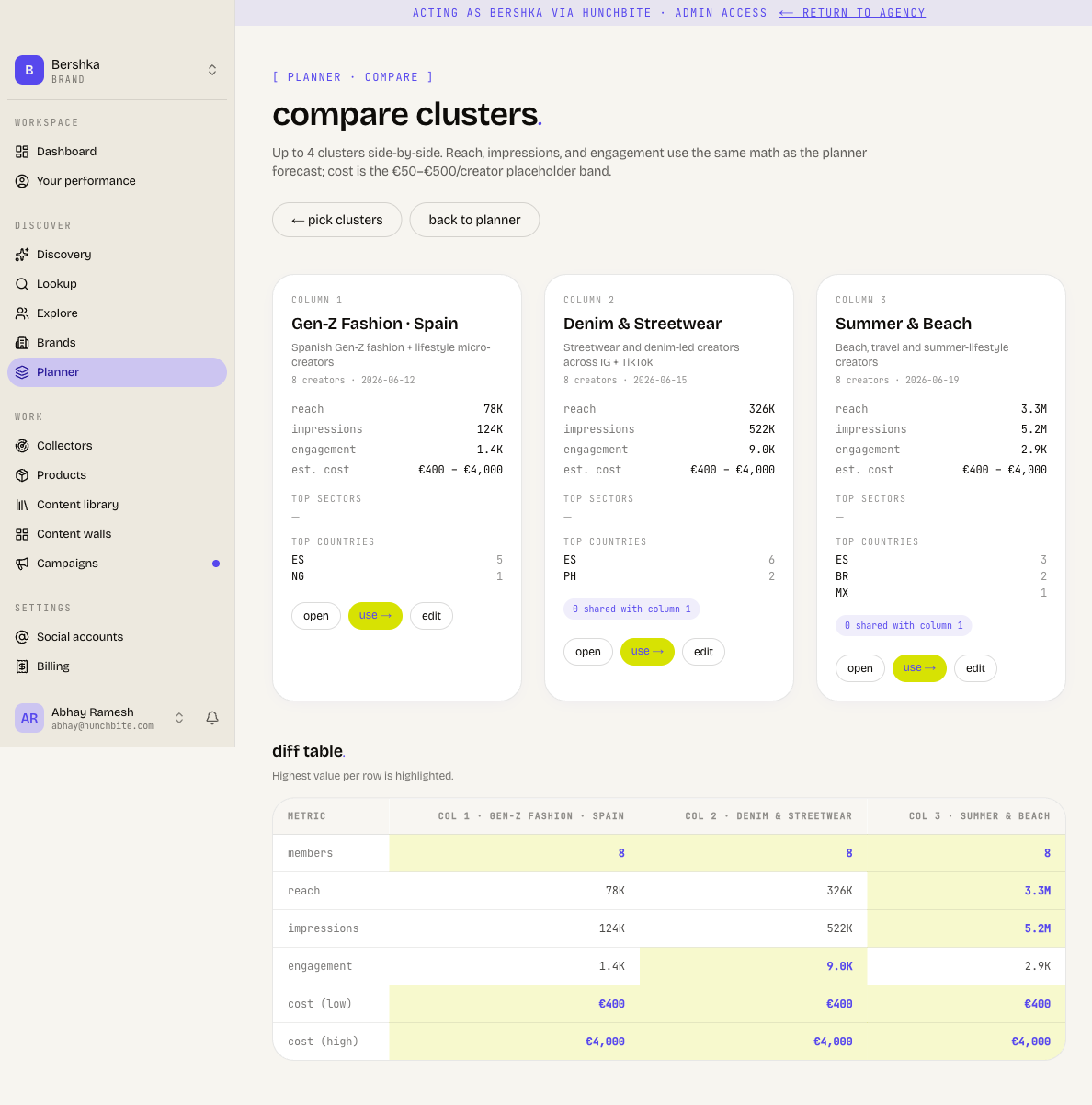
Compare. Select 2 to 4 clusters with their checkboxes, then use the compare action (also reachable from "compare" in the header) to view them side by side, with their forecasts and audience breakdowns lined up for comparison.
When you reopen a saved cluster from the Planner, an "unsaved changes" bar appears if you add or remove creators, showing how many were added or removed and how that shifts reach and cost versus the saved version.
Compare clusters side by side
Select 2 to 4 clusters on the saved-clusters page and hit compare to line them up in columns. Each column shows the cluster's reach, impressions, engagement, and an estimated cost band, using the same math as the planner forecast. It's the fastest way to decide which audience to staff a campaign against — for example a high-reach, lower-engagement cluster versus a smaller, higher-converting one.
Tips
- The forecast numbers are deliberately transparent estimates, not quotes. Reach is an un-deduplicated ceiling and the cost band is a placeholder; use them to compare options, not to set a final budget.
- A "—" in a tile points to missing creator data, so it is a cue to inspect that creator rather than a real zero.
- Building a cluster writes nothing to your account until you Save. Templates, suggestions, and the budget slider are all safe to explore.
- To turn planning into action, use "Save and create campaign" so the cluster carries straight into the campaign wizard.