Outreach & rights
Reach creators who aren't on Cyrqle yet, run the conversation and deal, and clear the rights to reuse their content.
Not every creator you want to work with is already on Cyrqle. Discovery splits creators into three buckets: those who have opted in, those who are identified in your database (real profiles we know about, but not yet onboarded), and the wider discovery pool. This page is about the middle bucket — reaching identified creators, logging every contact attempt, negotiating terms, and clearing content rights (permission to reuse a creator's post so it can feed your content walls).
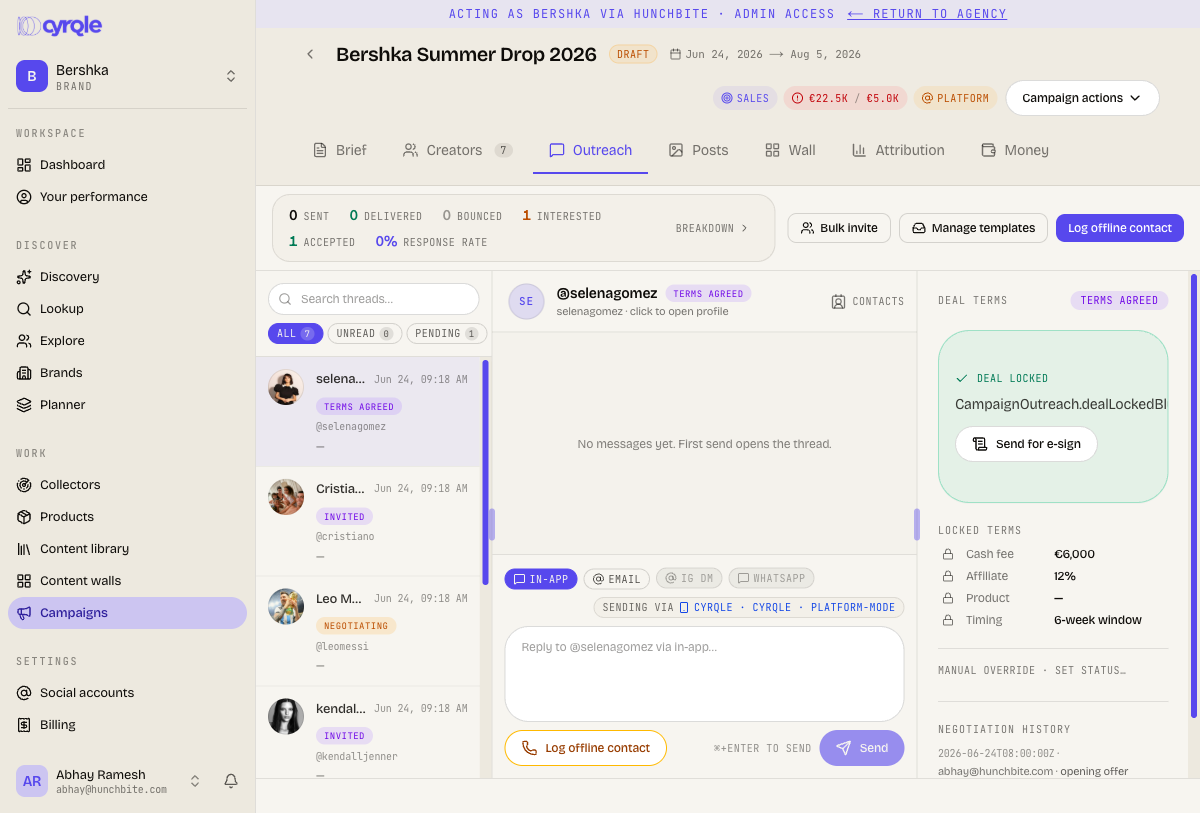
The hub is the Outreach tab inside a campaign. It is a three-pane workspace: a thread list on the left, the conversation in the middle, and Deal Terms on the right.
Before you start
- You need a campaign to work inside — outreach threads belong to a campaign. See Campaigns.
- Creators reach the Outreach tab by being shortlisted into the campaign from Discovery & matching. The tab is empty until at least one creator is in the pool.
- Automated sending today is limited to in-app messages and email. Instagram DM and WhatsApp sending are shown but not yet live — for those you share a link manually and log the contact yourself.
- To clear content rights you also need a known contact channel (email or phone) for the creator, or you copy a grant link and DM it.
Open the Outreach tab
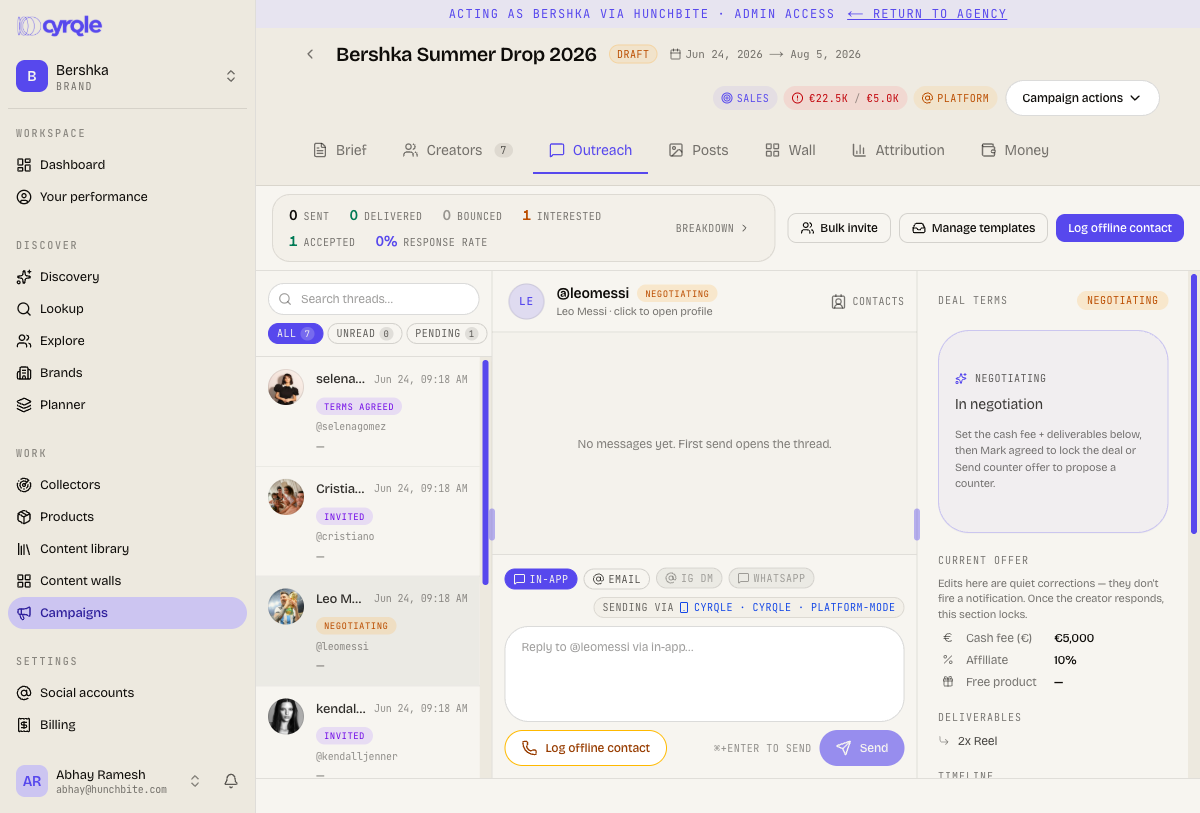
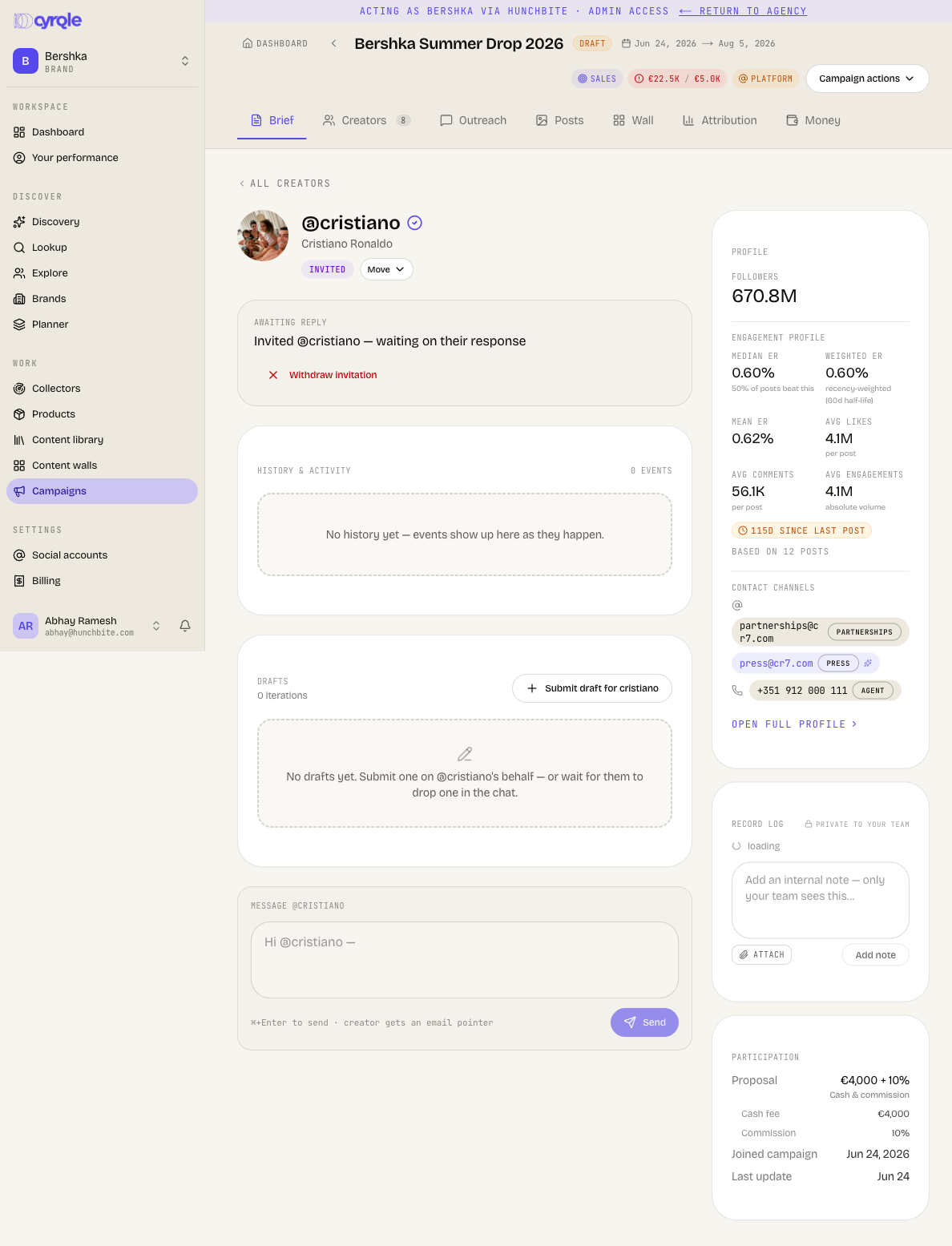
Open your campaign and select the Outreach tab. The top bar shows campaign-wide response stats — Sent, Delivered, Bounced, Interested, Accepted, and a Response rate. Below it sit the three panes. Click any creator in the left list to load their conversation and deal terms.
If no one has been contacted yet, the tab shows an empty state with a single Bulk invite from pool button.
Invite a creator who isn't on Cyrqle
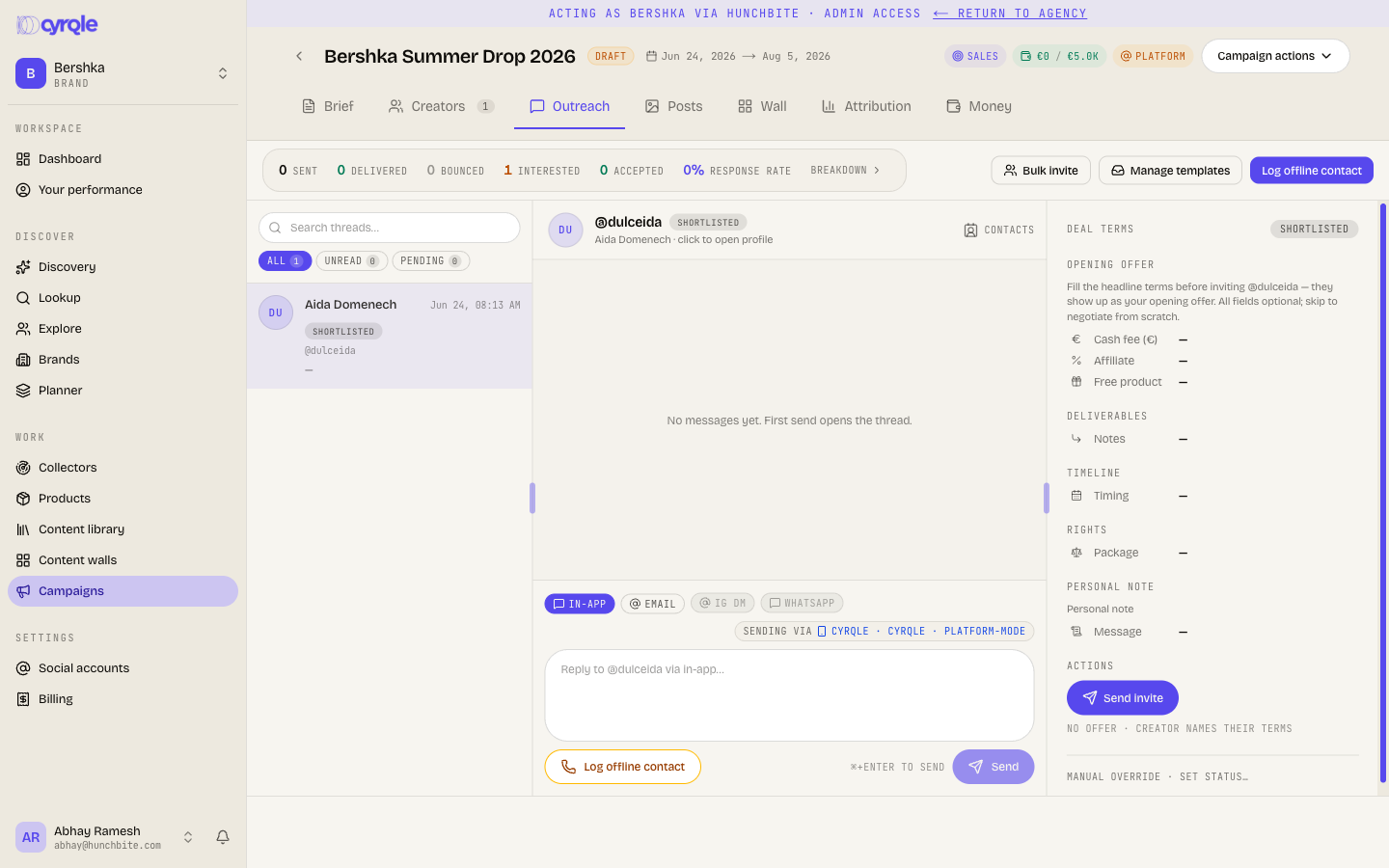
Pick the creator in the thread list. If they are still shortlisted (no application yet), the Deal Terms pane on the right shows an Opening offer form instead of a negotiation.
Fill in any of the opening-offer fields by clicking the pencil on each row: Cash fee (type the amount in euros), Affiliate %, Free product, deliverables notes, Timing, and a rights Package. You can also add a short Personal note.
Leave fields blank if you want the creator to name their own terms. The button label changes to reflect this: Send invite when there is no offer, Send invite with offer when there is.
Click the button. Cyrqle flips the creator to invited and starts the outreach (an email goes out if we have an address).
A claim link appears below the form. This is the creator's personal link to join the campaign. Copy it and share it directly over WhatsApp, a DM, or wherever you already talk to them — useful when email alone isn't enough.
The claim link is durable: it also lives on the conversation header (a link icon next to the creator's name), so you can re-copy and re-share it any time without hunting for the original invite.
Invite many creators at once
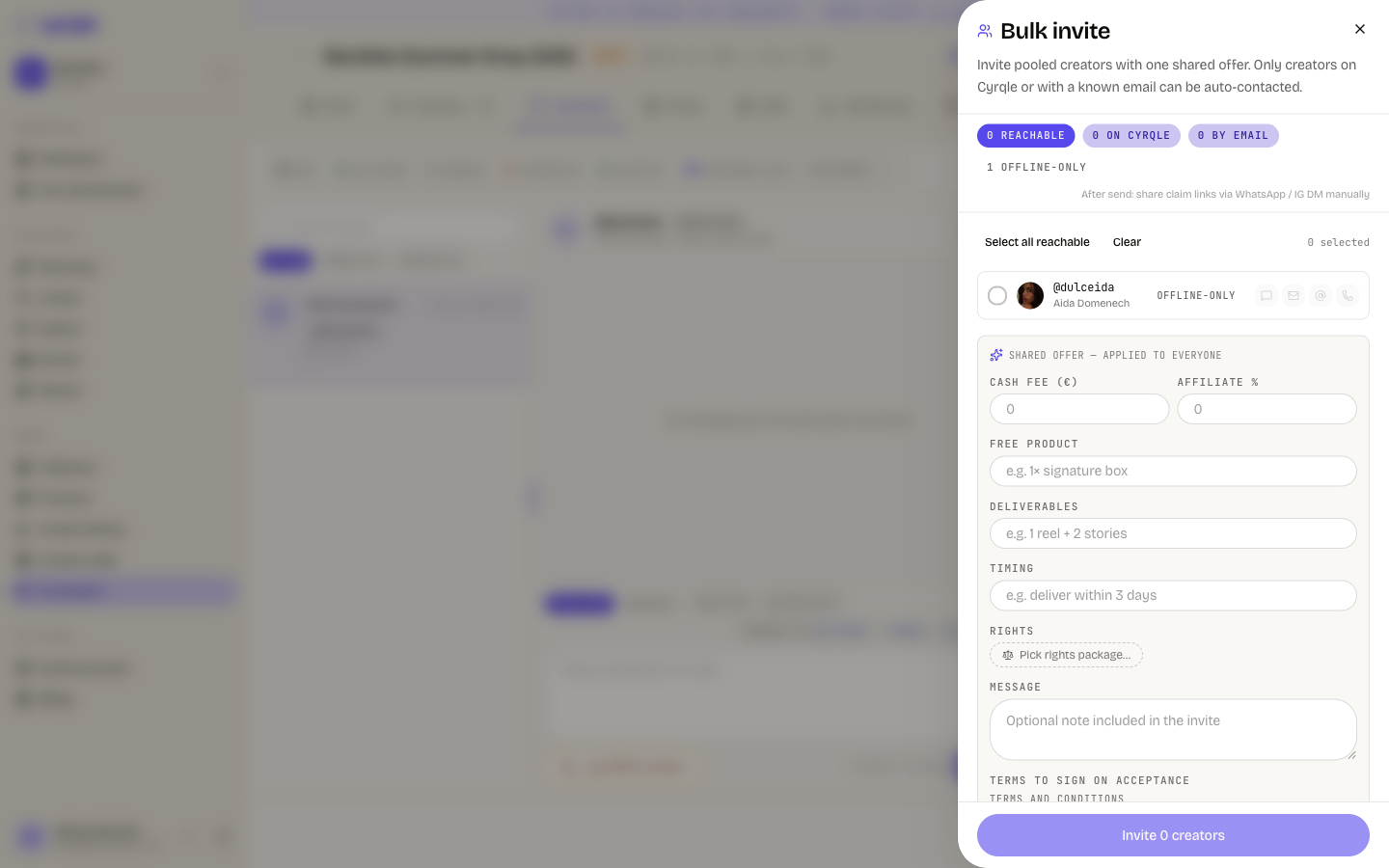
Click Bulk invite in the top bar (or the empty-state button). A panel opens listing every pooled creator with a reachability summary up top — how many are reachable, on Cyrqle, reachable by email, or offline-only.
Reachable creators are auto-selected. Use Select all reachable or Clear, or tick creators individually.
For an offline-only creator (no Cyrqle account and no email) you can still invite them, but you must type an inline "reached offline" note — this is logged as a manual touch so the contact is on record.
Set one shared offer that applies to everyone in the batch: cash fee, affiliate %, free product, deliverables, timeline, rights package, and a message. These come pre-filled from your campaign's compensation defaults (set in the Brief tab) — change anything you like.
Optionally choose the terms to sign on acceptance. When a creator accepts, Cyrqle auto-creates the agreement from this template and asks them to sign in-app — there is no separate "send contract" step.
Click Invite. A results popup lists every issued claim link with per-creator Copy, WhatsApp, Instagram, and Email share buttons, plus a Download CSV of all the links (with the contacts and which channel you shared on).
Run the conversation
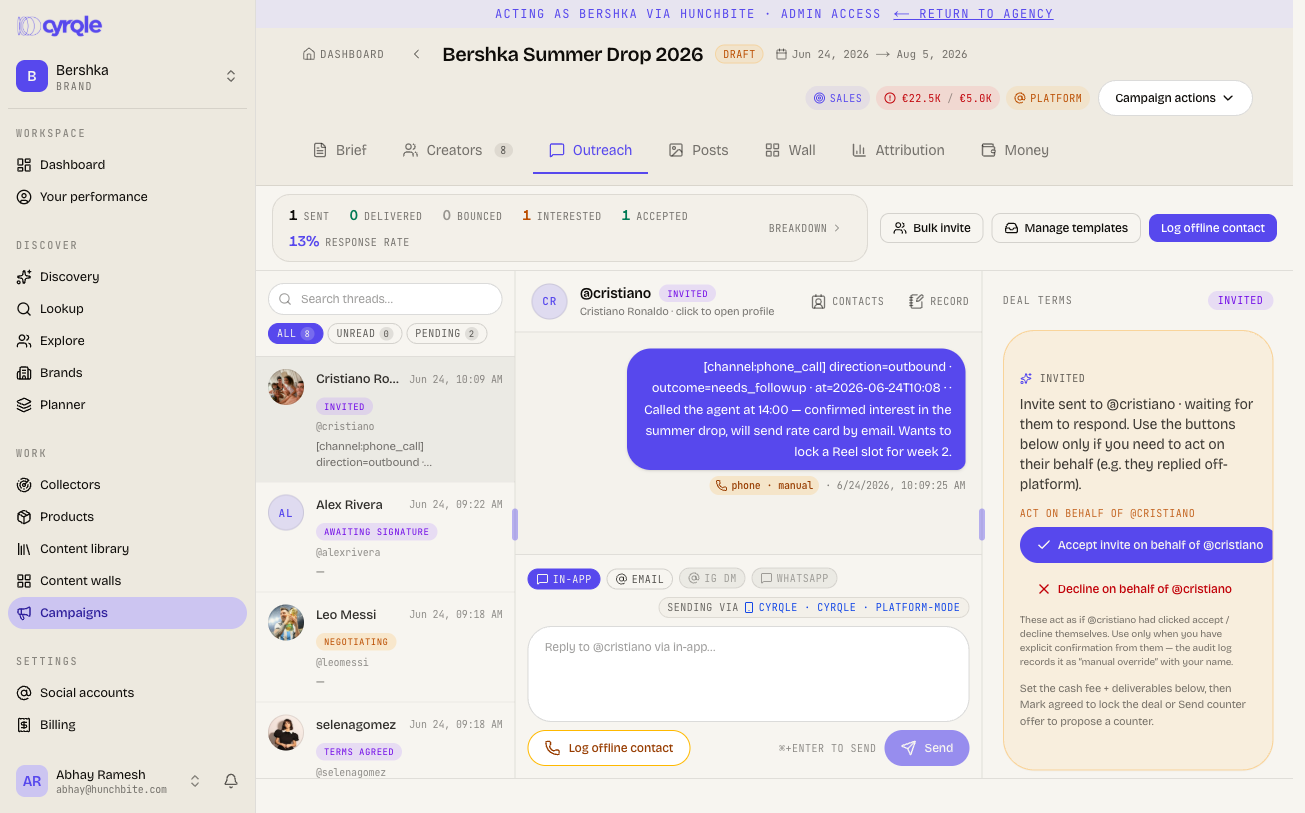
The middle pane is the conversation. Outbound and inbound messages appear as chronological bubbles, each tagged with the channel it went through — In-app, Email, IG DM, Phone (manual), or WhatsApp. Email invites carry a View invite link so you can see exactly what was sent, and delivery is marked Sent, Delivered, or Bounced.
Interleaved into the same timeline you'll see grey activity lines (status changes such as "Invitation sent", "Terms agreed", "Contract signed") and amber internal note entries — so the whole deal story reads in one place.
To reply, pick a channel chip (In-app and Email are available; IG DM and WhatsApp are disabled with a tooltip explaining why), type your message, and press Send or Cmd/Ctrl+Enter. The bar above the composer tells you whether you're sending via the brand's own handle (brand mode) or via Cyrqle (platform mode).
Log a manual touch (a contact made outside Cyrqle)
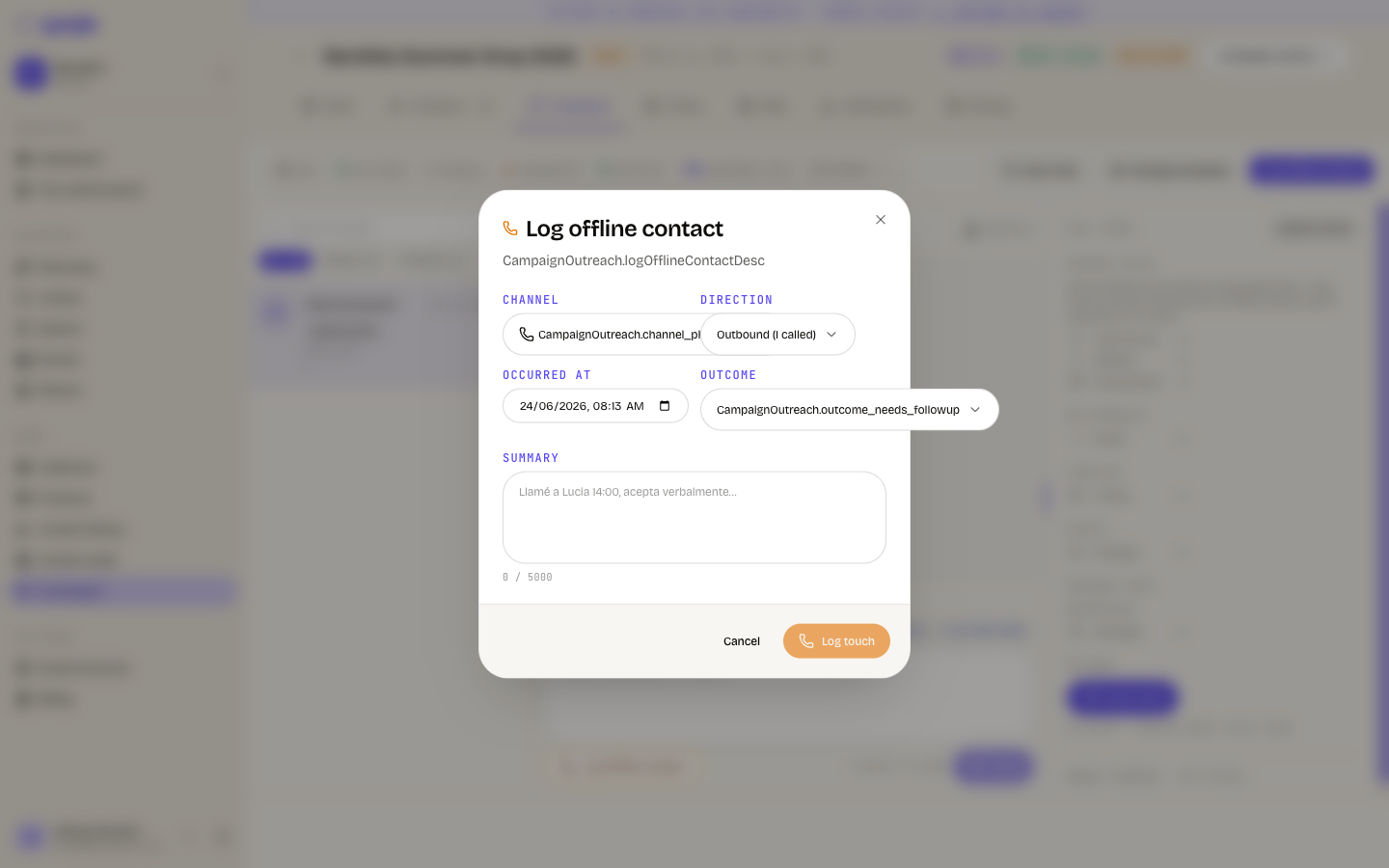
A touch is a logged contact attempt. When you call, DM, meet in person, or email a creator outside Cyrqle, record it so it sits in the same transcript as everything else. Click Log offline contact — it's in the top bar and pinned at the bottom of the conversation pane.
Choose the Channel: Phone call, WhatsApp (personal), In person, or Email (personal).
Set Direction (outbound or inbound) and the time it happened.
Pick an Outcome — no answer, voicemail, interested, declined, accepted verbally, needs follow-up, or other.
Write a short Summary and click Log touch. It appears in the transcript with an amber "logged manually" marker.
Use message templates
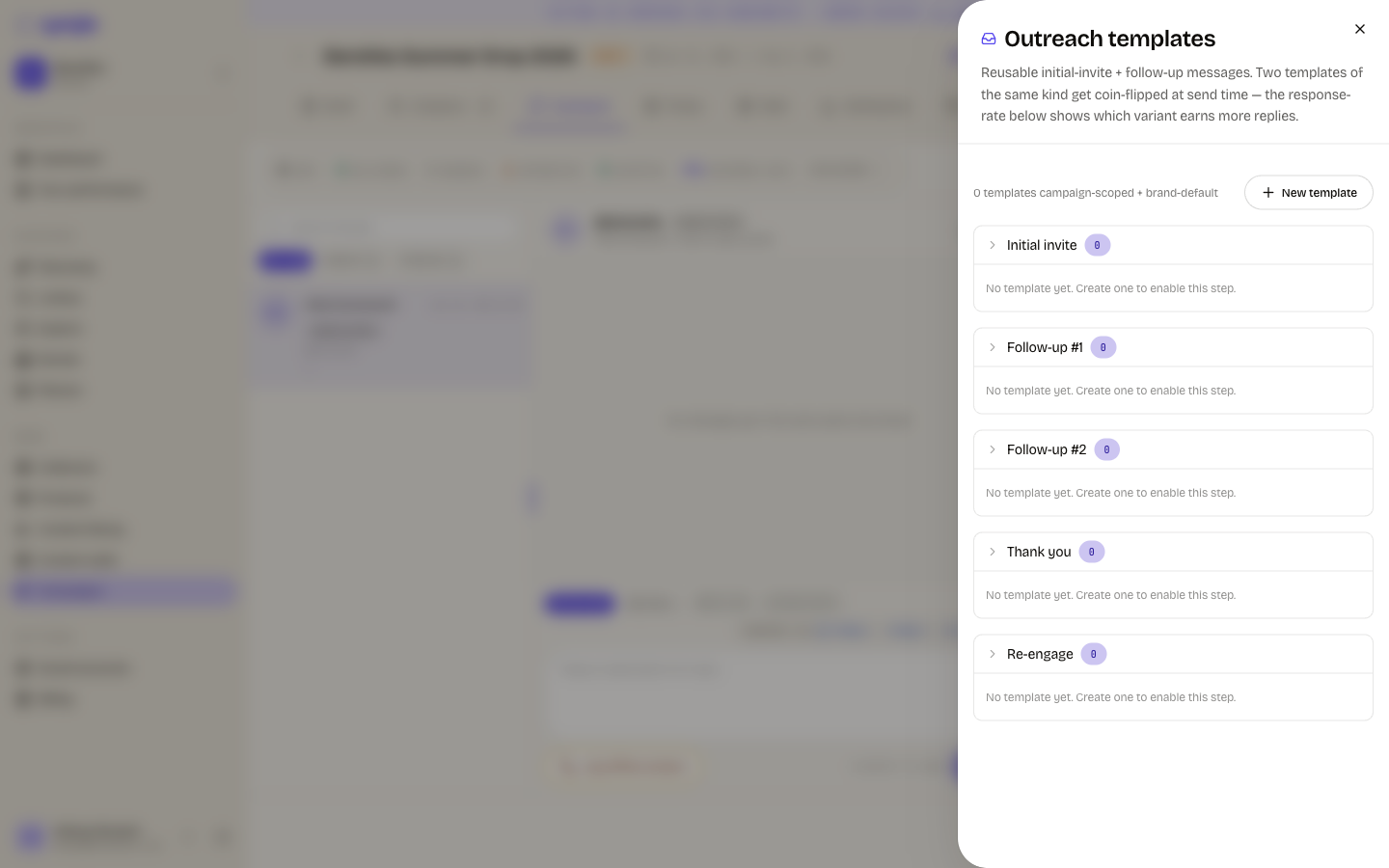
Click Manage templates in the top bar. Templates are grouped by purpose — Invite, Follow-up 1, Follow-up 2, Thank you, and Re-engage — and are scoped to your workspace (campaign-specific first, then brand defaults).
Each template shows its A or B variant and a denormalised response rate, with the better-performing variant listed first, so you can A/B test your messaging. Use New template to add one, the pencil to edit, and the power icon to archive or reactivate.
Negotiate and lock the deal
The right Deal Terms pane changes with the state of the deal:
- Negotiating — edit cash fee, affiliate %, free product, timeline and the rights package inline. Send counter offer opens a small form (new numbers plus a message to the creator). Mark agreed locks the terms; Mark declined archives the deal.
- Counter proposed — when the creator counters, you see their numbers side-by-side with the old ones, and can Accept counter, Counter again, or Walk away.
- Deal locked / Agreed — terms are frozen and the next step is Send for e-sign.
- Awaiting signature — terms are locked; Open contract lets you manage signing.
- In production / Delivered / Completed — read-only banners that link you to the Content or Money tab for the next step.
For pre-invite states you may also see Accept / Decline buttons to act on the creator's behalf when they've told you their decision off-platform.
If something changed off-platform that the buttons don't cover, use the manual status override at the bottom of the pane — it records who changed the status, when, and why.
Manage a creator's contact channels
From the conversation header, click the contacts icon. A drawer lists every email and phone we have for this creator. Scraped contacts (pulled from public profiles) appear at the top, read-only, with a "scraped" badge. Click add email / add phone to record your own — they're validated as you type — and use the trash icon to remove ones you added.
These channels feed the share buttons, the rights requests, and the CSV exports, so keeping them current makes every other action easier.
Keep a private record log (notes & files)
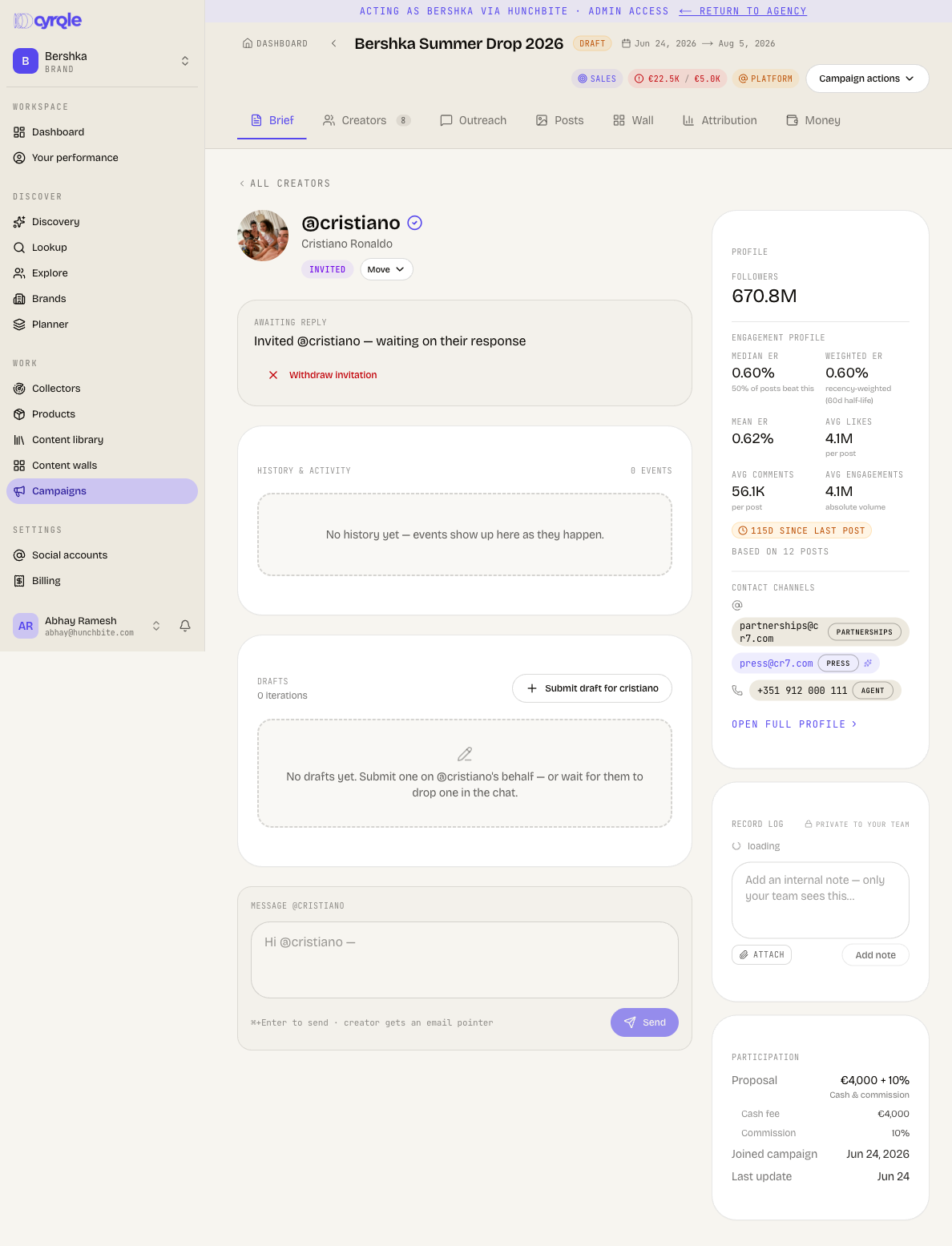
From the conversation header, click record. This opens the creator record — a private, team-only log that follows the creator across every campaign. Add internal notes (only your team can see them) and attach files like media kits, rate cards, or briefs the creator sent you. The log reads like a thread, oldest first, with the composer pinned at the bottom; notes also surface inline in the conversation transcript.
Request usage rights on a post
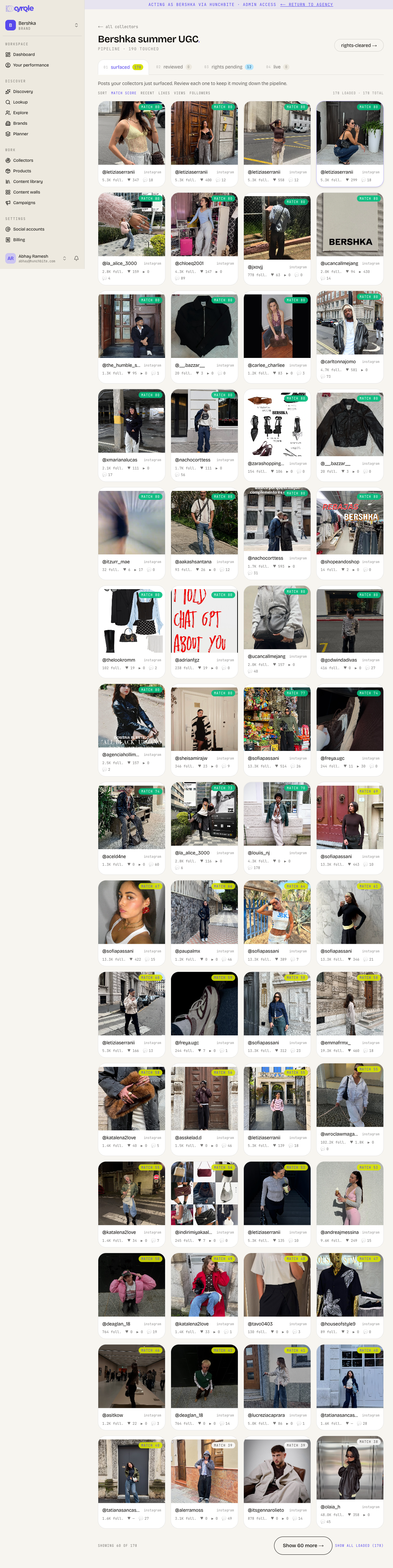
Content rights (also called usage rights) are permission to reuse a creator's post. You request them from a post — for example in the marketplace or a collector's results. Click Request rights on the post card.
- If we have the creator's email, Cyrqle emails the request and the button shows Request emailed.
- If not, you get an assisted flow: a copyable magic link to DM this link to the creator yourself.
Either way the creator opens the link and grants (or declines) the rights.
Track and recover existing rights requests
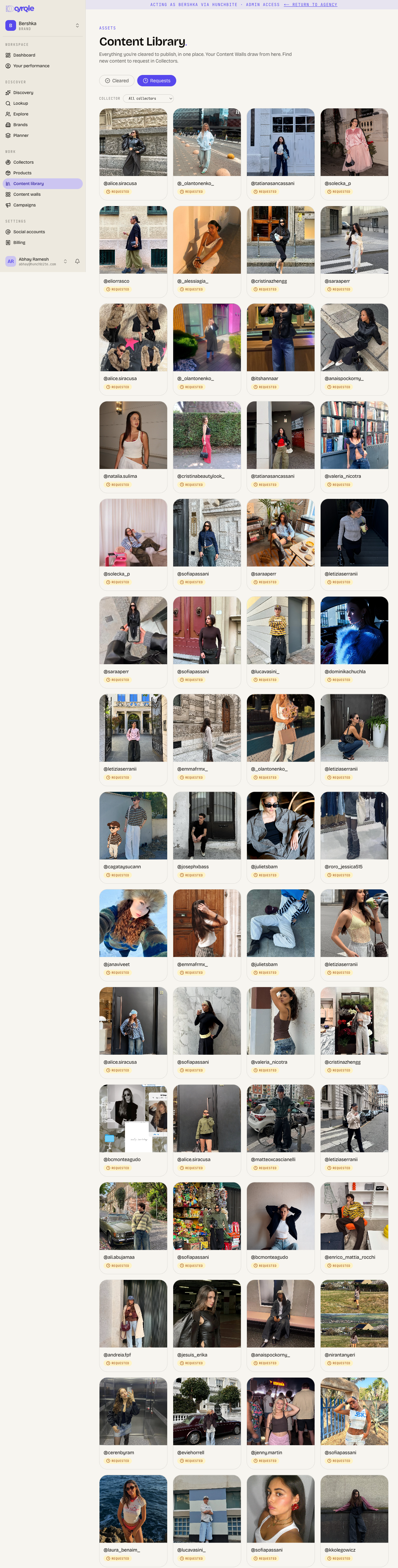
Once a request is out, don't re-send blind. Open Library → Requests for the durable list of outstanding asks. Each request card opens a detail panel showing:
- the channel (emailed vs manual DM) and how long ago it was sent,
- the expiry — "expires in N days", or a red link expired when the grant link has lapsed,
- a Copy link button to re-share the same grant link, and
- a Resend / Refresh link button that reuses the same token, bumps the expiry, and re-emails if the request was by email.
The header carries Export CSV — a download of all pending requests including each creator's email and phone — and a multi-select Resend for chasing several at once.
Grant, extend, or revoke rights directly
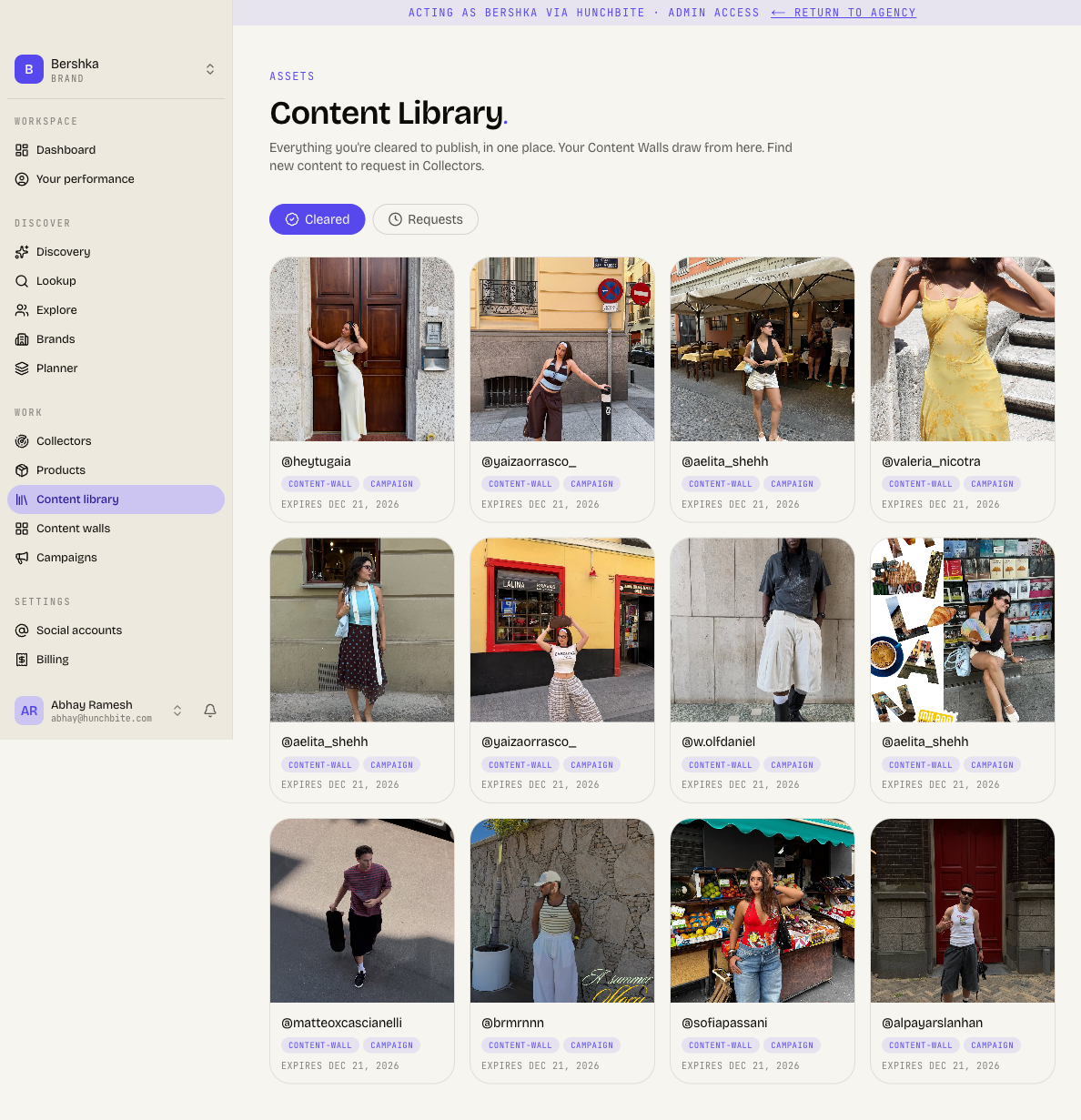
For creators already in a campaign you can manage rights without waiting on a request. In the Creator Detail drawer, the Rights management section lists existing grants — each with its territories (defaults to Worldwide), an expiry countdown, the usage purposes (Social repost, Content wall, Paid ads, Product page, OEM landing), and any notes.
- Grant new rights opens a form for territories, duration in days, purposes, and notes.
- To extend, grant a new one with a longer duration — grants stack and the wall uses the most recent active one.
- Revoke an active grant by giving a reason. Active grants are green; revoked ones are red.
Tips
- Set your campaign's compensation defaults in the Brief tab first — bulk invites pre-fill from them, so you only tweak per batch.
- Pick a rights package at invite time. The six presets run from lightest ("1-shot, single post") to broadest ("Full usage, 12 months") — choose the smallest one that fits, and use Custom for anything non-standard.
- Always log offline touches. A logged call or DM keeps the response stats honest and stops teammates double-contacting the same creator.
- A red dot in the thread list means an unread inbound message — scan for those first.
- Keep contact channels current; they power the share links, rights emails, and every CSV export.