Your workspace
A workspace is your organisation in Cyrqle. How sign-in, workspaces, invitations, and language work.
Before you start
- You need an email address you can read. Cyrqle signs you in with a code.
- Your workspace has one account type, set when it was created.
- Workspace settings open from the user menu at the bottom of the sidebar.
Sign in with a code
Cyrqle has no password sign-in. You request a 6-digit code every time.
Open the sign-in page
Go to the sign-in page.
Enter your email
Type your address in Work email.
Request the code
Click Email me a code.
Enter the code
Type the 6-digit code from the email. The form submits itself at the sixth character.
- Sign in with the same address you signed up with, in lower case. Sign-up keeps the capitalisation you type and sign-in lowercases it, so two spellings can become two separate accounts.
- Continue with Google also works. Google is the only social sign-in Cyrqle offers.
- There is no password to reset or change. Ignore the password reset screen and the Change password form. Request a sign-in code instead.
The workspace model
- One account can reach several workspaces, but you only create one during onboarding.
- The product has no create-workspace button after your first one.
- You reach a second workspace only by invitation, or through an agency link.
The account type is permanent. Cyrqle cannot convert a creator workspace into a brand workspace. Ask to be invited to a workspace of the right type, or contact support.
Switch workspaces
Open the switcher at the top of the sidebar. It groups your workspaces under my workspaces and the brands you reach through an agency under managed clients. A managed client row carries an eye icon, which opens the read-only client view instead of acting as that brand.
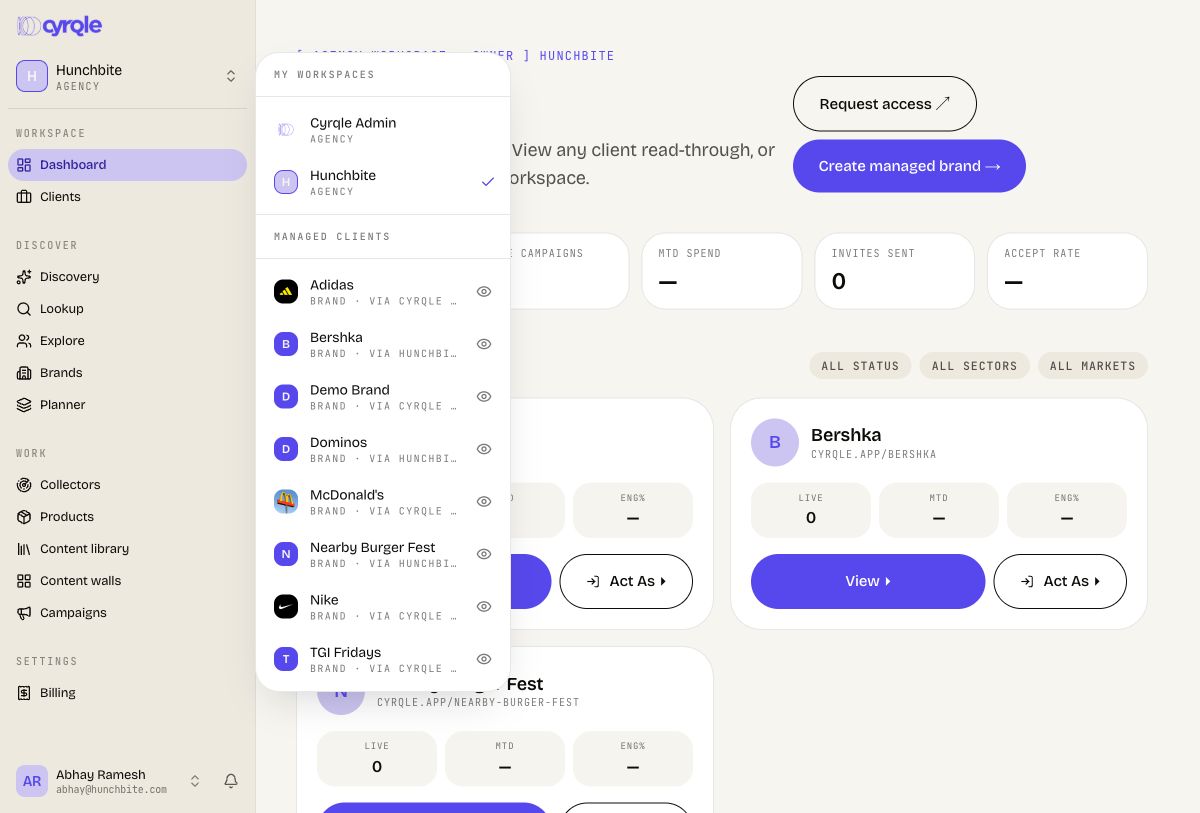
A brand you reach through two of your agencies appears twice, once per agency.
Join a workspace by invitation
There are three kinds of link. Only the first one adds you to someone else's team.
| Link | What happens |
|---|---|
| Team invite | You join an existing workspace as owner, admin, or member. |
| Creator join link | Cyrqle creates a creator workspace for you and skips onboarding. |
| Campaign claim link | Cyrqle creates your creator workspace and opens the brief you were invited to. |
- Accept a team invite with the exact address that was invited, including its capitalisation. Cyrqle compares the two strings literally. A mismatch hides the accept form and offers Switch account, which returns you to the same screen. Ask the inviter to re-send the invite to the address you use.
- Invitations expire after 7 days. Re-inviting the same address cancels the earlier invitation, so an older link reads "this invite is no longer active".
What lives in workspace settings
Open the user menu at the bottom of the sidebar and select Workspace settings.
| Card | What it covers | Shown to |
|---|---|---|
| Workspace | The workspace name and handle. | All |
| Team | Members, roles, and invitations. See Team. | All |
| Linked agencies | Agencies that can act inside this workspace. | Brands |
| Billing | Plan, usage, credits, and invoices. See Billing and credits. | All |
| Contracts | Reusable brand terms. See Contracts and rights templates. | Brands and agencies |
| Integrations | Shopify, Magento, and WooCommerce. See Integrations. | Brands and agencies |
| Payouts | The Stripe Connect payout account. See Getting paid. | Creators and UGC talent |
| Danger zone | Leave or delete the workspace. See Danger zone. | All |
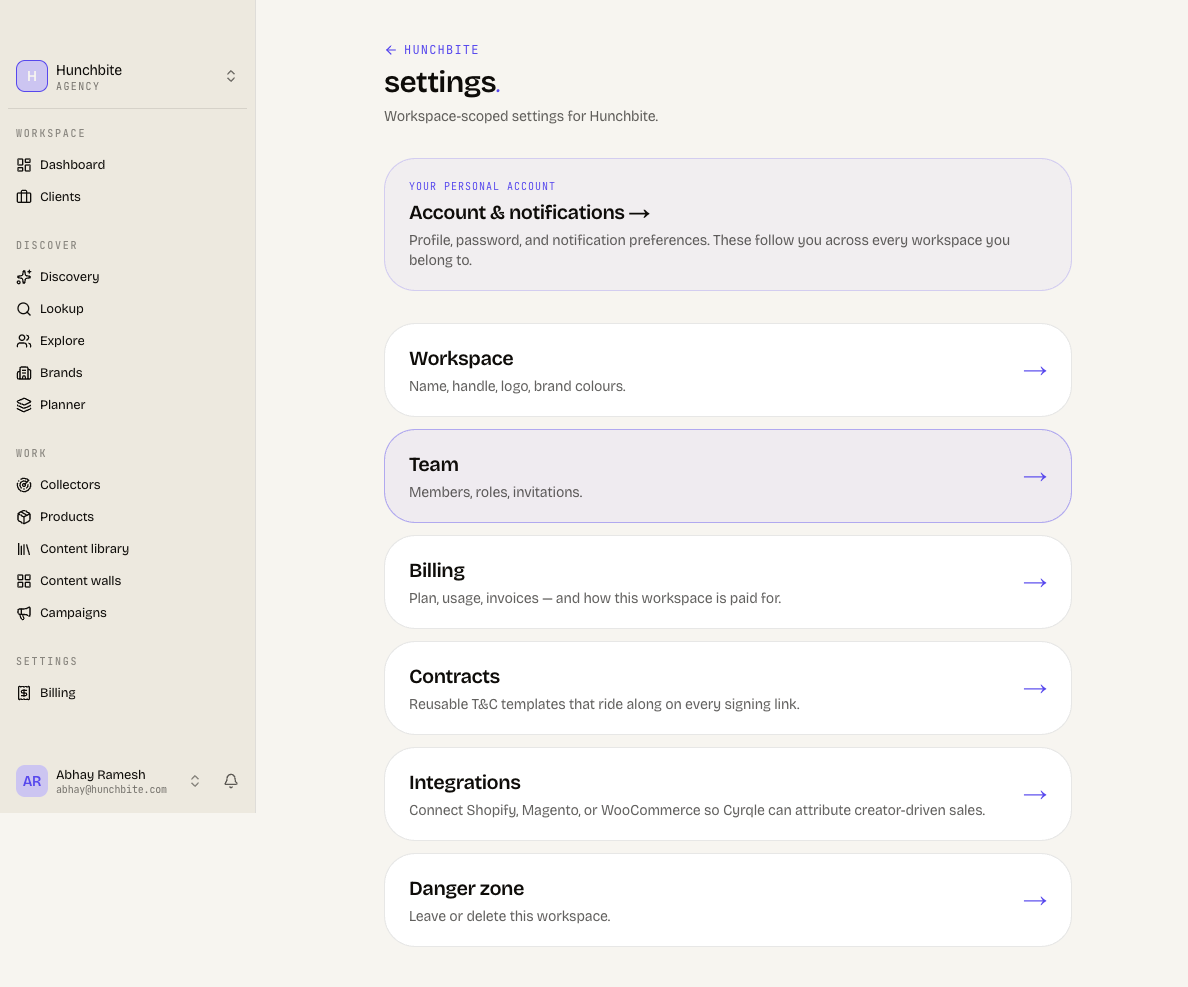
Two settings pages are missing from that index. Reach Rights templates at /[your-handle]/settings/rights-templates. Brands reach Social accounts from the Settings group in the sidebar, or at /[your-handle]/settings/social.
Rename the workspace or change the handle
Changing the handle breaks every existing link. Cyrqle does not redirect the old address. Shared campaign links, embedded content wall snippets, invite links, and bookmarks all stop working.
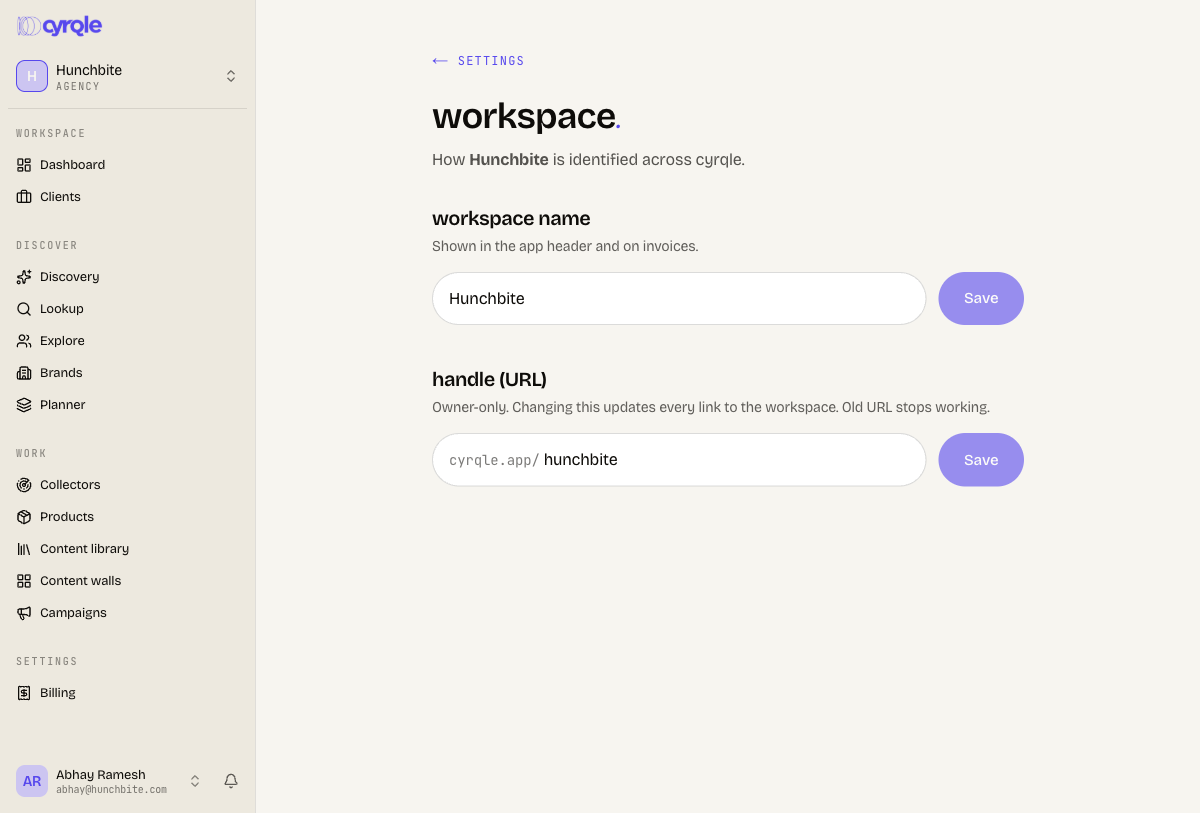
Open the workspace page
Select Workspace from the settings index.
Edit the name
Type a new value in workspace name. The name must be 2 to 64 characters.
Save the name
Click Save.
Edit the handle
Type a new value in handle (URL). Only the owner can change the handle.
Save the handle
Click Save, then confirm the browser prompt.
Pitfalls
- A taken handle is rewritten without a message. Cyrqle adds a 4-character suffix and moves you to the new address. Check the address bar after you save.
- An admin can rename the workspace but cannot change the handle. The two buttons sit on the same page and look the same.
- The Workspace card mentions a logo and brand colours. That form has neither. Cyrqle takes the logo during onboarding only.
- The settings index opens for every role. The permission check happens inside each page, so a card can open into a "you don't have permission" notice.
Language
Cyrqle runs in English and Spanish. Set your language on your personal account page. See Your account.
Until you pick a language, Cyrqle follows your browser. A Spanish browser gets Spanish without you choosing.
Reference
Common questions
Symptom-first answers for Cyrqle staff: the action with no button, the permission that looks wrong, the switch that stops spend.
Your account
Your personal profile, notification preferences, the inbox bell, your language, and your data. These settings follow you across every workspace. Workspace settings do not.