Team and roles
Invite teammates, understand owner, admin, and member, and manage pending invitations.
Before you start
- Open Team from the workspace settings index. There is no Team entry in the sidebar.
- You must be an owner or an admin to invite, promote, or remove anyone.
- Each member uses one seat on your plan. Check your seats in Billing and credits.
If you reach this brand through an agency link, an amber banner explains that inviting is reserved for direct members. Ask a direct member of the brand to send the invite.
Roles
| Role | What they can do |
|---|---|
| Owner | Everything, including changing the handle, deleting the workspace, and accepting agency links. |
| Admin | Invite, promote, and remove members below their own rank. Rename the workspace. Cannot change the handle. |
| Member | Do the day-to-day work: campaigns, creators, content, and reports. |
- A member is less restricted than the page suggests. A direct member can buy credits, add the payout card, turn on usage-based billing, start a plan checkout, and create or delete brand contract templates. Only invite people you trust with billing.
- Every action on the Linked agencies page is owner only. A brand admin cannot accept, change, or remove an agency link.
Invite a teammate
Copy the invite link from the confirmation panel and send it yourself. Cyrqle tries to email the invite, but a failed send is silent. The link is the reliable channel.
Open the invite form
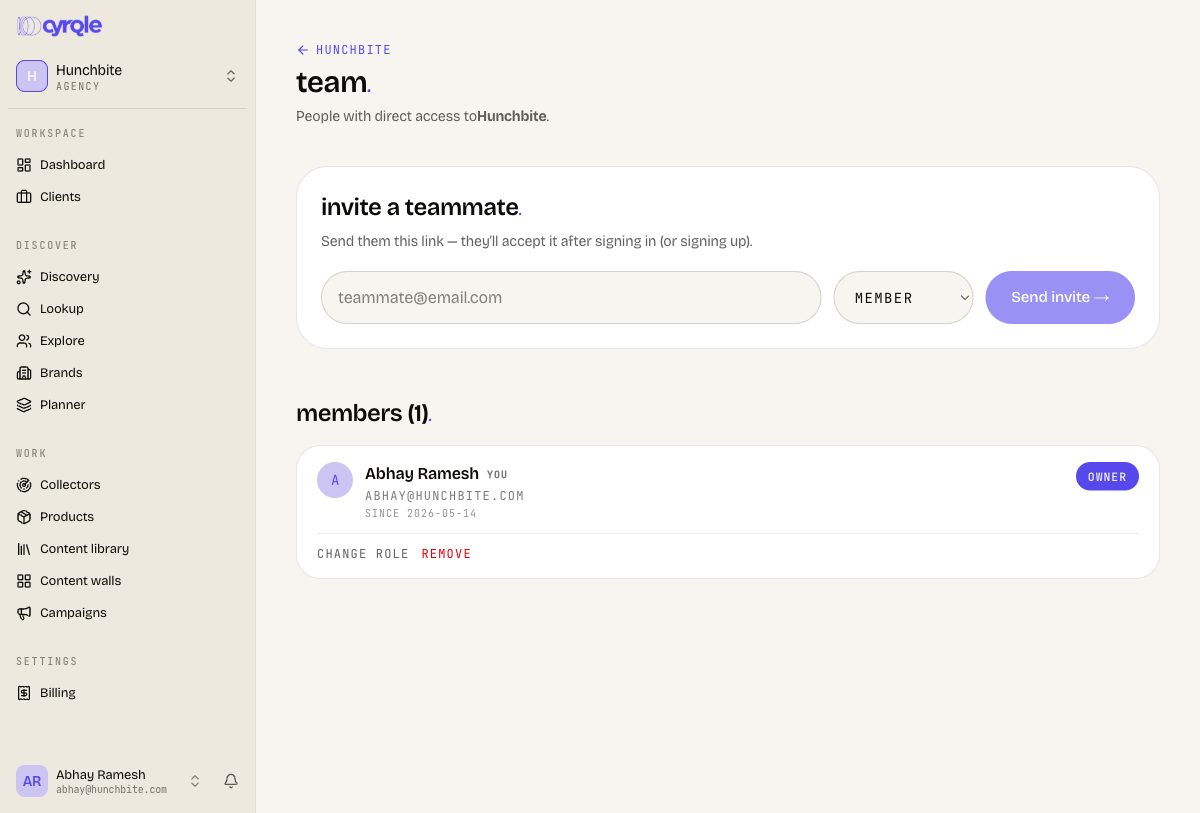
Open Team from the workspace settings index. The invite panel sits at the top.
Enter the email
Type the teammate's address. Use the exact address they sign in with.
Choose the role
Select member, admin, or owner. Only an owner sees the owner option.
Send
Click Send invite. A panel shows the invitation link and a Copy button.
Share the link
Click Copy and send the link to your teammate.
Manage pending invitations
Each pending row shows the date it was sent, the expiry date, and the role.
| Action | What it does |
|---|---|
| copy link | Copies the invite URL. Live invitations only. |
| resend | Sends a fresh email and confirms with "Invitation resent". |
| cancel | Stops the invite working, after a confirmation. The label reads dismiss once expired. |
- Invitations expire after 7 days. Re-inviting the same address cancels the earlier invitation, so the older link stops working.
- The list shows only the newest pending invitation per address. Older ones are hidden.
Change a role or remove a member
remove takes effect at once. There is no confirmation dialog, and Cyrqle deletes the membership rather than pausing it. To bring the person back you must send a new invitation.
Find the member
Scroll to the members list.
Open the role picker
Click change role.
Pick the new role
Select member, admin, or owner.
Save the role
Click save.
Or remove them
Click remove.
What Cyrqle refuses
| Situation | Message |
|---|---|
| You are not an owner or admin | "Only owners or admins can invite teammates." |
| You act through an agency link | "You can only invite into a workspace you're a direct member of." |
| An admin promotes someone to owner | "Only an owner can promote someone to owner." |
| An admin changes another admin's role | "You can only manage members at a lower rank than yours." |
| An admin removes another admin | "Admins can only remove regular members." |
| The only owner demotes themselves | "You're the only owner, promote someone else first." |
| The only owner removes themselves | "Can't remove the only owner, promote someone else first." |
| The last access path would be removed | "This is the last access path to the workspace." |
Seats
Your plan includes a fixed number of seats. One live member uses one seat. Removing a member frees the seat at once.
Cyrqle checks seats when you invite and again when the invitee accepts. Three outstanding invitations can each look affordable and then fail on acceptance. The invitee sees the error, not you. Free a seat or upgrade before you invite a group.
Pitfalls
- The Team page lists direct members only. Linked agencies also have access and do not appear here. Audit both pages when you ask who can see your data.
- Role changes and removals send no email and no in-app notification. Tell the person yourself.
- Removing yourself works and takes you out of the workspace immediately.