Contracts and rights templates
Every creator contract on Cyrqle is two documents. Write your own brand terms annex, and the rights terms a creator sees when you ask to feature a post.
Before you start
- Open Contracts from the workspace settings index.
- Contracts templates are for brand and agency workspaces. A creator opening the page gets a permission error.
- Rights templates are at /[your-handle]/settings/rights-templates. That page is not linked from the settings index.
The two documents
| Document | Who owns it | When it applies |
|---|---|---|
| The Cyrqle terms and conditions | Cyrqle | You accept them at sign-up. Read them at /legal/terms. |
| Your brand terms | You | They ride along on every creator signing link and are copied into the contract. |
You cannot edit the Cyrqle terms. They are the agreement between you and Cyrqle. Your brand terms are the extra conditions between you and the creator.
Write your brand terms
The Contracts page has two sections. Cyrqle defaults are read-only starting points. Your brand templates are yours to edit. Click New template to write one from scratch instead of cloning.
Start from a default
Find the Cyrqle default you want and click Clone. Cyrqle creates an editable copy in your own section.
Name the template
Enter a Name that tells your team what it is for.
Choose the language
Select the Language. A template serves one language.
Write the body
Write the Body (markdown). Headings, bold, and paragraphs are supported. The creator sees exactly what you write here on the signing page.
Save
Click Create template. On an existing template the button reads Save changes.
Make it your default
Turn on Use as default for this language. Cyrqle offers it on every contract in that language.
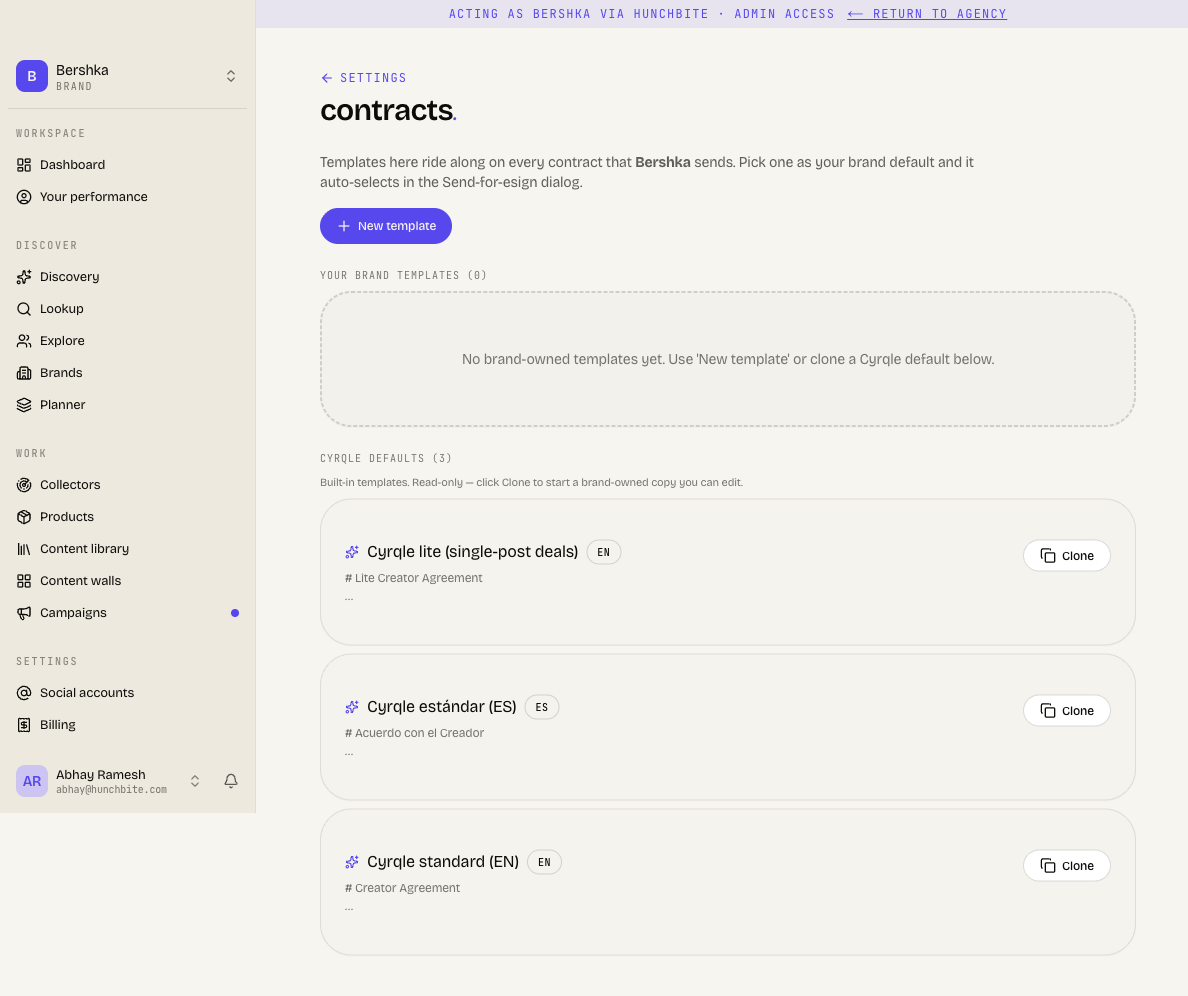
- Set a default for every language you contract in. Defaults are per brand and per language. If you set an English default only, a Spanish contract falls back to the Cyrqle default and your terms are not attached.
- Editing a template never changes a contract that was already sent. Each contract keeps its own copy of the body from the moment it was created.
- You cannot edit a Cyrqle default. Clone it first.
Delete a template
Click Delete, then confirm. Cyrqle hides the template from the contract signing picker. Contracts that already used it keep their copy, and no past signature is affected.
Write your rights terms
A rights template is the text a creator reads when you ask to feature one of their posts. Cyrqle offers your default on every request unless you pick another one.
Open the page
Go to /[your-handle]/settings/rights-templates.
Create a template
Create a template and write the terms the creator will agree to.
Set your default
Mark the template you want offered on every request.
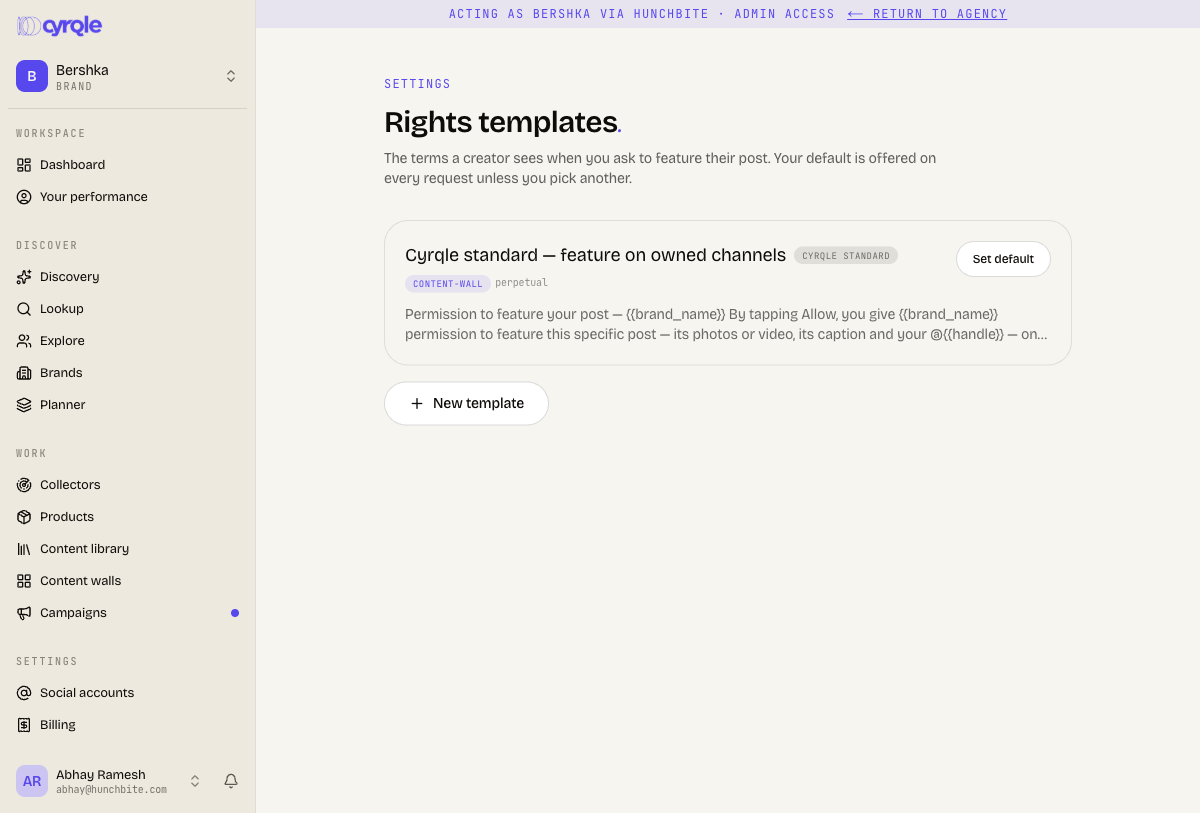
- Write your territory and duration into the body text. The rights form has no territory field and no expiry field, so a granted right is worldwide and perpetual unless your wording says otherwise.
- Bookmark the rights templates address. Nothing links to it except the rights request flow itself.
What a signed contract grants
| Right | How you get it |
|---|---|
| Content wall use | Always granted when the contract is signed. |
| Campaign use | Always granted when the contract is signed. |
| Paid ads use | Only when you ticked the paid ads option in the offer before the contract was sent. |
Tick Paid ads in the offer before you send the contract. Cyrqle freezes the rights at the moment the contract is created. Turning the option on later does not widen a contract that is already signed, and you will not be able to boost that creator's content.
Pitfalls
- Any direct member can create and delete your brand templates. Only an agency link below Admin level is stopped. Restrict membership if your terms are sensitive.
- Your Cyrqle terms are versioned. Cyrqle records the version you accepted at sign-up. Read the current version at /legal/terms, or add ?lang=es for Spanish. A PDF is at /legal/terms/pdf.