Getting paid
Set up Stripe Connect Express, understand how each campaign pays, and track every payout from pending to paid.
Every euro you earn on Cyrqle reaches you through your own Stripe Connect Express account. You set this up once, and from then on your payouts appear on the Payouts page as soon as a brand schedules them. This page explains how to get connected, how each campaign's amount is worked out, when the money is released, and how to track, invoice, and dispute a payout.
Before you start
You need a creator (or UGC Talent) workspace, and at least one campaign where you've agreed terms and delivered your content. To actually receive money you must finish Stripe Connect Express onboarding — until then payouts still get scheduled, but nothing can be sent until your account is ready.
Set up Stripe payouts
Open Payouts from your workspace. If you haven't connected yet, you'll see a reminder banner; select Connect with Stripe (it links to Settings → Payouts → Connect). Cyrqle creates a Stripe Connect Express account for your workspace and sends you to Stripe's own hosted onboarding.
Start onboarding. Select Connect with Stripe. Cyrqle creates your Express account (one per workspace) and redirects you to Stripe.
Complete the Stripe form. Stripe asks for the details it needs to pay you and to meet identity rules (KYC) — typically your name, date of birth, address, and where the money should land (a bank account or card). The exact fields are country-aware: Stripe shows the right form for your country. Cyrqle picks the country from your profile (defaulting to Spain if it can't tell), and Stripe handles the rest.
Come back to Cyrqle. When you submit, Stripe returns you to Cyrqle and your account status is pulled in and saved. The whole flow is usually under five minutes.
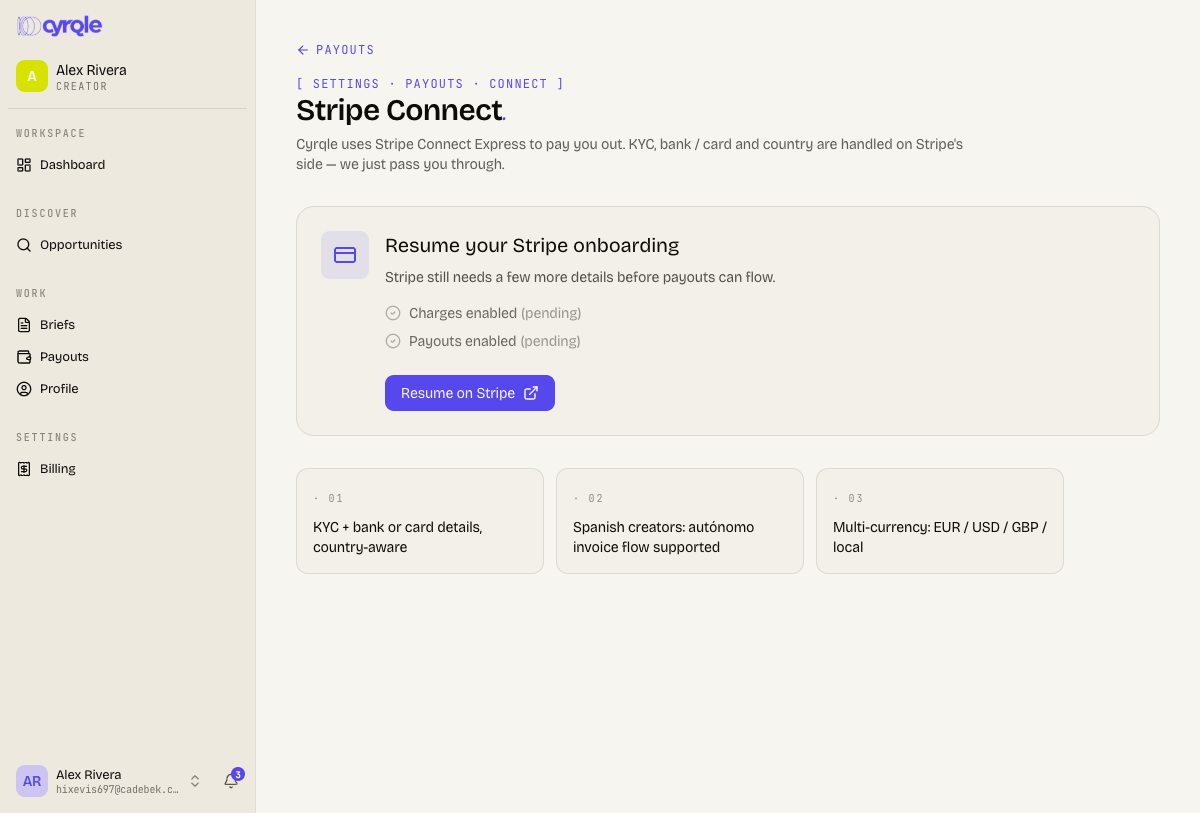
When you return, Cyrqle shows two readiness checks that must both be green before money can flow:
- Charges enabled — Stripe has accepted your account.
- Payouts enabled — Stripe will release money to your bank or card.
If either is still pending, Stripe needs a few more details. Select Resume on Stripe to finish — you can pick up exactly where you left off. Once both are enabled, your account shows as active and you're ready to be paid.
Set up early
Connect Stripe before you accept your first campaign. Payouts are scheduled automatically when you deliver, but they can only be released once your account has payouts enabled — so finishing onboarding ahead of time means nothing waits on you at the finish line.
Understand how earnings are calculated
Each campaign you join carries a compensation mode that decides what you earn. You see it on the brief's offer before you accept. There are four modes:
Prop
Type
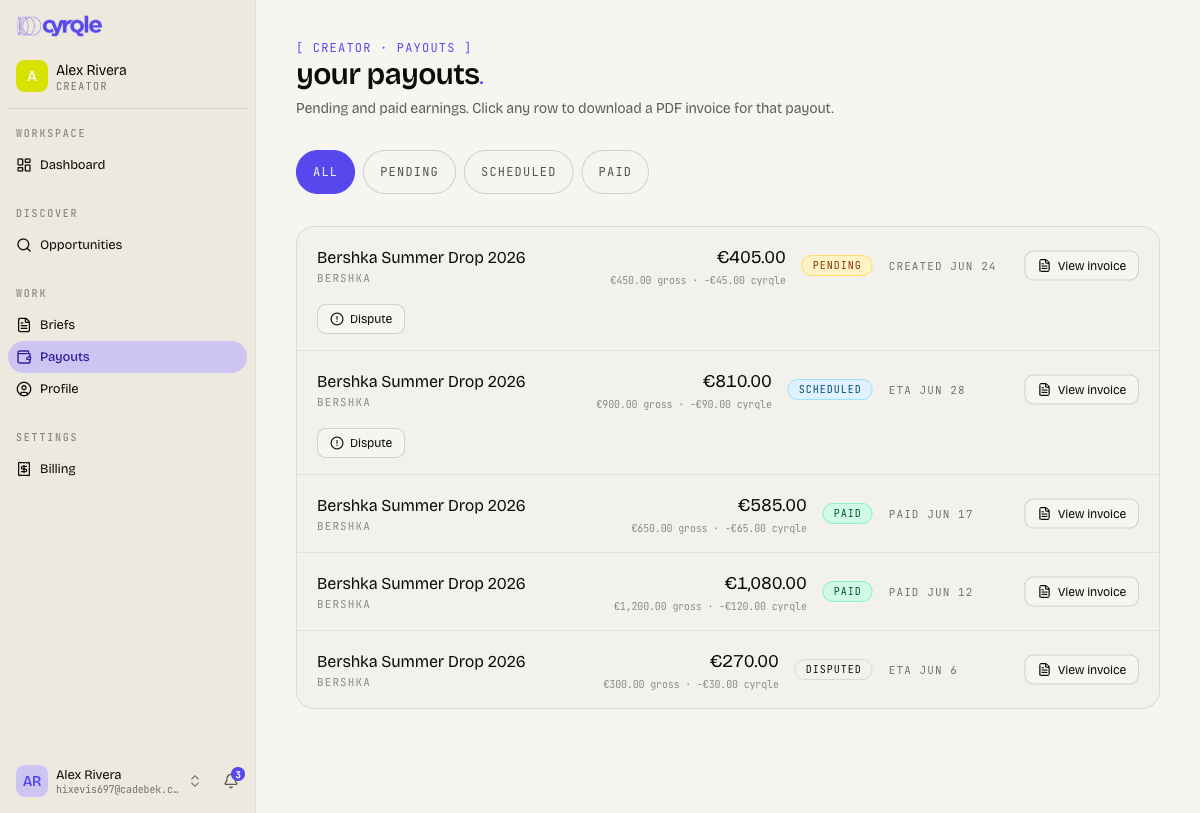
For any payout that involves cash, the amount shown to you is the creator amount — what lands in your account after Cyrqle's commission and, where they apply, an agency fee and any tax withheld are taken from the gross. On the Payouts page, the larger figure is your creator amount; if a Cyrqle commission applied, a small line underneath shows the gross and the deduction so the maths is transparent. The full breakdown also appears on the invoice.
For Seeding, there's no cash to send — the value is the product you receive — so you won't see a cash payout for it.
See when you get paid
The money behind your payout always comes from the brand, never from Cyrqle. Before a campaign runs, the brand funds a campaign wallet. When your work is confirmed, your creator amount is released from that wallet (or, if the wallet is short, charged to the brand's card) and transferred to your connected Stripe account.
The trigger is delivery:
- On auto-discovery campaigns, Cyrqle detects your published post and your payout is scheduled automatically the moment you're marked delivered (as long as an agreed rate is set).
- On approval campaigns, your payout is scheduled once the brand confirms your delivered work.
From there a payout moves through these states:
| Status | What it means |
|---|---|
| Pending | Recorded, but not yet queued for release. |
| Scheduled | Queued — your work is confirmed and the money is lined up to be sent. |
| Paid | Transferred to your connected Stripe account. The row shows the date it was paid. |
You'll get an in-app notification when a payout is scheduled and again when it's paid.
Track payout status
The Payouts page lists every payout with its campaign and brand, the amount, the status, and a date (an ETA while scheduled, or the paid date once sent). Use the filter chips at the top — All, Pending, Scheduled, Paid — to narrow the list.
Download an invoice
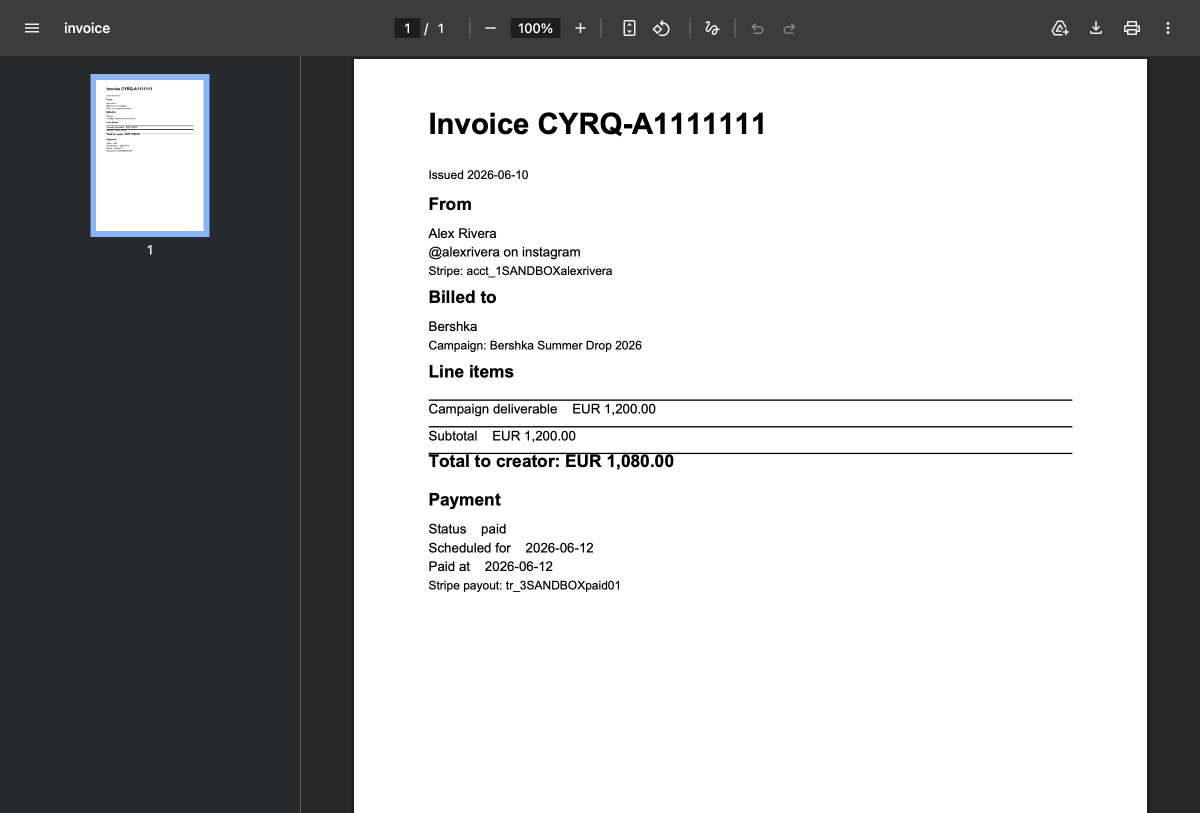
Every payout has its own PDF invoice. Select View invoice on any row to open it. The invoice shows who it's from and who it's billed to, the campaign, a line-item breakdown of your deliverables, the subtotal, any agency fee or tax withheld, and the total to creator — plus the payment status and date. Use it for your own records and accounting.
Raise a dispute
If a scheduled amount looks wrong, you can dispute it before it's paid. On a Pending or Scheduled row, select Dispute. A dialog asks two things:
- Expected amount — what you believe the correct figure is (optional).
- Reason — a short explanation, up to 500 characters (optional).
Submitting flips the payout to disputed and notifies the brand, who can review, adjust, and reschedule it. You can only dispute a payout that hasn't been paid yet — once a payout is Paid, the Dispute option no longer appears.
Heads up
A dispute pauses the payout while the brand reviews it. Use it when the amount is genuinely wrong, not as a way to ask a general question — for that, message the brand on the brief.
Tips
- Finish Stripe onboarding completely — both Charges enabled and Payouts enabled must be green before any money can be sent.
- If a payout seems stuck, check your Stripe status first; an incomplete or paused account is the most common reason money can't be released.
- Check the compensation mode on the brief before you accept, so you know whether you're earning a fee, a percentage, product, or a mix.
- Keep your invoices — each payout's PDF has the full breakdown of what you were paid and why.
- Dispute only while a payout is Pending or Scheduled; once it's Paid, that option is gone.