Your agreement and content rights
What you sign, what signing licenses, and how a brand asks to feature a post you already made.
Before you start
- Accept the offer first. Cyrqle prepares the agreement only after you accept. See Briefs and invites.
- You need the admin level in your creator workspace to sign. A member with a lower level cannot sign.
- Read the whole document. Cyrqle freezes the terms at the moment the agreement is created.
The two documents you agree to
| Document | What it is |
|---|---|
| The Cyrqle platform agreement | The full text on the page. It sets the deal terms, the deliverables and the payment. |
| The brand's campaign terms | An extra document, linked from the page. It applies only when the brand attached one. |
When the brand attached campaign terms, a second checkbox appears. You must tick both. Cyrqle refuses the signature if you tick only the first.
Sign the agreement
You can sign in two places: inside the brief, or from the link the brand emails you. The email link works without a Cyrqle account.
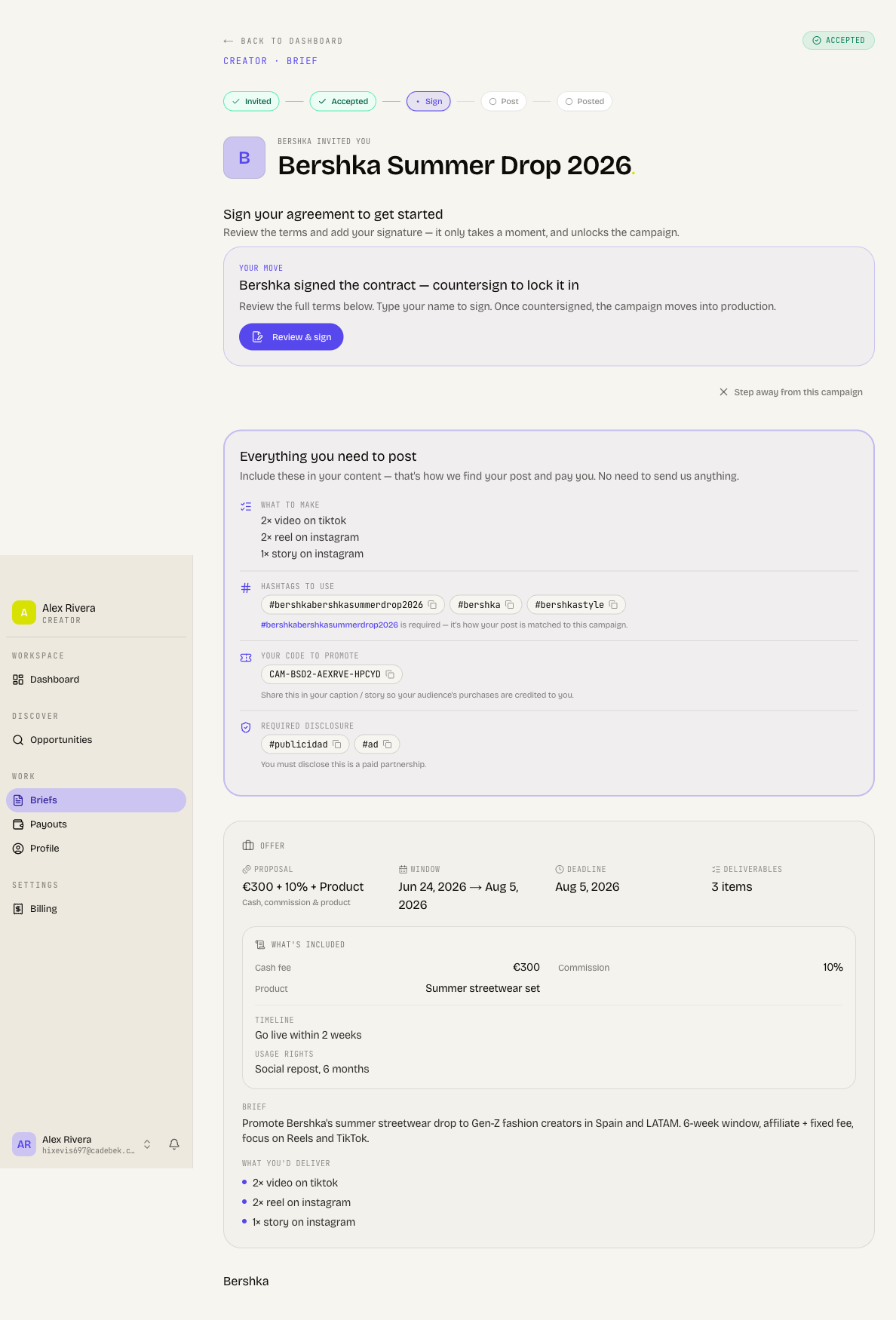
Open the agreement
Open the brief and click Review & sign. Or open the link in the email Cyrqle sent you.
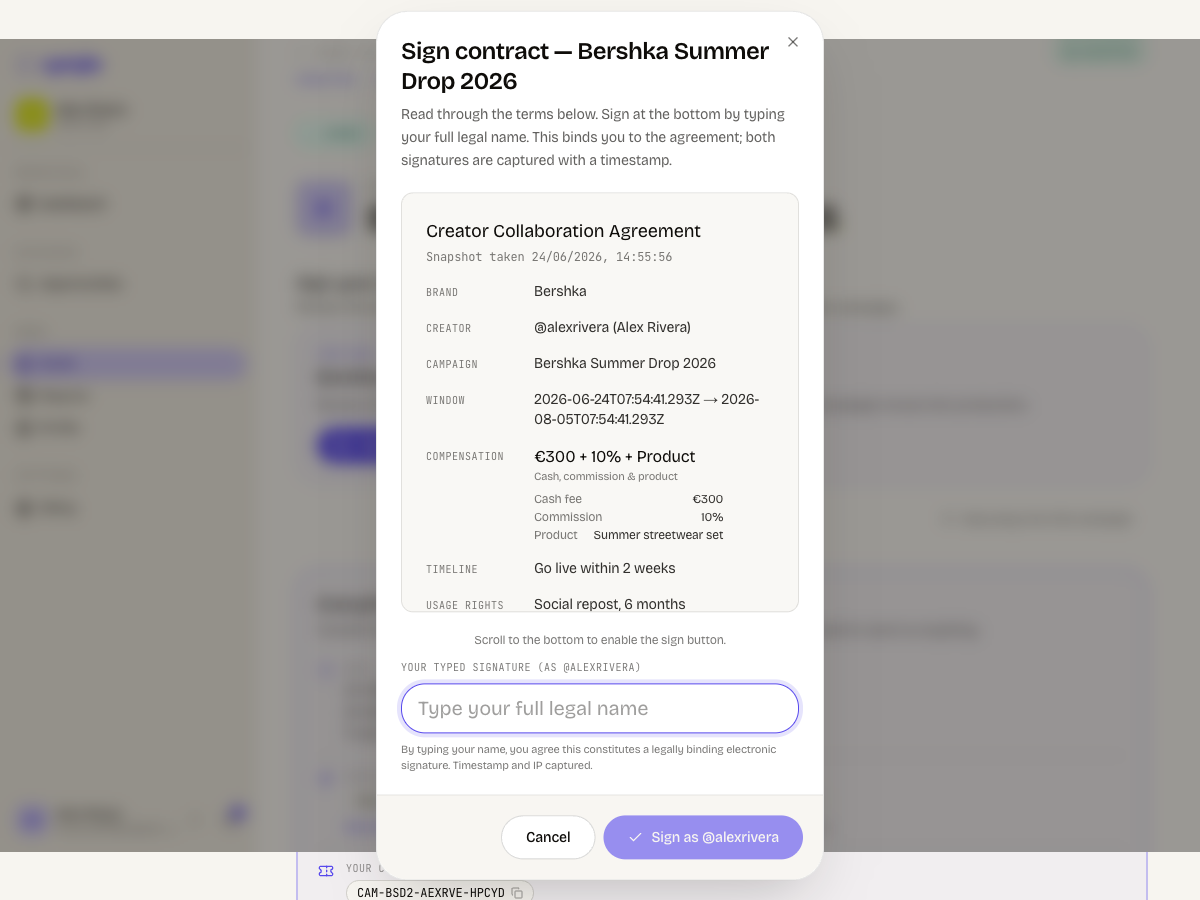
Read the terms
Read the deal terms on the page. Click Download as PDF to keep a copy or send it to an adviser.
Accept the platform terms
Tick the box that confirms you agree to be bound by the deal terms as the creator.
Accept the brand terms
Open the brand's linked terms. Tick the second box. This box appears only when the brand attached terms.
Type your name
Type your full name. Your typed name is your signature. Cyrqle records the time, your IP address and your device.
Submit
Click Accept and sign. The brief moves to production and both sides get an email.
What the panel tells you
The panel moves through four states, and only the last one unlocks production.
| Panel state | What to do |
|---|---|
| "[brand] is reviewing & signing the contract" | Nothing. Cyrqle notifies you when it is your turn. |
| "[brand] signed the contract, countersign to lock it in" | Click Review & sign. |
| "Both parties signed" | The terms are locked. Start making the content. The panel adds "Locked. Time to make great content." |
| "Your agreement is being prepared" | Wait, or message the brand. See the pitfall below. |
What signing licenses
Signing licenses your campaign content to the brand. Read the rights section before you sign:
- There is no separate consent step and no expiry. The licence is worldwide and perpetual, and covers the brand's content walls and the campaign itself.
- When the agreement says so, the licence also covers paid ads. The brand can then run your post as a paid advertisement, not only display it.
- Cyrqle has no creator page that lists your rights grants, and no button to revoke a licence you granted by signing. Save the PDF before you sign.
The licence scope is taken from the frozen agreement. A brand that turns on paid ads after you signed cannot widen your licence. Equally, you cannot narrow a paid-ads licence afterwards from the app.
Pitfalls
- "Your agreement is being prepared" can stay forever. Cyrqle cannot create an agreement when the brand set no compensation at all, or when the brand has no contract template. You cannot fix either one. Message the brand and ask them to complete the deal terms.
- The signing link in your email expires 90 days after Cyrqle creates it. An expired or cancelled link shows an error page. Ask the brand to send a new link.
- The terms freeze when Cyrqle creates the agreement. A later change to the rate, the brief or the paid-ads setting does not change a signed agreement. You are bound to the document you signed, not to what the brief shows today.
- Cyrqle has no in-app list of your agreements. Your only copy is the emailed link and its PDF. Download the PDF and store it.
Featuring a post you already made
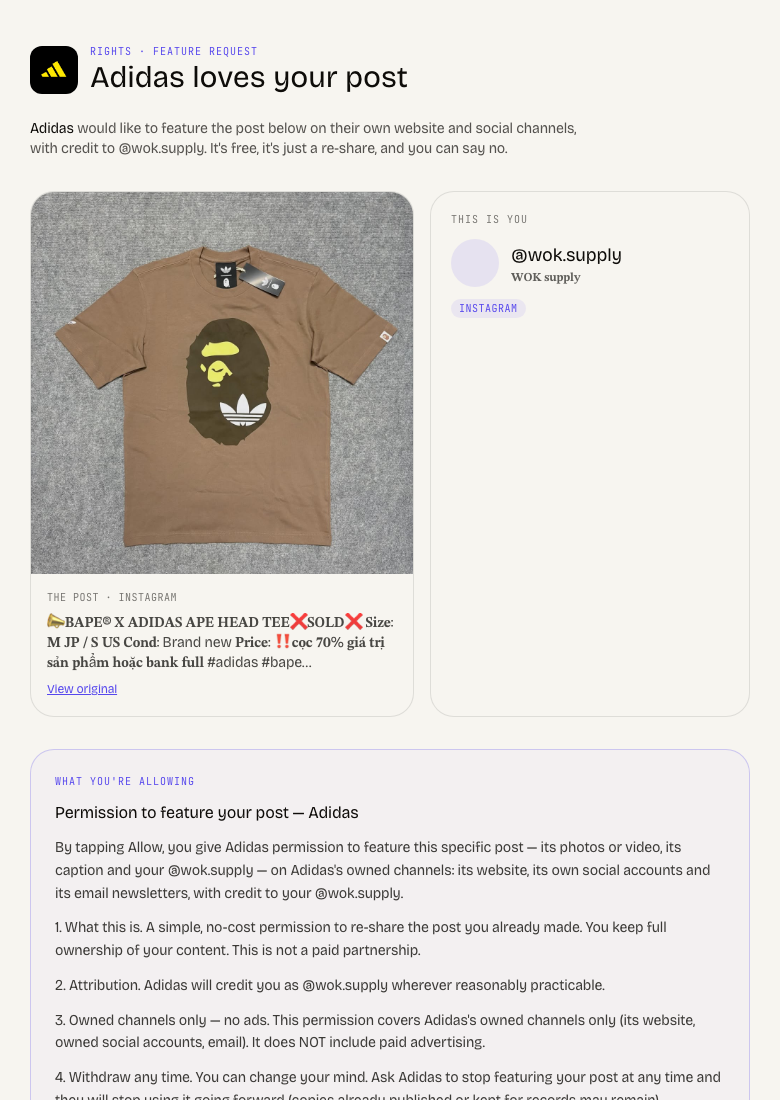
A brand can ask to feature an organic post, outside any campaign. Cyrqle sends you a rights link by email or direct message. The page shows the post, the brand, and a plain-language description of what you allow.
Cyrqle records your consent the moment you tap Allow. Closing the page afterwards does not cancel it. Read the terms before you tap.
Open the link
Open the link the brand sent you. No Cyrqle account is needed.
Read what you allow
Read the post, the brand name and the usage description.
Add your email
Enter your email to get a code, a free creator workspace, and future payouts. This field is optional.
Decide
Click Allow [brand] to feature this, or click No thanks.
To stop a brand from featuring a post you allowed, open the same link again. Click Changed your mind? Ask them to stop featuring it, then click Yes, stop featuring my post. Cyrqle revokes the licence and tells the brand.
Two things about the rights link:
- The link expires. An expired link reads "This link has expired." Ask the brand for a new one.
- Scope, territory and duration come from the brand's template. Most templates grant a worldwide licence for content walls, with no expiry date.
Reference
Briefs and invites
Read an invite, accept it, counter the terms, or decline. Briefs is the only place in Cyrqle where brand work reaches you.
Produce and post
After you sign the agreement, the brief becomes your production workspace. Use the checklist, post so Cyrqle can find your content, and submit drafts for review.