Your dashboard
A single workspace home that shows what needs your attention, your earnings and stats, and quick links to opportunities and briefs.
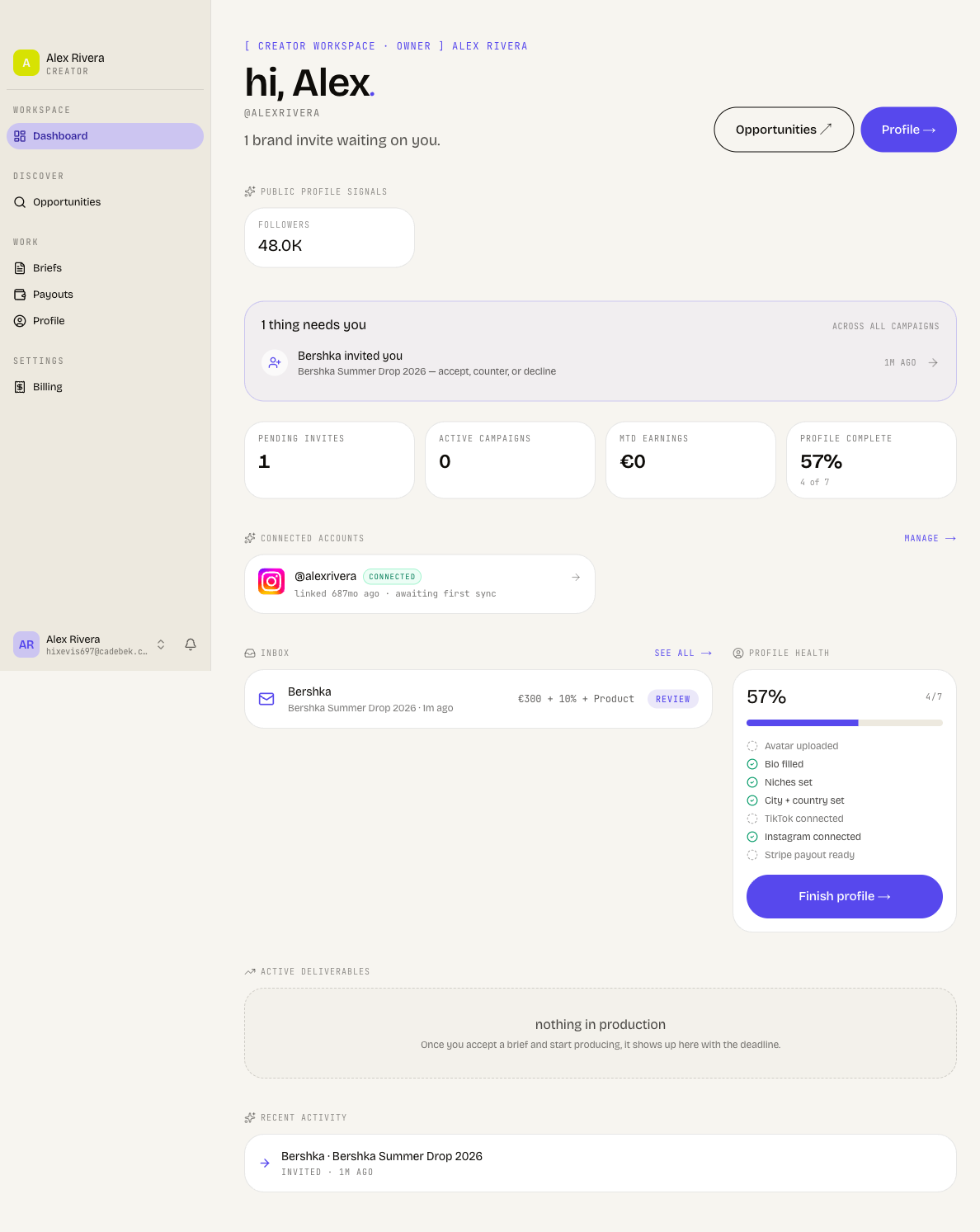
When you sign in, Cyrqle opens your workspace home at your own address (/your-handle). It greets you by first name ("hi, Alex.") and, if you have connected a platform, shows your avatar and handle. Everything on this page is built to answer one question: what should I do next? Brand invites, contracts to sign, the campaigns you are working on, your earnings, and how complete your profile looks all sit on one screen.
Read what needs you first
At the top, a lavender card titled "1 thing needs you" (or "3 things need you", and so on) gathers every item where you are the next person to act, across all your campaigns. Each row links straight to the place where you take that action. For creators it surfaces:
- A brand invited you — "accept, counter, or decline". Opens the brief so you can respond.
- A brand sent you a contract — "countersign to lock terms". Opens the contract to sign.
If nothing needs you, this card is hidden. The subtitle under your name also reflects this: it reads either "1 brand invite waiting on you." or "Inbox is clear. Browse opportunities for your next gig."
The card shows up to five items. If you have more, you will see "+ N more — open a campaign to see all". Drafts, post links, money, and contracts all live inside each brief, so the row sends you into the relevant brief to act.
Check your earnings and stats
A row of four KPI tiles gives you the headline numbers at a glance:
Prop
Type
Just under your name, a public profile signals strip can appear with up to four tiles — Followers, Engagement, Last post, and Top tag. If you have not connected a platform yet, these are marked "scraped" (pulled from your public profile) with a "Connect to verify" link, and a note: connecting Instagram or TikTok replaces them with verified stats and improves your match rank.
Your points and loyalty card, the Success Hub, is not on this dashboard. It currently lives on your Profile page. There it shows your current balance, lifetime points earned, and a recent-activity feed (points for a signed contract, first post live, an approved draft, or a received payout).
Review invites and active work
Below the stats, the page splits into your inbox and your profile health.
Inbox
The Inbox lists your pending brand invites. Each row shows the brand name, the campaign and how long ago it arrived, the offer (for example a cash rate or a combo deal), and a Review badge. Selecting a row opens that brief. When the inbox is empty you see "no pending invites" with a Browse opportunities → link. A see all → link sits in the header when you have invites.
Profile health
A card shows your completion percentage and a checklist: Avatar uploaded, Bio filled, Niches set, City + country set, TikTok connected, Instagram connected, and Stripe payout ready. Each item is ticked or open. Until you reach 100%, a Finish profile → button takes you to the connect page.
Active deliverables
Further down, Active deliverables shows cards for campaigns you have accepted and are working on, each with the brand, campaign, a status badge (such as "under contract" or "in production"), and the deal terms. Each card opens its brief. If nothing is in flight, you see "nothing in production".
Connected accounts and recent activity
A Connected accounts section lists your linked platforms (TikTok, Instagram, YouTube, LinkedIn) with their handle and sync status, plus a manage → or connect → link. At the bottom, Recent activity rolls up your latest invites, accepted campaigns, and an "earned this month" line.
Jump to opportunities, briefs, and payouts
Two pill buttons sit in the page header — Opportunities ↗ and Profile →. The left sidebar is your main map:
- Dashboard — this home screen.
- Opportunities — open campaigns you can apply to directly.
- Briefs — your main workspace. Drafts, post links, performance, money, and contracts all live inside each brief. There is no separate "drafts" page.
- Payouts — track what you have earned and been paid.
- Profile — connect platforms and view your Success Hub.
See which clusters you're in
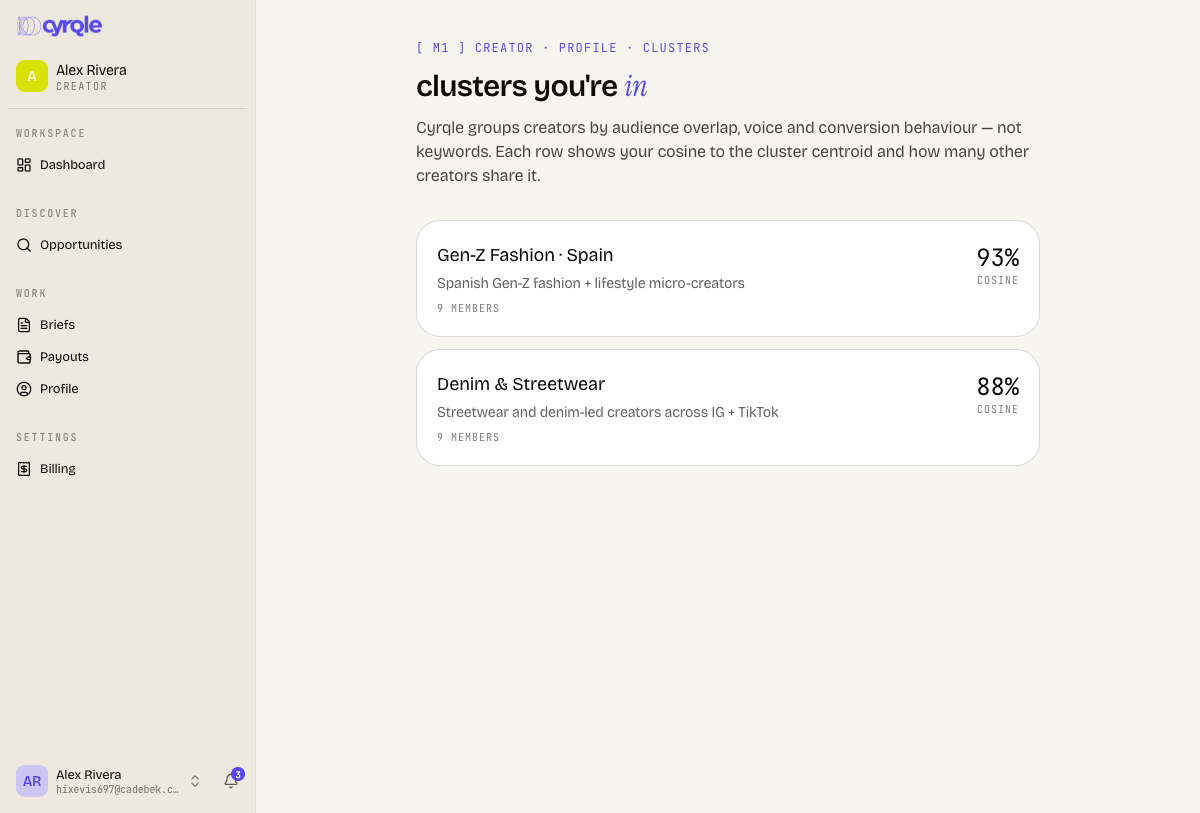
Cyrqle groups creators by audience overlap, voice, and conversion behaviour — not keywords. From your profile, open clusters to see every cluster you belong to, each with your cosine score to the cluster centroid and how many other creators share it. Brands use these clusters to find look-alikes and plan campaigns, so a high cosine to an active cluster means more relevant opportunities.
Tips
- Start each day with the "things need you" card — it is the fastest path to invites to answer and contracts to sign.
- Connect Instagram or TikTok early. It swaps your "scraped" public numbers for verified stats and lifts how brands rank you.
- Aim for 100% on Profile health. The Stripe payout ready check is what lets you actually receive money.
- To submit a draft or add a post link, open the relevant brief — that is where all the work for a campaign happens.