For UGC talent
Produce content for brands as a UGC creator — set up your profile, browse the Jobs board, apply with a rate and turnaround, deliver, and get paid.
UGC talent on Cyrqle is gig-style content production: you make content for brands — unboxings, tutorials, lifestyle clips, reviews, voiceovers — without needing an audience of your own. There's no follower scoring and no "audience fit" check. Brands post Jobs, you apply with a pitch, a proposed rate, and a turnaround, the brand picks talent, you produce the deliverable, and you get paid through Stripe Connect Express.
If you've used the creator side of Cyrqle, most of the delivery and payout mechanics are identical — the difference is up front: a creator browses Opportunities scored against their audience, while you browse Jobs, an audience-less board where what matters is your skills, samples, rate, and turnaround.
Before you start
You need a UGC Talent workspace (this is the account type you pick at sign-up — gig-style content production, no audience required). To actually receive money you'll also need to finish Stripe Connect Express onboarding from the Payouts page, but you can browse and apply to Jobs before that's done.
Set up your UGC profile
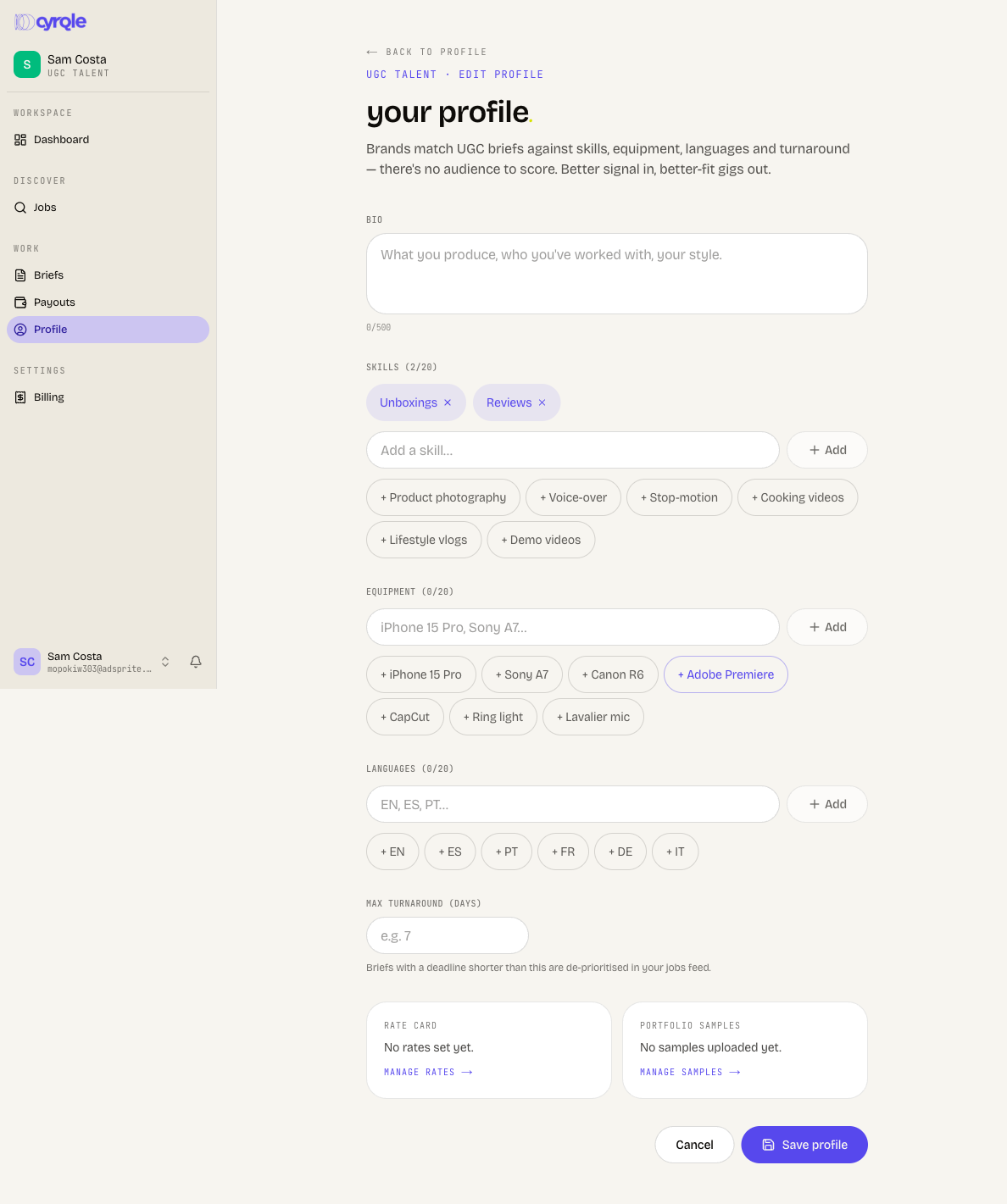
Your profile is what a brand sees when it weighs your application, and it pre-fills the rate and turnaround on every job you apply to. Open Profile from the sidebar (it lands on the profile editor).
Write your bio and add skills
In the profile editor, add a short bio (up to 500 characters) and tag your skills as chips — type your own or tap a suggestion such as Unboxings, Reviews, Voice-over, Product photography, Lifestyle vlogs, or Demo videos. Add equipment (for example iPhone 15 Pro, Sony A7, CapCut, Ring light) and the languages you can produce in (EN, ES, PT, FR, DE, IT). Each field holds up to 20 chips.
Set your maximum turnaround
Enter the longest turnaround you'll commit to, in days (1 to 365). This is a signal to brands about your typical speed; you still set a specific turnaround per application.
Build your rate card
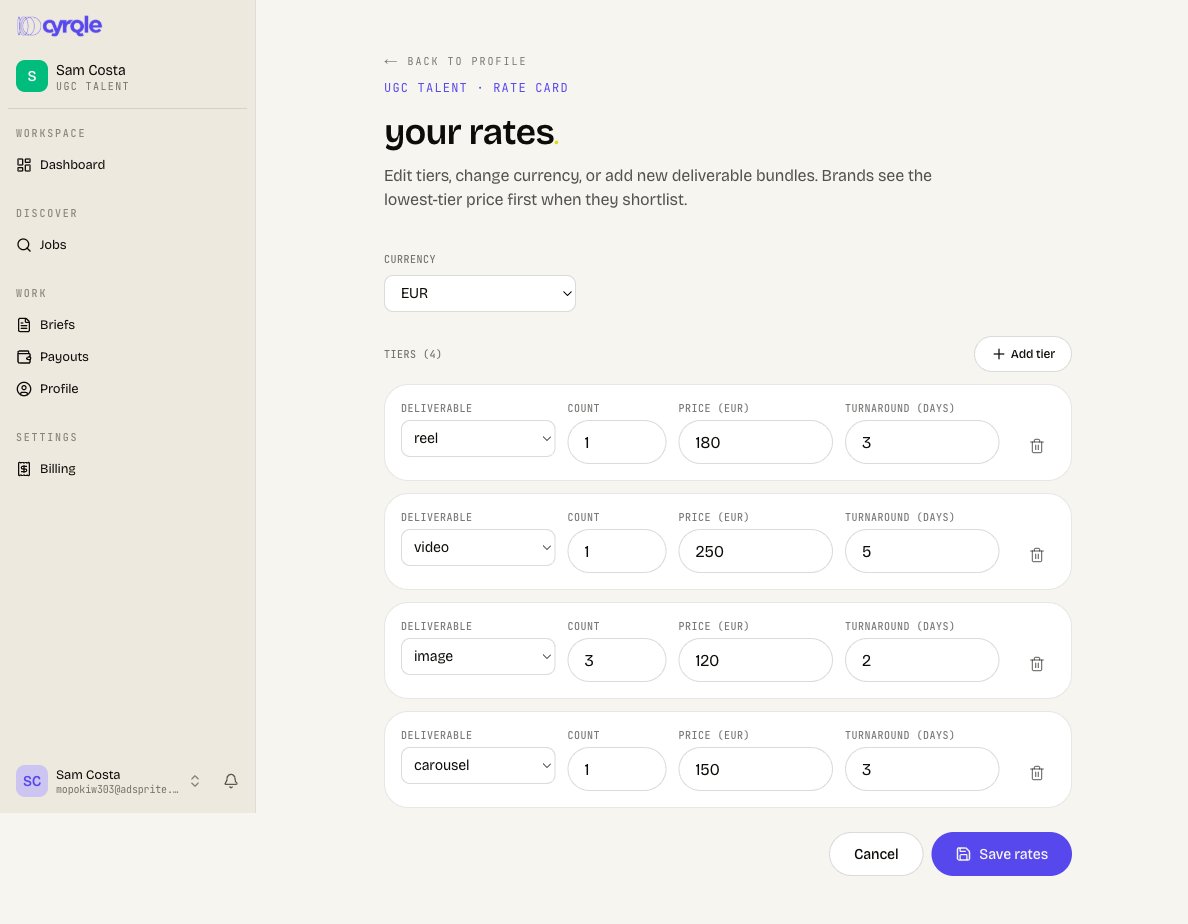
From the profile editor, open Manage rates. A rate card is a list of tiers, each one a deliverable type (reel, image, carousel, or video), a count, a price, and an optional per-tier turnaround. Pick your currency (EUR, USD, or GBP) once for the whole card. These rates pre-fill your proposed rate when you apply, so set them to what you actually want to charge.
Add portfolio samples
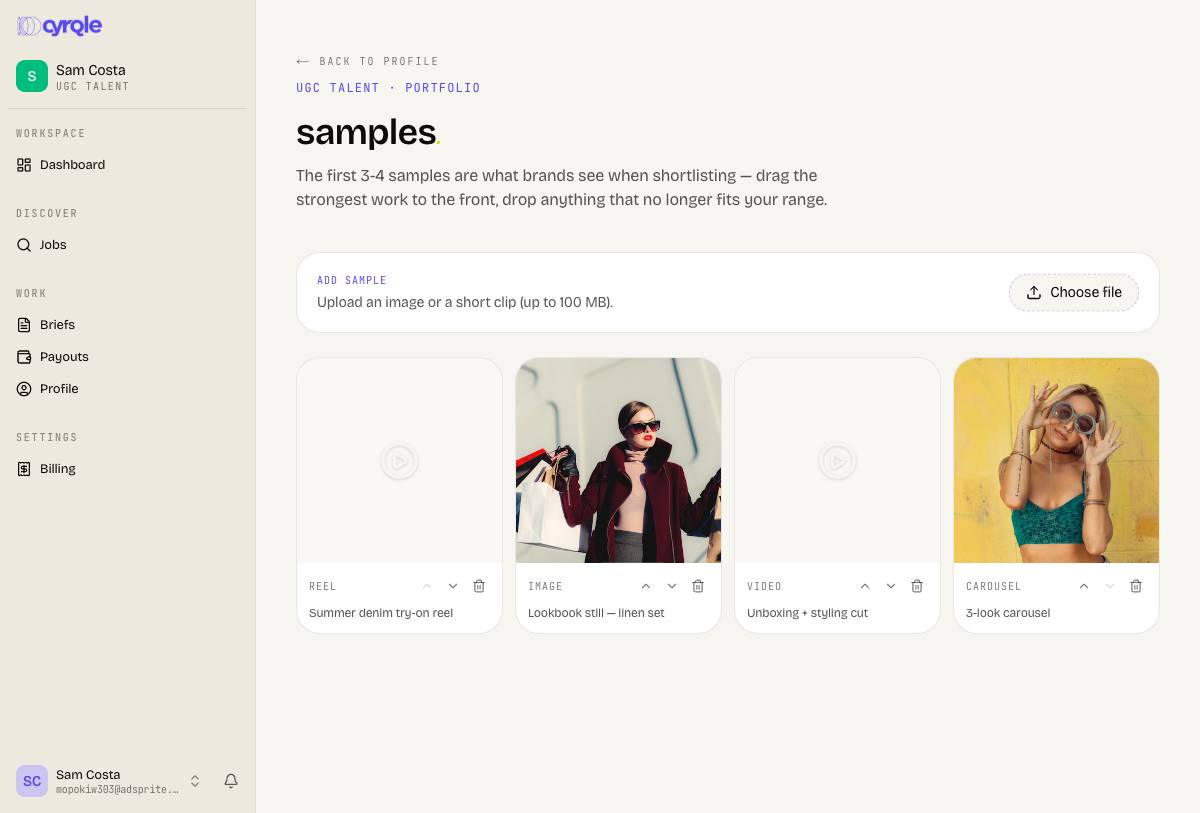
From the profile editor, open Manage samples to upload work to your portfolio. When you apply to a job you can attach one of these samples in a single click instead of pasting a link every time.
Browse and apply to Jobs
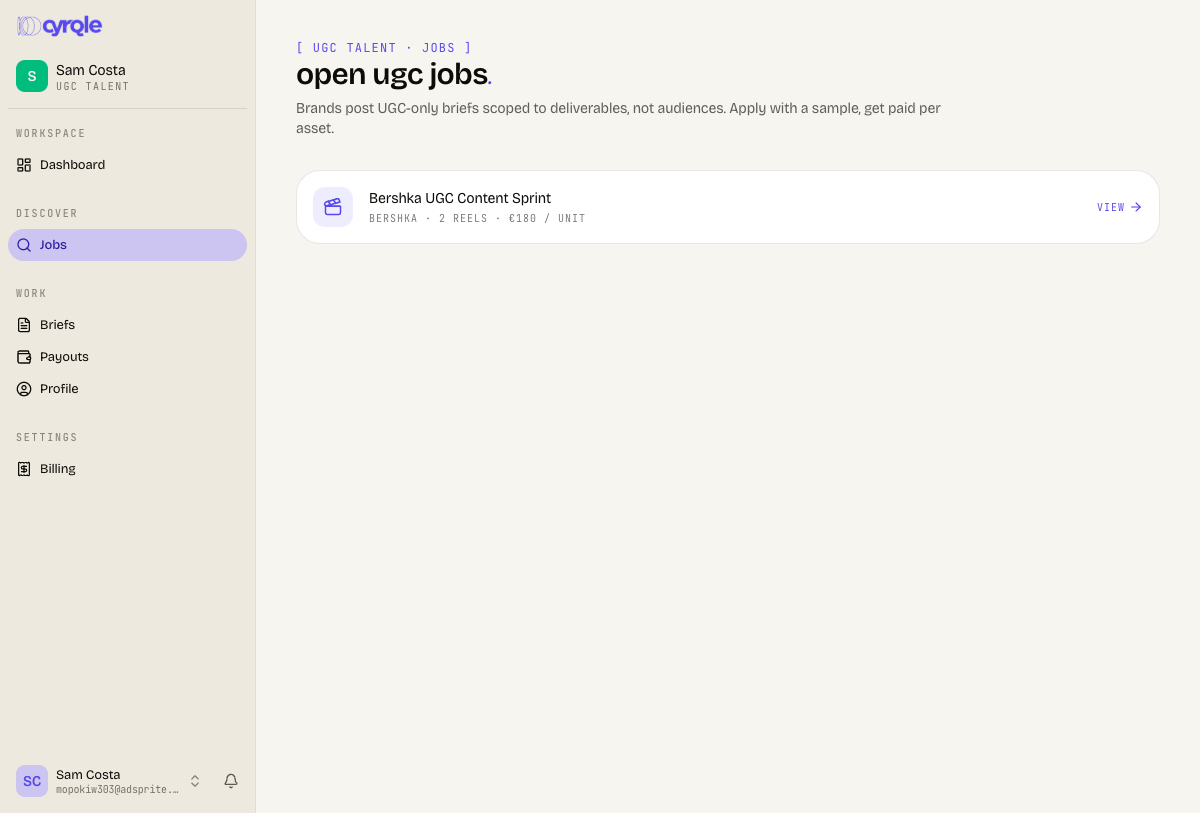
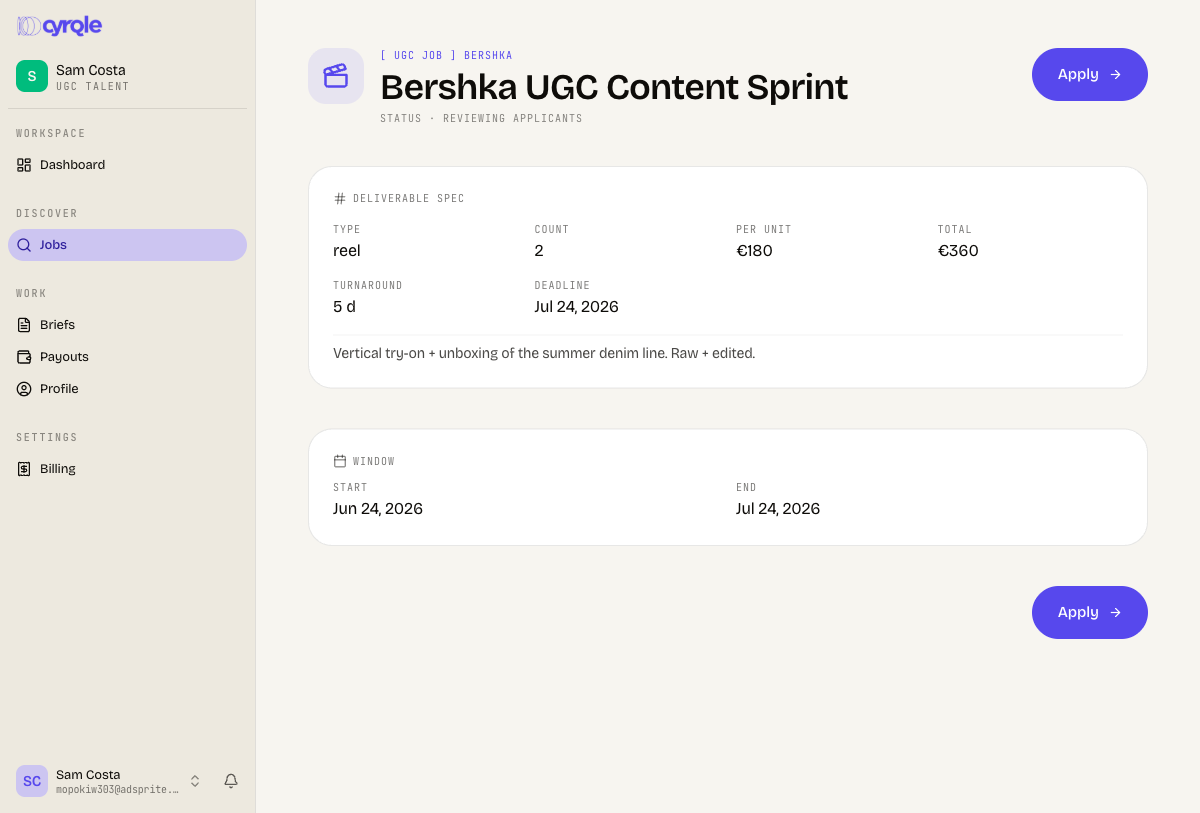
Jobs is your board of open work. Each row is a UGC-only campaign from a brand, showing the brand, the number of deliverables, and the rate per unit. There's no audience match score — it's a straight gig list.
Open the Jobs board
Select Jobs in the sidebar. Each open job shows the brand, deliverable count, and the rate per unit. Select a job to open its detail page.
Read the brief
The job detail shows the deliverable spec — type, count, rate per unit, total, turnaround, and any deadline — plus the brand's notes, an "about the brand" description, and any dos and don'ts. Crucially, there are no audience-targeting fields here: this surface only ever shows UGC-only jobs, so you never see (or get judged on) follower requirements.
Send your application
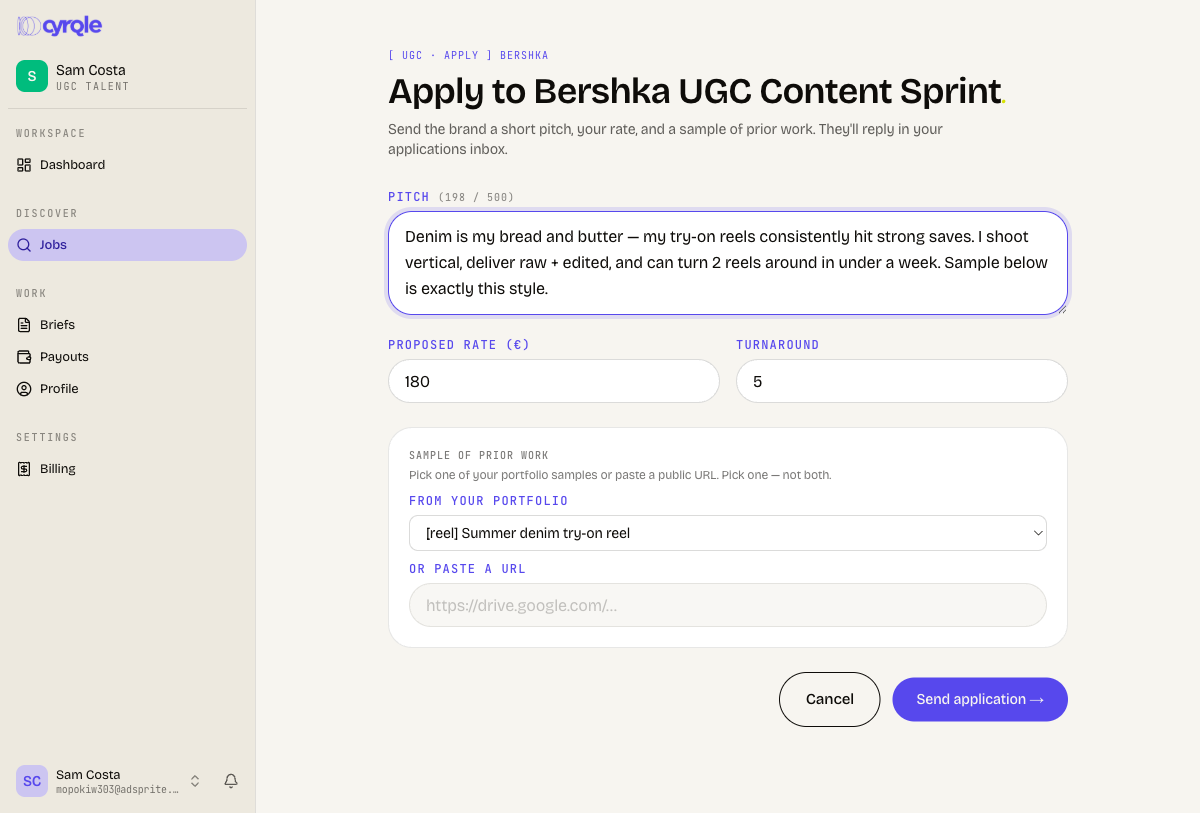
Select Apply. The form pre-fills your proposed rate and turnaround from your rate card / profile, but you can change both. Write a short pitch (up to 500 characters), and attach a sample — either pick one from your portfolio or paste a public URL (for example a Google Drive link). You must attach exactly one of the two; rate must be at least the local equivalent of one unit of currency, and turnaround must be between 1 and 60 days.
You can apply to a given job only once. After you submit, the apply page shows an "already applied" notice with a link to your applications.
Track applications and work the brief
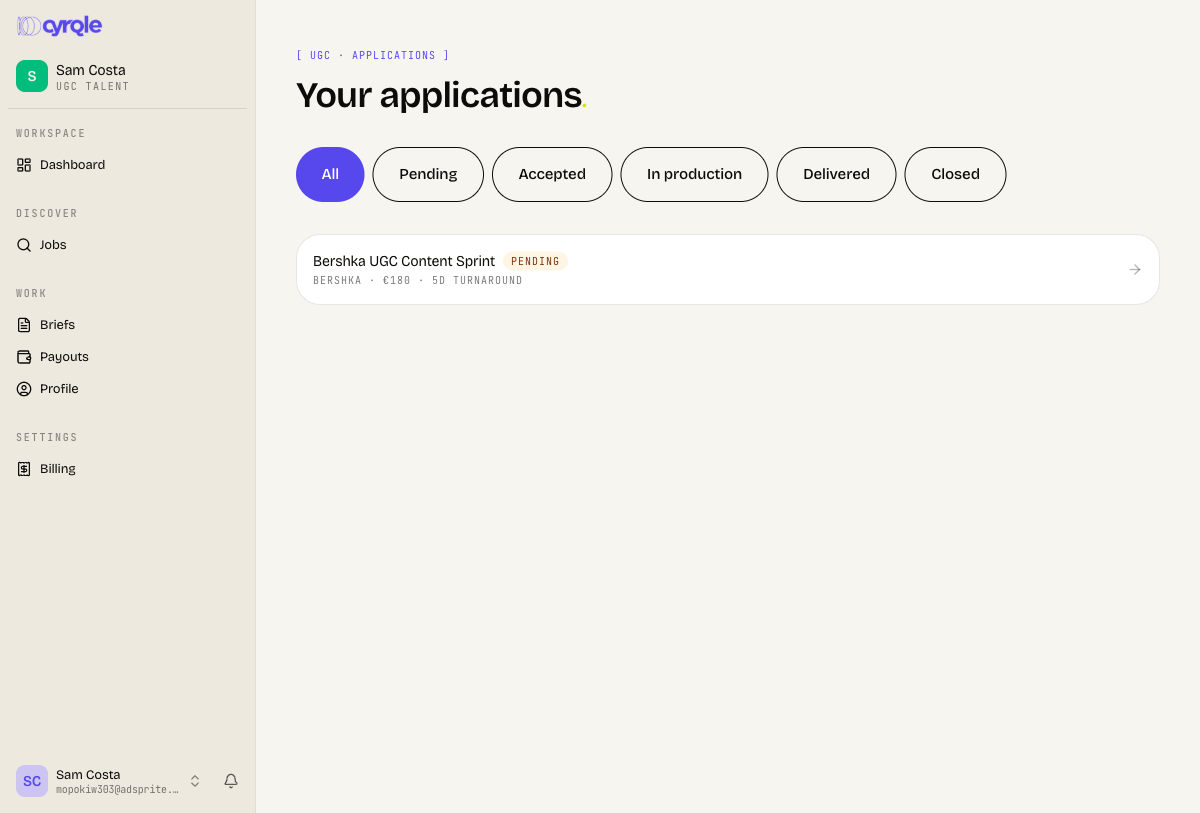
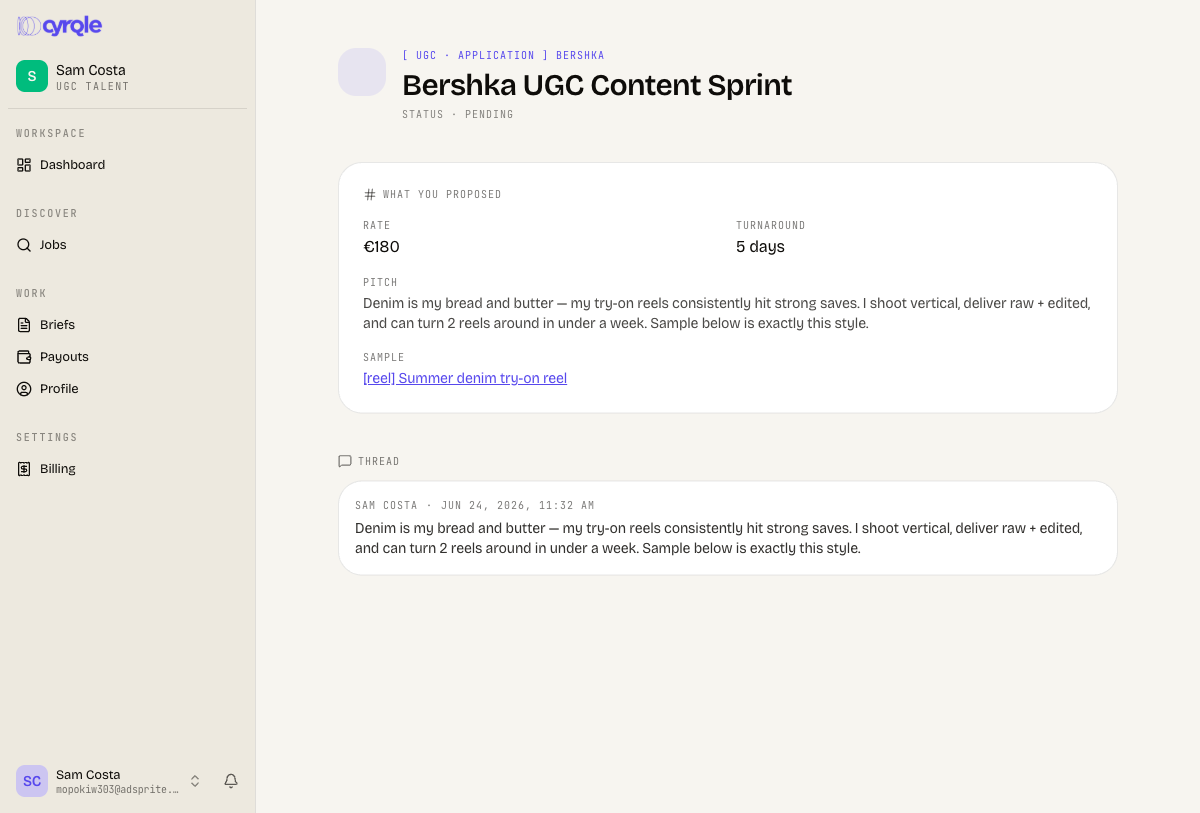
After you apply, the application appears in your applications list, filterable by state — Pending, Accepted, In production, Delivered, and Closed. Open an application to see exactly what you proposed (rate, turnaround, pitch, sample) and the message thread with the brand.
When the brand accepts your application, it becomes a brief — and from here the flow is the same as a creator's. Briefs IS the workspace: the accepted job, the conversation, the deliverable, and the review all live there. The applications you're tracking and your accepted briefs both surface through the Briefs area in the sidebar.
Wait for the brand's reply
Brands reply in the application thread. Until a brand accepts, your application stays read-only and you can't deliver yet.
Deliver your content
Once the application is accepted, a Deliver work button appears. It opens the same draft editor creators use: you upload your assets, write a caption, and submit. If the brand requests changes, the editor reopens so you can iterate; once a draft is submitted or approved it locks.
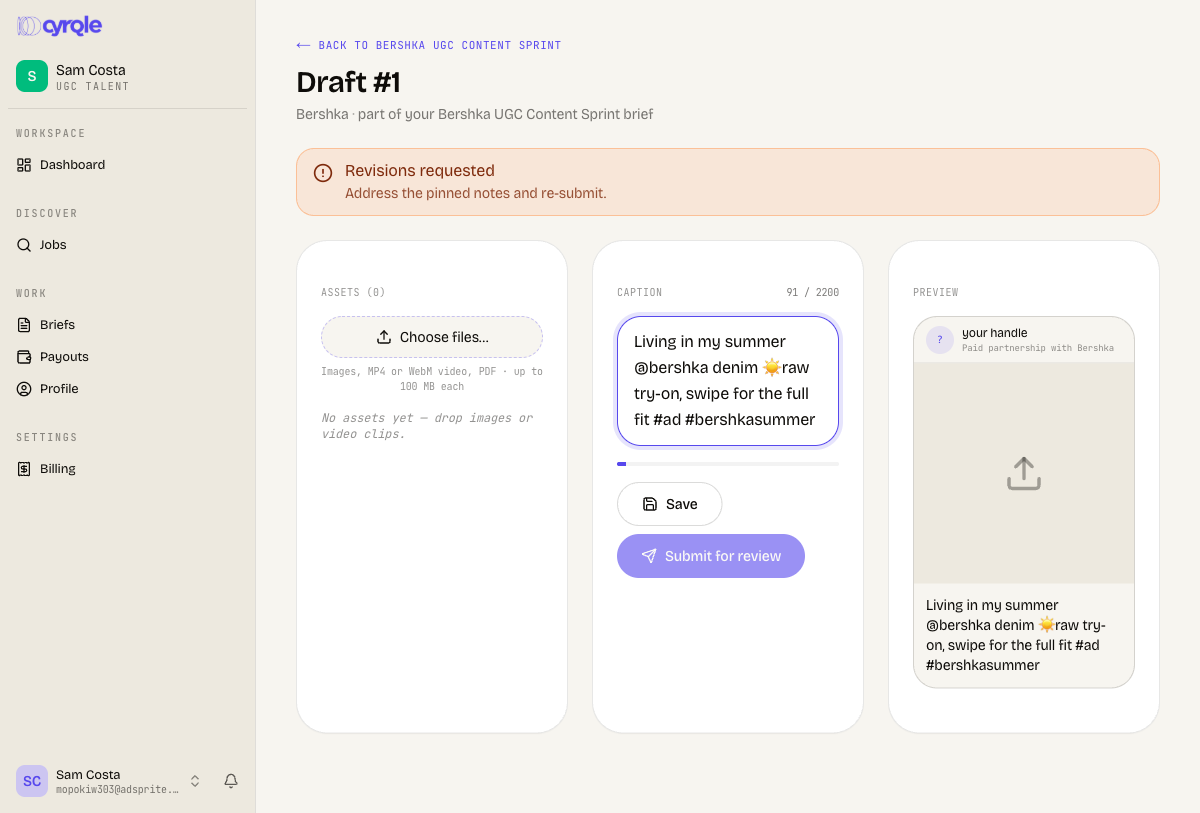
For the full accept-and-deliver mechanics — counters, revisions, approvals — see the shared creator guide, Joining a campaign.
Get paid
Payouts work exactly the same as for creators. Every euro reaches you through your own Stripe Connect Express account, which you set up once from the Payouts page. After that, payouts appear on the Payouts page as soon as a brand schedules them, and you can track each one from pending to paid.
See Getting paid for the complete payout, invoicing, and dispute flow — all of it applies to UGC Talent.
Tips
- Fill in your rate card before applying — it pre-fills your proposed rate, so you spend less time per application and quote consistently.
- Keep a few portfolio samples on file so you can attach work in one tap instead of hunting for a link mid-application.
- Your proposed rate and turnaround are negotiable signals, not fixed — start from your rate card, then adjust per job to fit the brief.
- Connect Stripe early. Payouts can be scheduled before you finish onboarding, but nothing is sent until your account is ready.