Users and impersonation
Find an account, change its role, ban it, revoke its sessions, and sign in as a customer to reproduce what they see.
/admin/users is the account register. Use it to answer "who is this person", to change what they can do, and to reproduce a problem they report.
Before you start
- Any staff role can list and open accounts.
- Only a superadmin can set a role, ban, delete or impersonate.
- data-ops and above can revoke sessions.
- Every action on this page needs a written reason.
Find an account
Filter or search
Pick all, staff, customers or banned, or type into "search email or name…".
Open the account
Click open on the row.
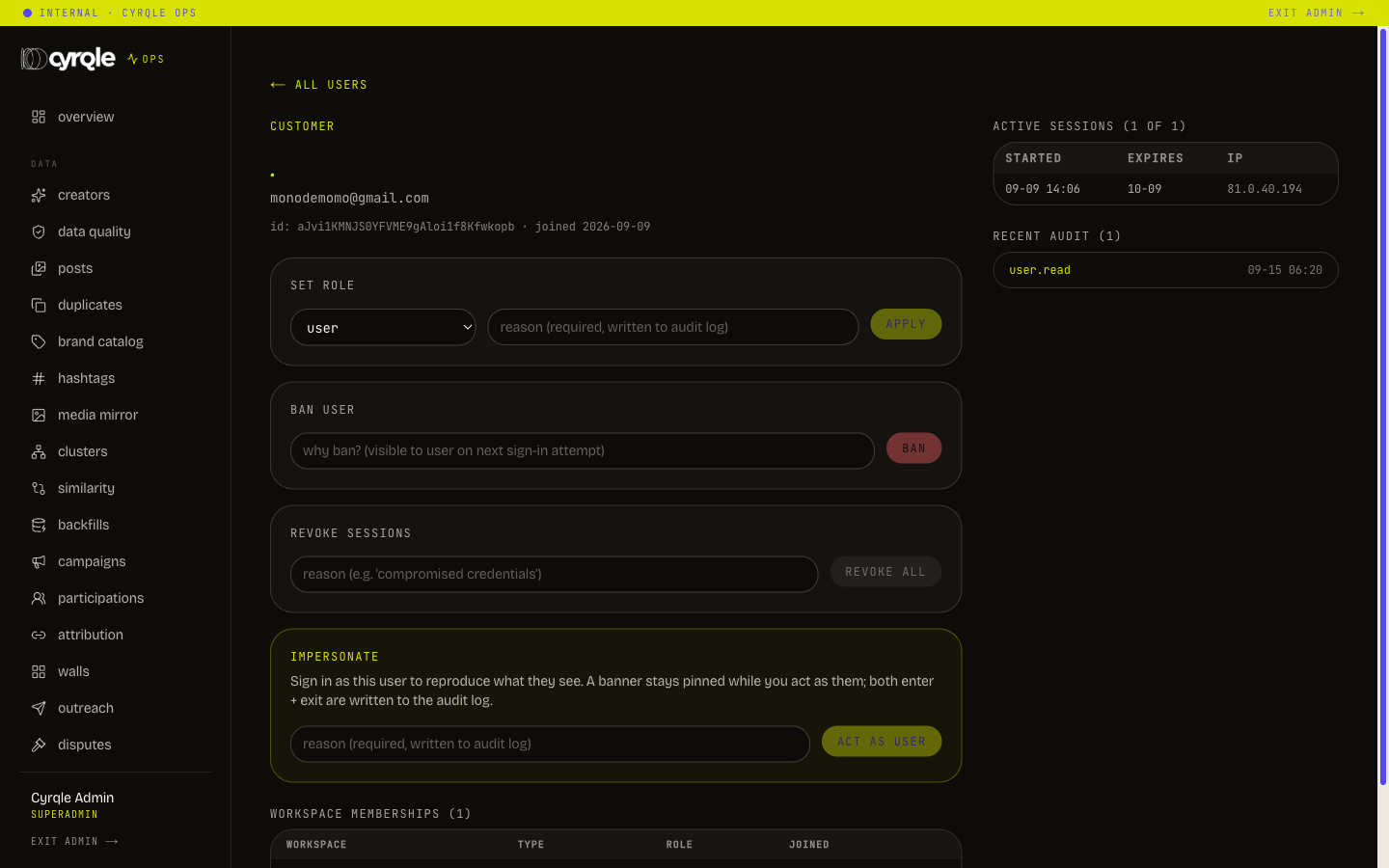
The detail page shows identity and status on the left, with the action panel and their workspace memberships. On the right it shows the last 20 sessions and the last 20 recorded actions against that account.
Ban an account
The ban reason you type is shown to the person on their next sign-in attempt. Write it for them, not for the ticket.
Open the ban panel
On the user page, find ban user.
State why
Enter the reason in "why ban? (visible to user on next sign-in attempt)".
Ban
Click ban.
To reverse it, use unban user with a reason. That reason is for the record, not for the customer.
Every ban made from this screen is permanent until somebody unbans. There is no expiry field in the console.
Revoke sessions
Use this when credentials may be compromised, or as step two of offboarding a colleague. Enter a reason, then click revoke all. Every signed-in device for that account is signed out.
Impersonation
Impersonation signs you in as the customer so you can see what they see. It is the fastest way to reproduce "the button does nothing" and the most invasive tool in the console.
Impersonation gives you the customer's full access, including their money and campaign screens. Enter with a specific question, answer it, and exit. Do not browse.
Start
Open the account
Find the person in /admin/users and open them.
Write the reason
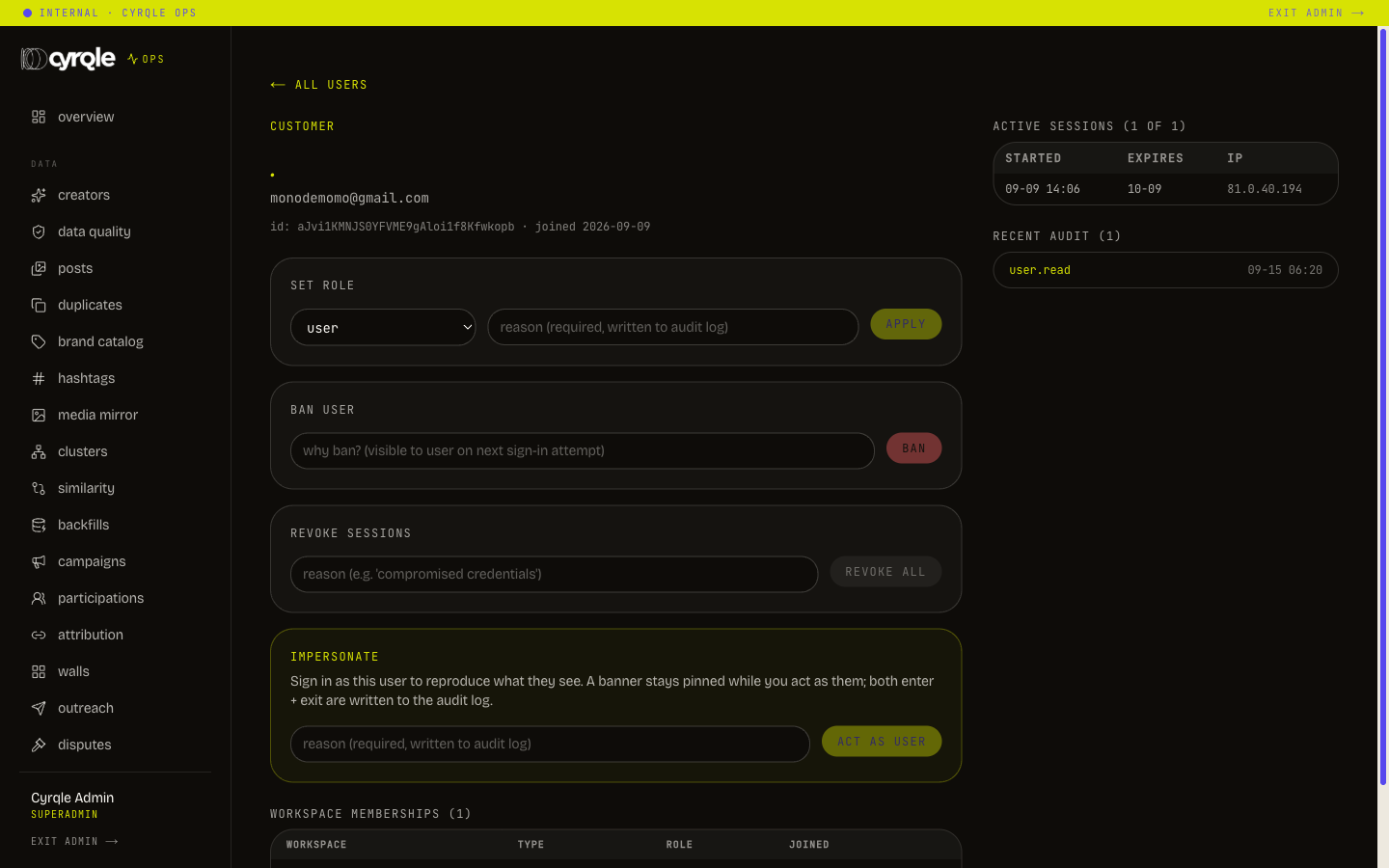
In the impersonate panel, enter the reason. It is required and it is recorded.
Act as them
Click act as user. Cyrqle sends you to the customer app, signed in as them.
While you are in
A yellow banner stays pinned across the whole customer app: "impersonating, Viewing as", with their name and email address. The customer never sees it. Anything you change, you change as them.
Exit
Click exit impersonation in the banner. You return to your own account.
Exit before you do anything else in the console. While impersonating, your browser is the customer. Work you believe you are doing as staff is being done as them.
Both the start and the exit are recorded against your account and theirs.
If you close the tab without exiting, the impersonated session stays in your browser. Open the customer app again and use exit impersonation, or sign out completely.
Actions that are not available in the console
Two procedures exist but have no screen today.
| Procedure | Who | What it does |
|---|---|---|
| Delete an account | superadmin, with a fresh sign-in | Removes the account and its sessions, memberships and notifications |
| Set a password for an account | superadmin, with a fresh sign-in | Sets a password of at least 12 characters, so that support does it in the open |
Raise both with engineering. Do not promise a customer a same-day deletion.
Account deletion refuses when the person is the only owner of a live workspace. Ownership has to be transferred first, or the workspace deleted.
Staff access review
/admin/users/staff lists everyone holding a staff role, with their last action, their action count over 30 days, their live sessions and their state. It is read-only on purpose.
Two tiles matter: dormant > 90d, and bootstrap ids. A bootstrap identifier is a superadmin granted outside the role system. The page exists to make that visible.
Moderation queue
/admin/users/moderation is built from proxies, because Cyrqle has no report button. Tiles: banned, unverified for more than 14 days, rejected entries, erased subjects, and new users in 7 days.
The views are: banned accounts, unverified accounts over 14 days old, and creators rejected by more than one brand. One brand rejecting a creator is taste, not a signal.
There are no actions on this page. Ban and unban live on the user page. Erasure lives on the creator page.
Pitfalls
- A large group of accounts that are unverified and more than 14 days old usually means signup spam, not a broken email flow. Check delivery at /admin/ops/email before you conclude either.
- A session row that carries an impersonated-by value was created by staff, not by the customer. Do not read it as the customer signing in.