Licences
The licence model, minting an off-Stripe licence, changing plan, seats and caps, converting billing mode, and the lifecycle actions.
A licence is what a workspace is allowed to do and what it pays. Everything a customer can hit a limit on comes from here. This is the page support reaches for most.
Before you start
- Any staff role can read and change licences today. See the policy warning in Access and roles.
- Know which workspace you are acting on. Check the name and the address slug.
- Have the deal in writing before you change a price, a cap or a mode.
The licence model
A licence has four independent parts. Read all four before you decide anything.
| Part | Values | What it decides |
|---|---|---|
| Plan | A plan from the catalogue, for one audience | The default caps, features and commissions |
| Billing mode | stripe, manual, comp, free | How the money arrives, or that it does not |
| Status | trialing, active, past_due, canceled, suspended | Whether the workspace can write today |
| Overrides | Price, caps, commissions, features, valid-until | Per-customer exceptions on top of the plan |
Billing modes in plain words:
- stripe: the customer pays by card through checkout. Cyrqle does not set this mode by hand.
- manual: Cyrqle invoices by wire, purchase order or contract.
- comp: a partner or a house workspace, no charge.
- free: a demo or an open trial, no contract and no payment.
A workspace has at most one licence per product line. A second attempt is refused. The message names the workspace, the product line and the existing licence identifier. If a customer needs both product lines, they get two licence rows.
Find a licence
/admin/licenses is the licence book. The header rolls up visible rows, monthly recurring revenue, annual run rate and open alerts.
Search accepts a workspace name, an address slug, a licence identifier, or a subscription or customer identifier from the payment provider. Filter by audience, mode, status and usage. Sort by last updated or by revenue.
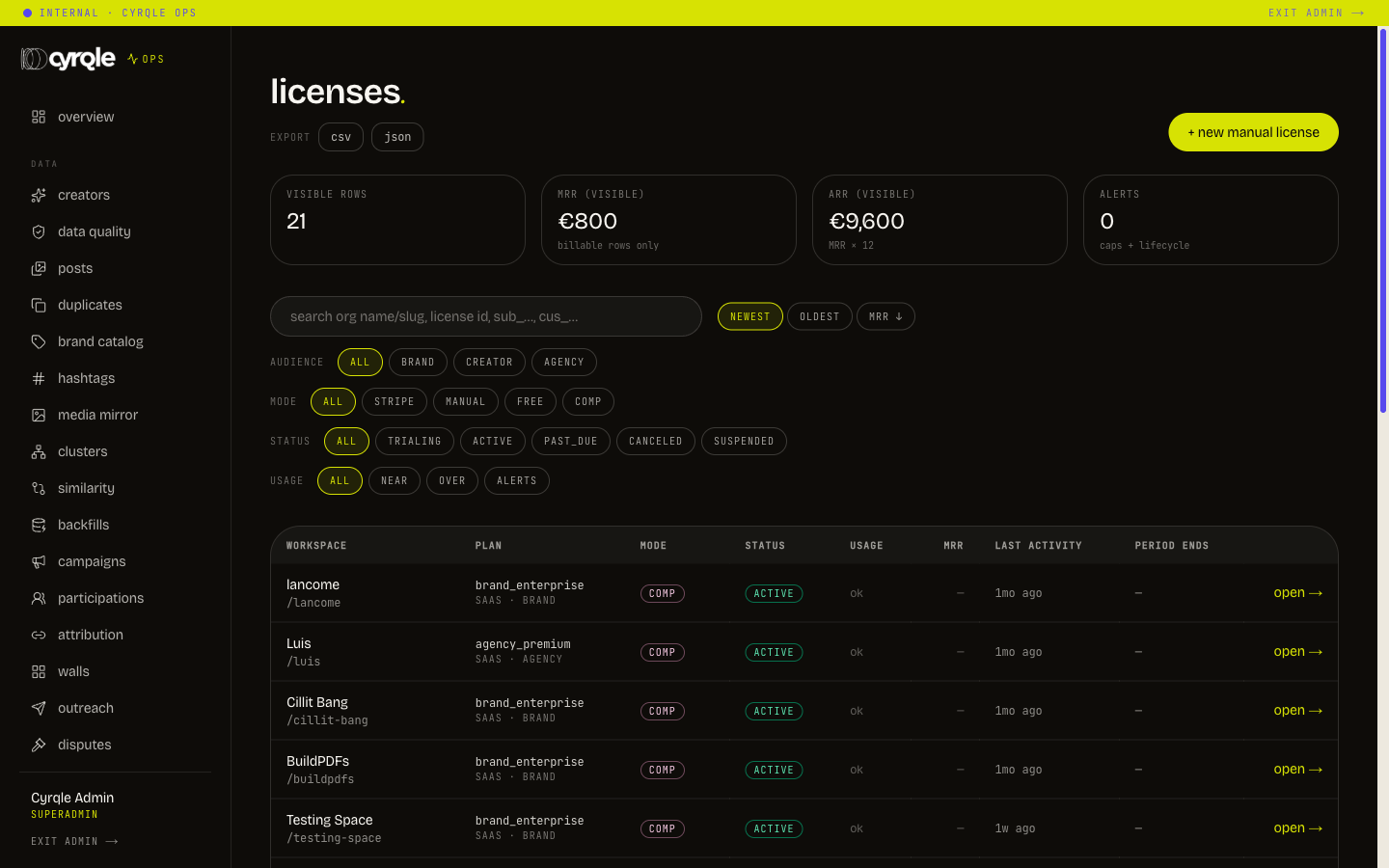
The revenue rollup counts billable rows only: modes stripe and manual, with status trialing, active or past due. Free, comp and cancelled rows contribute zero. A big comp book shows as a small number here, and that is correct.
Mint an off-Stripe licence
Use this when a company signs a contract, a partner is comped, or a prospect needs a demo workspace with real caps.
For a self-serve card upgrade, do not mint anything. Send the customer through the upgrade flow in their own billing settings. Minting here creates a second, off-Stripe row.
Start
Open /admin/licenses and click + new manual license.
Pick the workspace
Choose from "pick a workspace…". Entries read as name, slug and account type. The workspace must already exist.
Pick the plan
Choose a card under the Brand, Creator or Agency legend. Each card shows the price, the first three caps and the creator commission.
Pick the product line
Choose saas or marketplace.
Pick the billing mode
Choose manual for invoice, wire or purchase order, comp for a partner at no charge, or free for a demo.
Set an override price
Enter the agreed monthly price if it differs from the plan. Leave it blank to use the plan price.
Add the billing contact
Enter the name and email address the invoice goes to. This is optional.
Attach the contract
Upload the signed contract as pdf, doc or docx. This is optional.
Write the internal notes
Record the contract reference and the deal context for the next operator.
Create
Click create license. Cyrqle opens the new licence.
- A contract upload can fail while the licence is still created. The message reads "Contract upload failed, the license was created without it." Re-upload from the billing tab. Do not create a second licence.
- A price of 0 and a blank price both mean "no override". You cannot pin a price to zero here. Use the comp mode for a free-of-charge contract.
- Stripe mode is not offered on this screen and the request is refused if it is sent. Stripe licences are created by checkout only.
If you set a trial end date the new licence starts as trialing. Otherwise it starts as active.
The licence detail page
/admin/licenses/<id> has five tabs: plan, billing, hierarchy, events and actions. The header shows the workspace, the plan, the mode and the status.
Change the plan, seats and caps
Change the plan
Open the plan tab
Open the licence and stay on plan.
Pick the new plan
Use the select. It offers plans for the same audience and the same product line only.
Write the reason
Enter it in "reason (audit)".
Apply
Click change plan. Caps and features change immediately.
- Changing the plan does not change what the payment provider bills. On a stripe licence the subscription stays on the old price until somebody runs the customer portal upgrade or the convert flow. Check the billing tab after every plan change on a stripe licence.
- A move to a different product line is refused. Mint a new licence row instead.
Change seats
Seats are a cap, not a separate object. To give a customer more seats, either move them to a higher plan or set a cap override on active seats.
Change caps
On the plan tab, open overrides. You can override the monthly price, a discount percentage, the currency, and these caps: active seats, active campaigns, creator records used, activated creators, reports generated and AI recommendations invoked. A cap of -1 means unlimited.
You can also override the creator commission and the payout service level, and set a valid-until date and notes.
Open the overrides editor
On the plan tab, find overrides, edit.
Set the values
Enter each override. Leave a field blank to inherit from the plan.
Save
Click save overrides.
- Blank removes an override, it does not mean zero. Clearing the seats field returns the customer to the plan default, which can be lower than what they have today.
- Saving writes a record even when no value changed. A duplicate entry in the events tab is normal.
Grant unlimited credits
Unlimited credits is a feature, granted through the same overrides editor. See Credits and overage.
Convert billing mode
Converting moves a licence between stripe, manual, comp and free. It has side effects on the payment provider, so it is two steps.
Open the actions tab
Open the licence, then actions.
Pick the target mode
Choose the mode under convert billing mode.
Write the reason
Enter it in "reason (audit)".
Preview
Click preview. Read every line of the diff.
Confirm
Confirm only if the diff matches the deal.
What each target does:
| Target | Effect |
|---|---|
| From stripe | The subscription is set to cancel at the end of the paid period. The customer keeps access until then |
| To comp | The price override is forced to zero |
| To free | Overrides, add-ons and payment provider identifiers are cleared |
| To stripe | Manual terms are cleared. Send the customer a checkout link separately. The identifiers appear when the payment lands |
A failure to set the cancel-at-period-end flag on the payment provider does not stop the conversion. The licence row and the provider can end up disagreeing. Open the billing tab straight after every conversion away from stripe and confirm the subscription state.
Undo a conversion
The events tab shows the licence history. The most recent mode conversion carries an undo button.
Undo restores the licence row only. It does not restore a cancelled subscription at the payment provider. If you converted away from stripe, the customer still needs a new checkout link.
Older conversions cannot be undone. The refusal reads "No mode_converted event to undo (must be most recent)."
Suspend, reinstate and extend
All three live on the actions tab.
Suspend. Enter a reason and click suspend. A dialog titled "Suspend this licence?" explains the effect: write paths stop, reads and sign-in keep working. Confirm with Suspend.
Suspension is visible to the customer the moment they try to create a campaign or send outreach. Tell them before you suspend, unless the suspension is the escalation.
Reinstate. Shown when the licence is suspended or past due. It sets the status to active.
Extend trial. Enter the new trial end date and a reason. The status becomes trialing and the end date moves. It has no effect on a payment provider trial, which runs on its own clock.
Issue invoice. Manual mode only. Enter the amount in cents, a due date and notes, then click issue invoice.
- Issue invoice does not send anything to anybody. It records that an invoice was raised. Send the real invoice through finance.
- A blank amount records "not yet fixed", which is not the same as zero. Fill the amount in when the deal is agreed.
Re-sync from the payment provider
On the billing tab of a stripe licence, force re-sync from Stripe pulls the live subscription state into the licence row. Use it when the two disagree. It records an entry whether or not anything changed.
Managed brands under an agency
An agency that manages brands is billed for them. The hierarchy tab shows how.
- A top-level licence reads "Top-level license. No parent, bills directly."
- A managed brand's licence names its parent licence and links to it.
- When bills route to a different workspace, the tab shows the note "Bills are routed to a different org (rollup configuration)."
- The tree at the bottom lists every child licence under this one.
- The brand keeps its own licence row, with its own caps and status. Only the money rolls up. Suspending the agency does not suspend the brand, and the reverse is also true.
- The agency rollup grants unlimited credits to the child. A managed brand that is not on the rollup is metered on its own.
The pricing catalogue
/admin/licenses/pricing shows every plan beside the live licence book: the price per month, the caps, the features, the payout service level, and how many licences sit on each plan.
Below it, pick one plan and read every usage metric with what has been recorded, the allowance, what happens at the limit, and the credit cost per unit.
- This page is read-only and must stay that way. The numbers are transcribed from signed agreements. A plan edited from an admin console is a contract amended by whoever had the console open.
- Never show a raw plan key to a customer. Use the plan name the product shows them.
Pitfalls
- The usage filter has three settings that matter: near a cap, over a cap, and alerts. Work the over list before a customer raises a ticket.
- "Negotiated" on the pricing page means the price lives on the licence override, not on the plan. Always read the licence to find out what a customer actually pays.