Daily operations
The overview dashboard, the global search, operator notes, and how to export a dataset without writing a query.
You use four screens in every shift: the overview dashboard, the Cmd-K search, operator notes, and exports.
Before you start
- Any staff role can open the overview, the search and the notes page.
- Each export is gated by the same access as the page it sits on.
The overview dashboard
/admin is the shift start page. It greets you by first name and is labelled "live · cross-tenant · audit-logged".
Eight tiles across the top: users (with a staff count below it), workspaces, creators indexed, campaigns active, payouts pending, data spend today, jobs running, and audit events in the last 24 hours. The jobs tile shows a pulsing dot while a job is running.
Below the tiles: signups over 30 days, spend over 30 days, creators by platform, campaigns by status, creators by country, organizations by type, and spend by actor.
The what's happening feed merges running data jobs, the last 18 recorded actions and the last 8 campaign status changes, newest first. It links to the full audit log. When it is empty it reads "nothing recent".
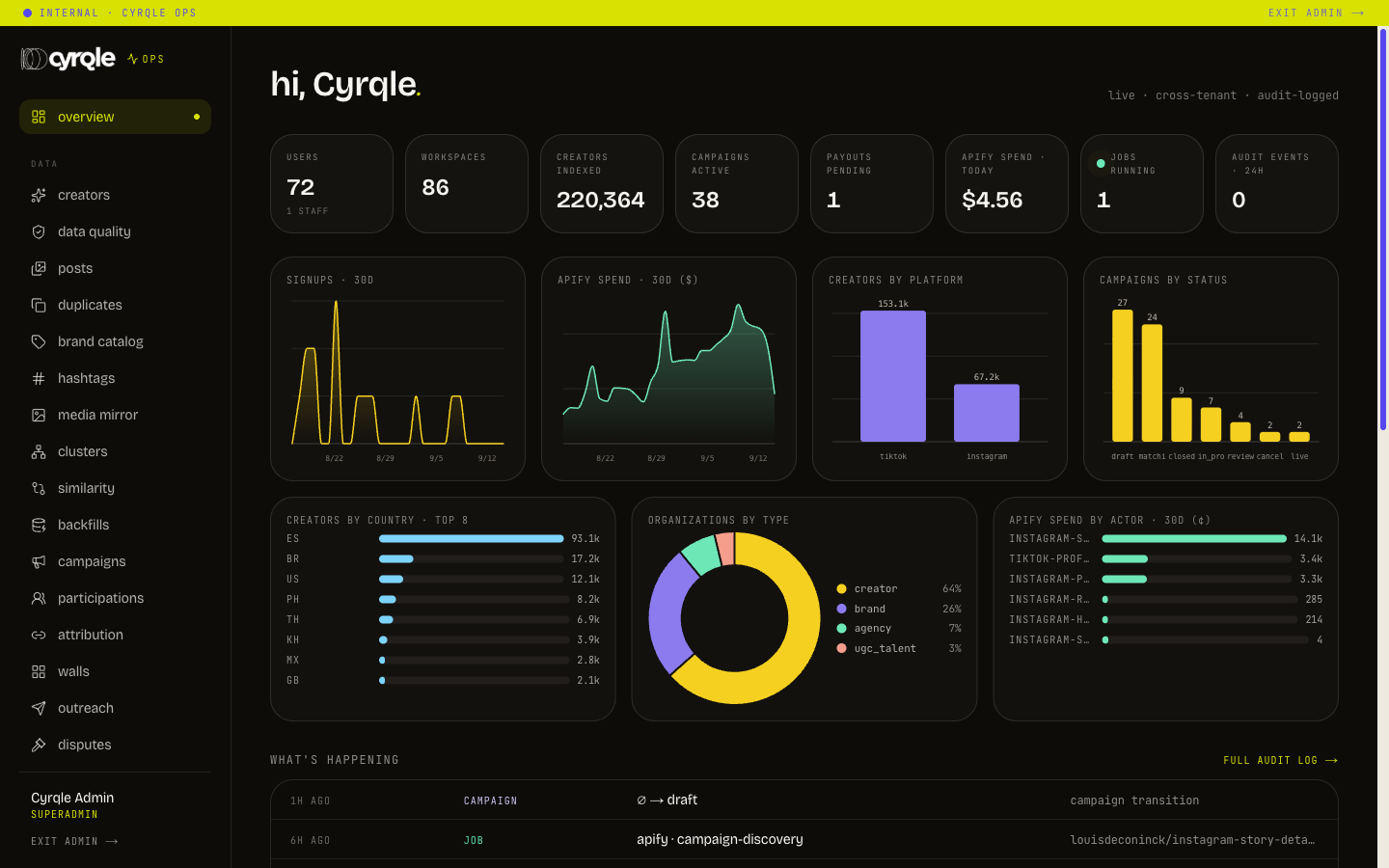
"Campaigns active" counts campaigns in matching, reviewing applicants, awaiting acceptance, in production, draft under review, approved to publish, and live. A campaign in draft is not counted.
Global search
Press Cmd-K (Ctrl-K on Windows) on any console page. The placeholder reads "search creators, workspaces, users, campaigns…".
Open the palette
Press Cmd-K.
Type at least two characters
Fewer than two characters returns nothing.
Pick a result
Use the arrow keys, then press Enter. Press Escape to close.
Results are grouped by kind, five per group. Start here rather than guessing a list page and filtering it.
Your search terms are recorded with your name. That is intended. Search for what the ticket is about.
Notes and handover
/admin/notes collects operator notes across every record. Add a note from the detail page of the record it concerns. Support can read and write notes. That is deliberate: a note you cannot write is a note that stays in chat.
Removing a note is a soft delete. The count shows it as retracted, because a retraction is evidence too.
Write every note for two readers: the customer, and a court. State facts and decisions. Do not write opinions about people.
Exports
Two shapes of export exist. Use the named ones.
Named datasets. The users, workspaces, licences, campaigns, payouts and audit pages carry small csv and json links. Each one runs a fixed, reviewed query with a fixed column list.
| Dataset | Who can export it | Note |
|---|---|---|
| users | Anyone who can list users | No credentials of any kind are included |
| workspaces | Anyone who can read workspaces | |
| licenses | Anyone who can read licences | |
| payouts | Anyone who can read payouts | Payment provider identifiers are deliberately left out |
| campaigns | Anyone who can read campaigns | |
| job-runs | Anyone who can read platform controls | |
| audit-log | Anyone who can read the audit log |
Explore. /admin/explore is a read-only browser over the whole database, cross-tenant. It reads only, never writes. See Search and embeddings.
Every download is recorded with the dataset, the format and the row count. An export of customer data leaves your name on it. Delete the file when the ticket closes.
Pitfalls
- Exports are capped at a maximum row count. A short file is not proof that the data is missing. Narrow the filter and export in parts.
- The overview feed is capped at 24 entries. It is a pulse, not a log. Use /admin/audit for anything you need to be complete.