Settings & billing
Manage your workspace identity, your team and their roles, your plan, payment, and the credits that fund collector runs.
Your workspace settings are where you run the business side of Cyrqle: your workspace's name and handle, who is on your team, which plan you are on, how it gets paid for, and the credits that fund content collection. Everything here is scoped to one workspace (your organization). Personal things like your own profile, password, and notification preferences live separately under Your account.
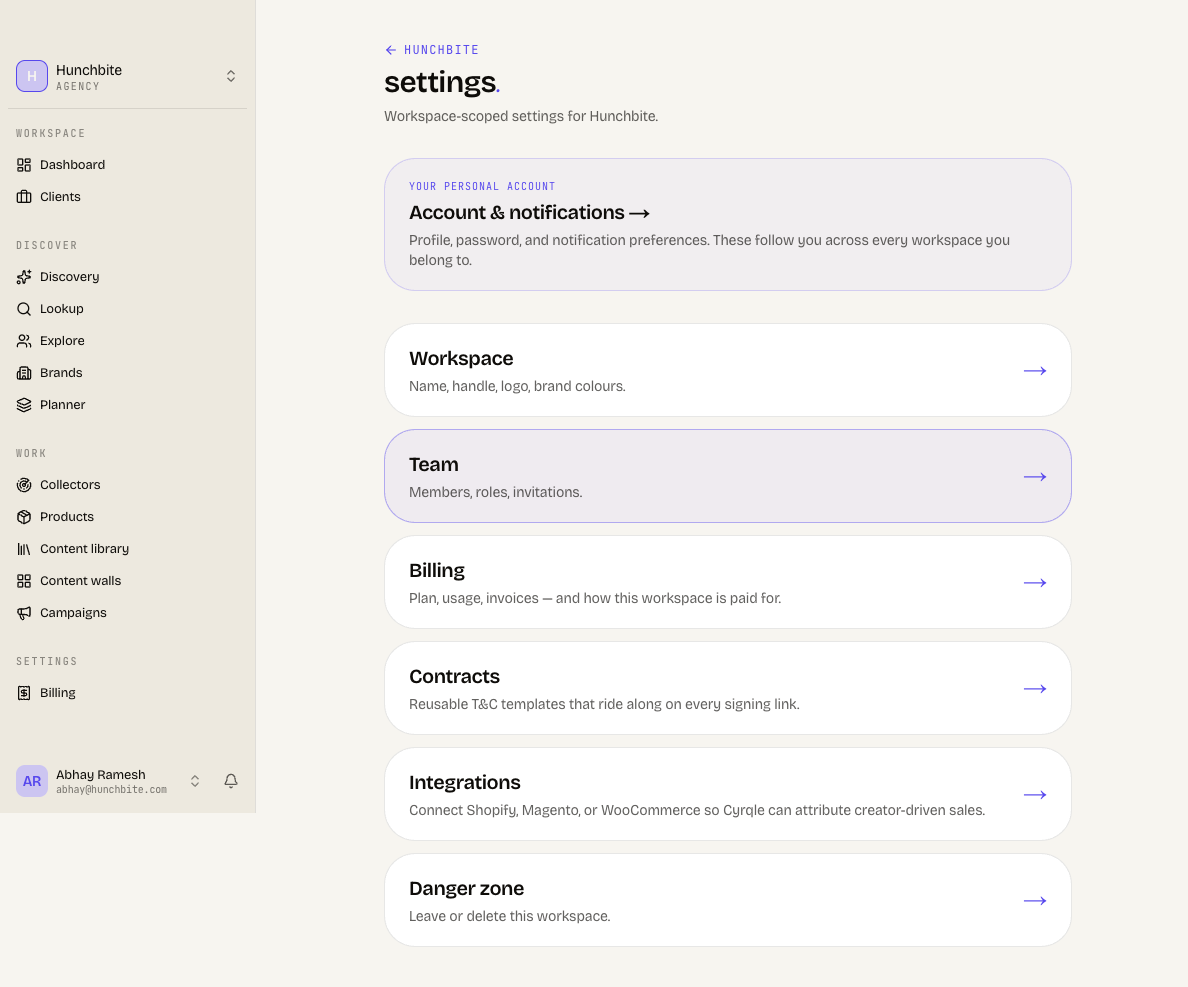
Open settings from the workspace menu, or go to /<your-handle>/settings. The settings home lists every section available for your account type (brand, agency, creator, or UGC talent).
Before you start
Most of these changes are limited to workspace owners and admins. Regular members can view team and billing pages but cannot invite people, change roles, or edit the workspace. If you joined a brand through your agency's link (you are acting "via" the agency), some actions are capped — you cannot invite people into that brand or edit its workspace settings, and a banner will say so.
What lives in settings
The settings home shows the sections relevant to your workspace. Not every section appears for every account type.
Workspace
Your workspace name and handle (URL).
Team
People with direct access, their roles, and pending invites.
Billing
Your plan, usage, credits, payment, and invoices.
Linked agencies
Brand only — agencies you've granted access to.
Contracts
Brand and agency — rights and contract settings.
Integrations
Brand and agency — store connections (Shopify, Woo, Magento).
Payouts
Creator and UGC talent — where you get paid.
Danger zone
Leave or delete the workspace.
Edit your workspace profile
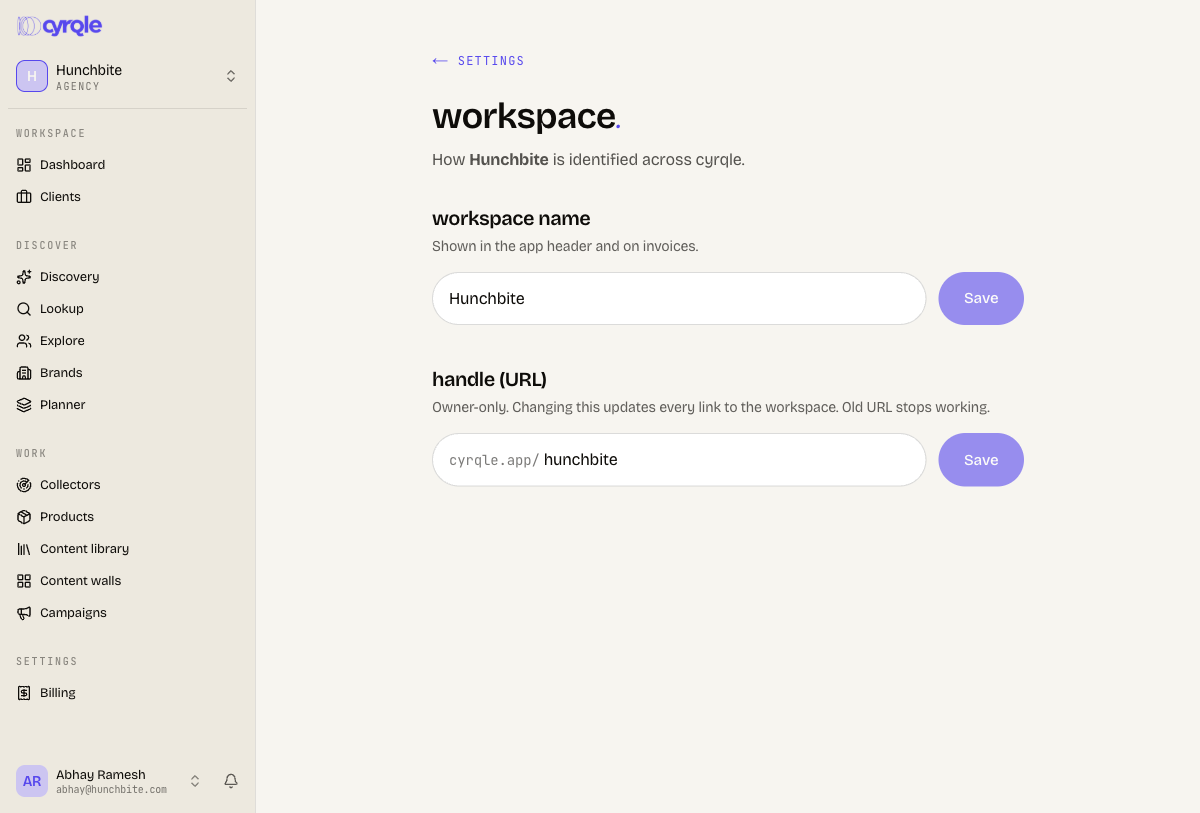
The Workspace section controls how your workspace is identified across Cyrqle: its display name and its handle (the part of the URL after cyrqle.app/).
Owners and admins only — and direct members only
You can only edit workspace settings if you are an owner or admin and a direct member of the workspace. If you are acting through an agency link, you will see a message saying you do not have permission here.
Go to Settings → Workspace.
Under workspace name, edit the name and choose Save. The Save button stays disabled until you actually change the text.
Under handle (URL), type a new handle. Cyrqle checks availability as you type and shows free, taken, or invalid. The handle is lowercased automatically.
Choose Save for the handle. You will be asked to confirm, because changing the handle updates every link to the workspace and the old URL stops working — it does not redirect.
Handle changes are owner-level and permanent-ish
Changing the handle rewrites all links to your workspace. There is no redirect from the old address, so anyone with a bookmarked or shared link will need the new one.
Invite and manage team members
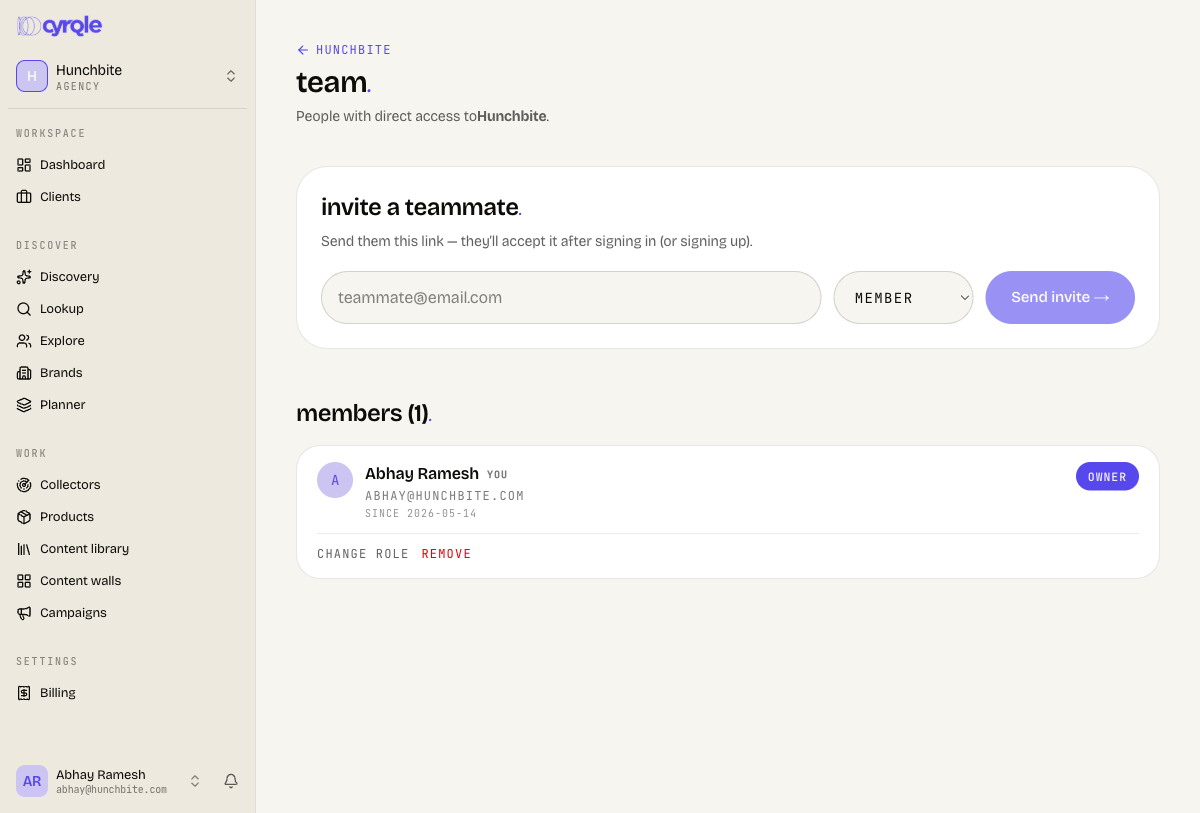
The Team page shows everyone with direct access to this workspace, their roles, and any invitations that have not been accepted yet. For a brand, agencies you have linked are managed separately under linked agencies, not here.
Roles
Prop
Type
Invite someone
Go to Team. If you can manage the team, you will see the invite a teammate form at the top.
Enter the person's email, pick a role (member, admin, or — only if you are an owner — owner), and choose Send invite.
Cyrqle emails them the invitation. You can also copy the invite link shown after sending and share it directly. They accept it after signing in or signing up.
Invites can only go into a workspace you directly belong to
If you are acting through an agency link, the invite form is hidden and you will see a note that inviting is reserved for direct members of that workspace.
Manage pending invitations
Each pending invite shows when it was sent and when it expires. For invites that are still live you can copy link. Owners and admins can also:
- Resend — refreshes the expiry and re-sends the email. If the invite had already expired, a fresh one is issued automatically.
- Cancel (or dismiss for expired ones) — revokes the invitation. The link then reads as no longer active.
Change a role or remove a member
On any member row, owners and admins see change role and remove.
- Pick a new role and choose save. Admins can only act on members ranked below them and can never grant owner.
- Remove asks for confirmation. If you remove yourself, you are taken back out of the workspace.
Cyrqle protects against locking a workspace out: you cannot remove or demote the only owner — promote someone else first. For brand workspaces, it also blocks a removal that would leave the brand with no remaining access path.
View and change your plan
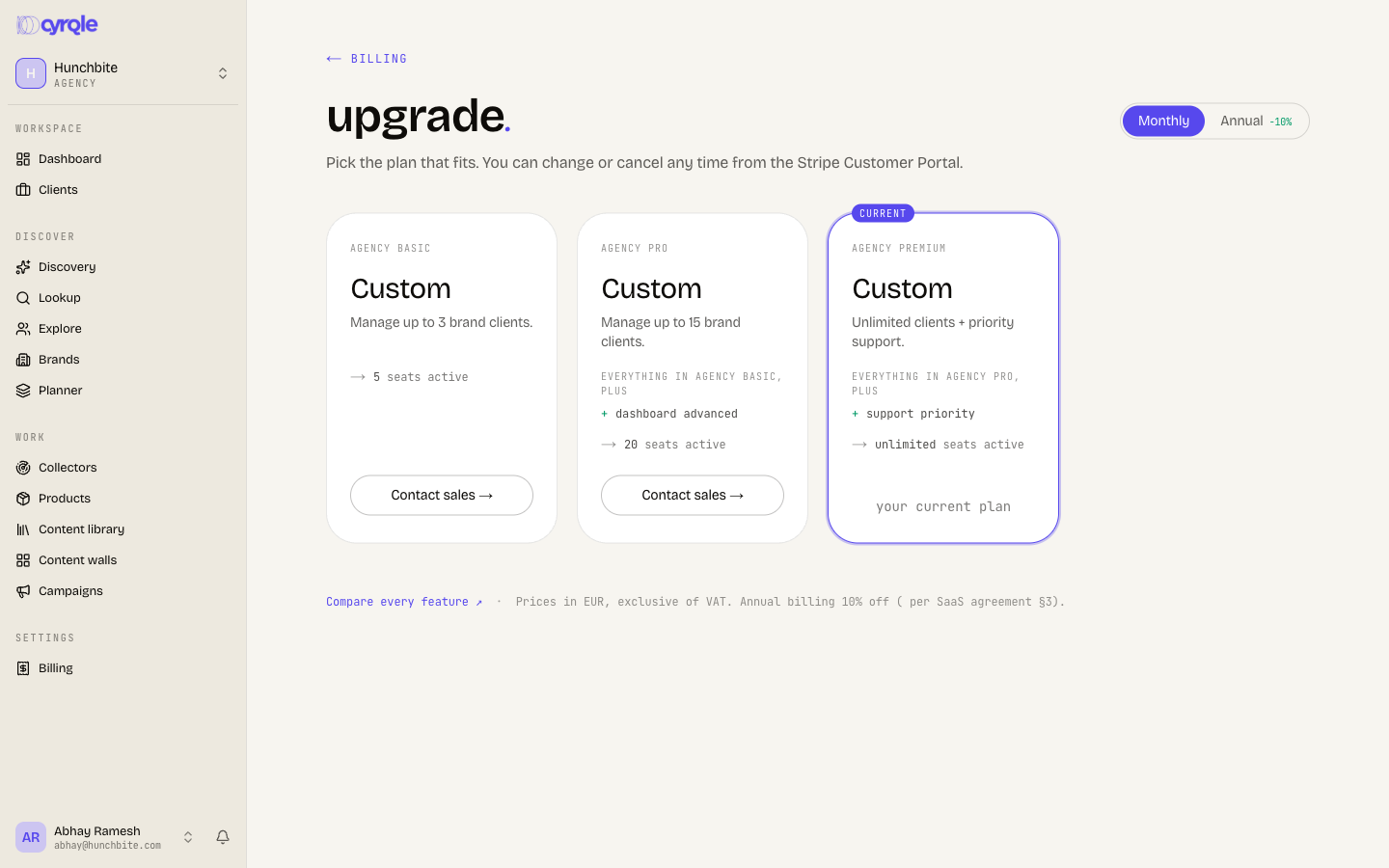
Plans gate your campaign quota and other limits. To see the options, go to Billing → upgrade (or /<your-handle>/upgrade). Cyrqle shows the plan ladder for your account type — brand, agency, or creator — and your current plan is badged.
Each plan card lists its price, an "everything in [lower tier], plus…" summary of what it adds, and a few of its key limits. Choose the button on a card to start checkout for a paid plan. Free tiers need no signup, and your current plan simply shows "your current plan".
Use the monthly / annual toggle at the top. Annual billing applies a 10% discount, shown on each card with the monthly price struck through and a "billed yearly" note.
Some plans (for example enterprise and managed marketplace tiers) have custom pricing. These show Contact sales instead of a checkout button and open an email to the sales team. For brands, managed Marketplace plans appear in their own section, separate from the self-serve dashboard plans.
When you choose a paid plan, you are taken to Stripe Checkout to pay. After a successful payment you land back on the billing page.
If you are on a custom contract
Workspaces billed under a manual contract see a note that pricing is handled by their account manager — choosing a self-serve plan is not the right path. Contact your account manager for changes.
Manage your subscription, payment, and invoices
The Billing page is the hub for how this workspace is paid for. What you see depends on how the workspace is billed:
- Self-serve (Stripe): your current period dates, a Manage in Stripe button, and recent invoices. The Stripe portal is where you update your card, view full invoice history, or cancel.
- Manual contract: plan details and your account-manager contact, with no self-serve portal.
- Partner / complimentary: plan details with a partner-account badge.
- Free / no license yet: a note that you are on the free tier, your usage so far, and an Upgrade call to action.
For brands whose billing rolls up to a parent agency, the page shows a "covered by [parent]" message instead of billing controls. Agencies that cover child brands also get a rollup view summarizing each managed brand's plan and usage.
Payout card (brand and agency)
Separate from your Cyrqle subscription, brands and agencies have a payout card — the card that creator payouts are charged to. This is your brand's money paying creators; Cyrqle never fronts it. Use add brand card to set or update it.
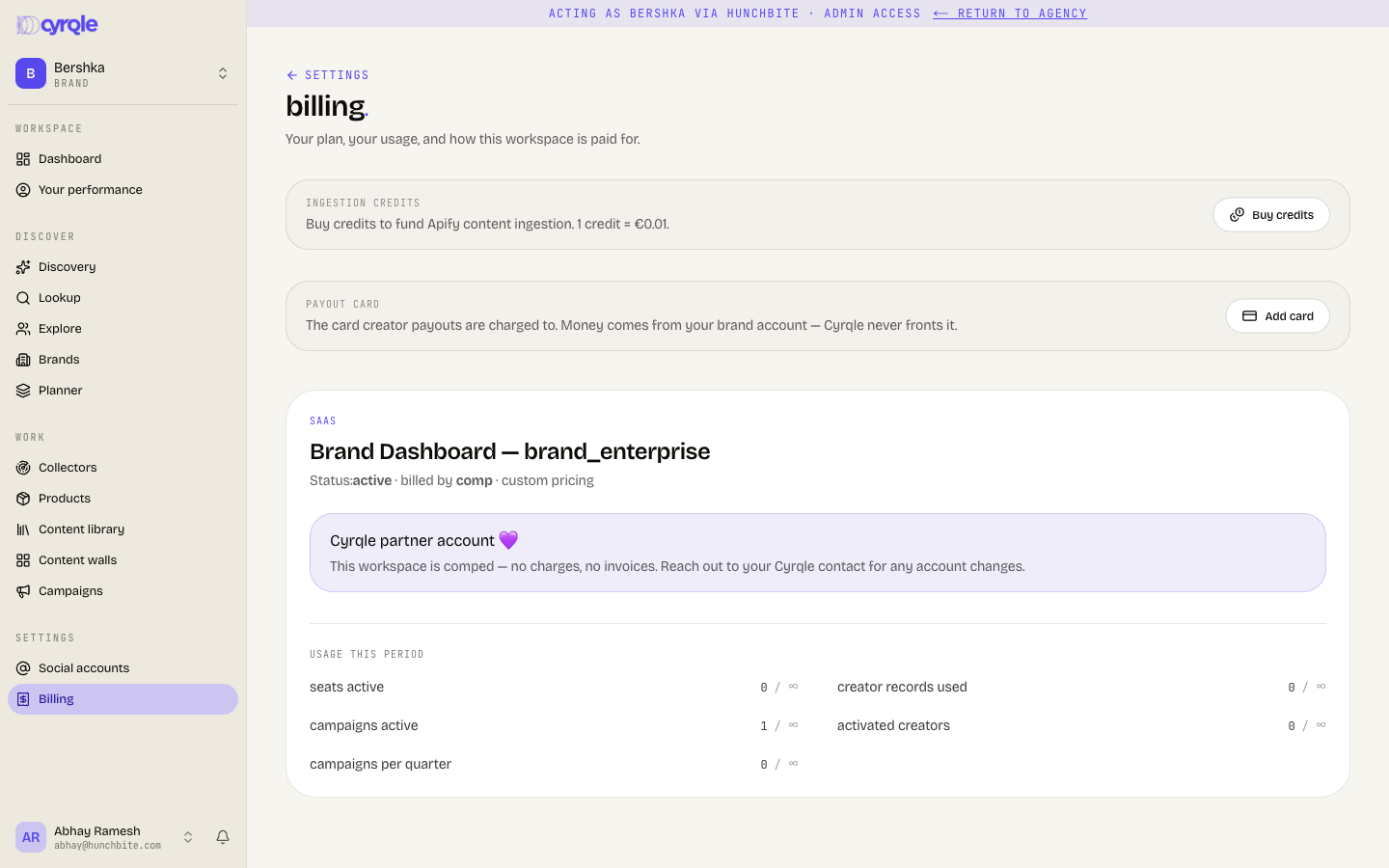
Track credits and usage
There are two different meters on the billing page — do not confuse them.
Plan usage
Each plan card shows usage this period against your plan's caps — things like active campaigns, creator records, seats, or reports. Bars turn amber as you approach a limit and red when you hit it. These reset on their own schedule (monthly or quarterly, depending on the metric). To raise a cap, upgrade your plan.
Ingestion credits
Credits are a separate, pay-as-you-go balance that funds collector runs (content ingestion). They are not part of your plan.
- 1 credit = €0.01.
- Buy credits from the ingestion credits card on the Billing page: choose Buy credits, enter an amount (minimum 100 credits, in steps of 100), and pay through Stripe Checkout. Once payment clears, the credits are added to your workspace balance.
- Your live balance, the amount used this month, and a low-balance warning appear at the top of the Collectors page. Each collector source shows an estimated cost per run (for example,
~N cr/run) so you can see what a run will draw down before you start it.
If your balance hits zero
The Collectors page flags a low balance once you are at or below zero credits. Top up from Billing to keep collectors running.
Connect your store (Integrations)
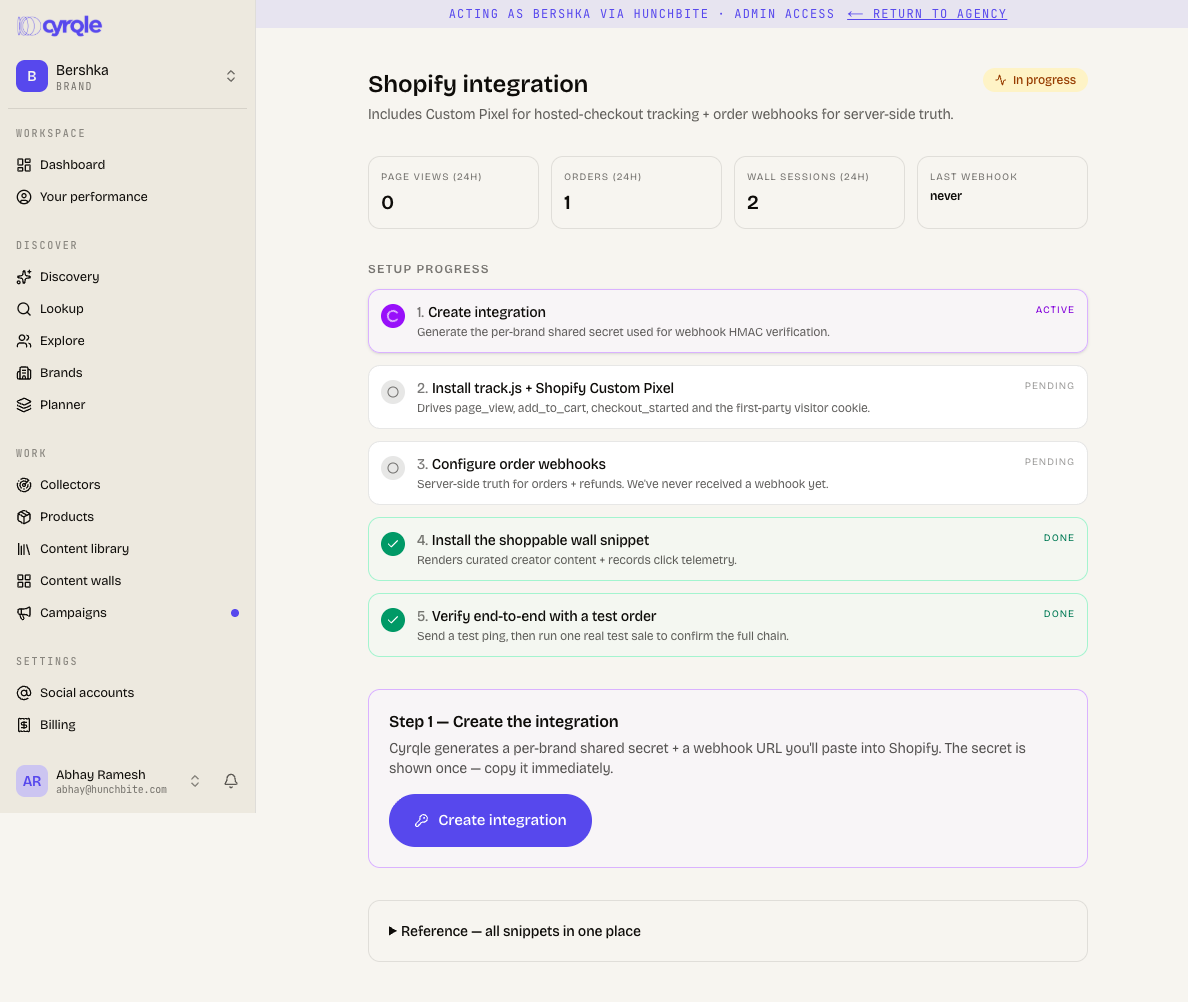
Under Settings → Integrations, connect your e-commerce platform so Cyrqle can attribute creator links to real sales. Shopify, Magento, and WooCommerce are each independent — run all three side by side if you have multiple stores. Each card shows a setup-step count and recent pageviews and orders so you can confirm tracking is live.
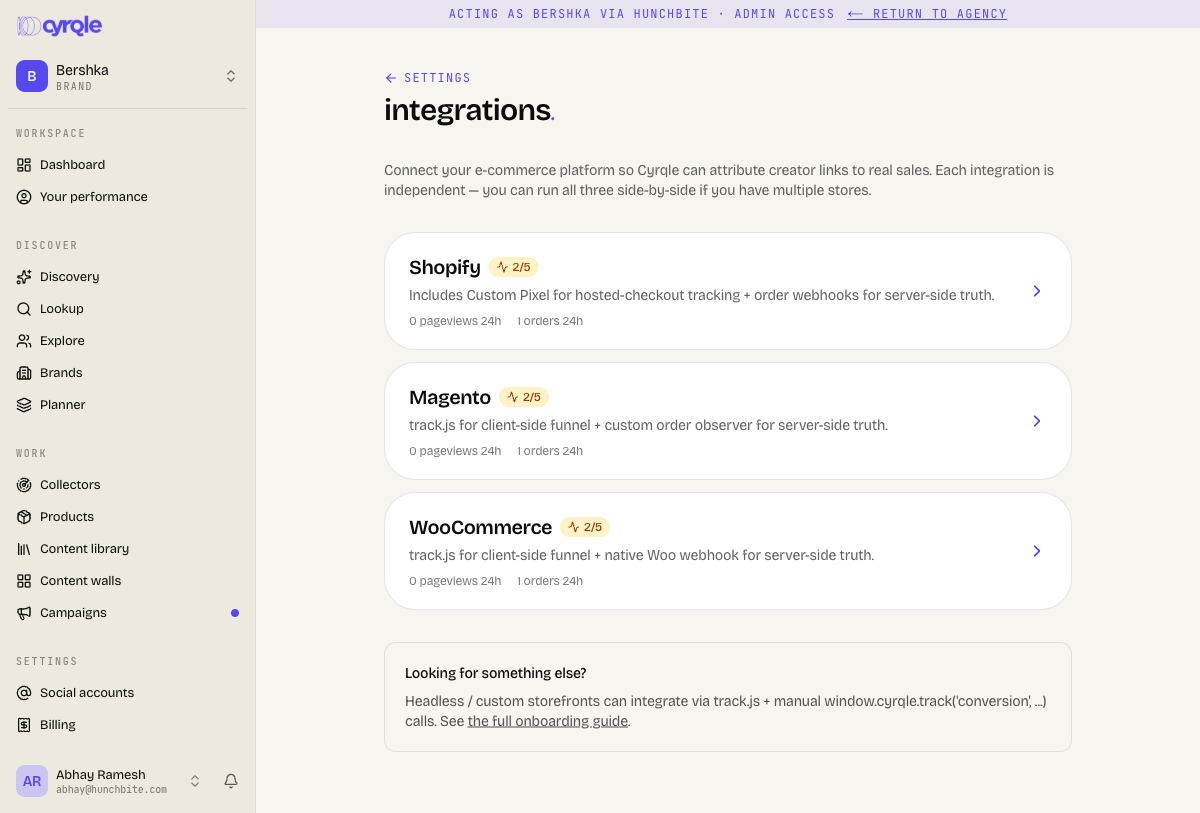
Open a platform to get its setup steps — a tracking pixel or script for client-side funnel data, plus order webhooks for server-side truth — and the keys to paste into your store.
Rights templates
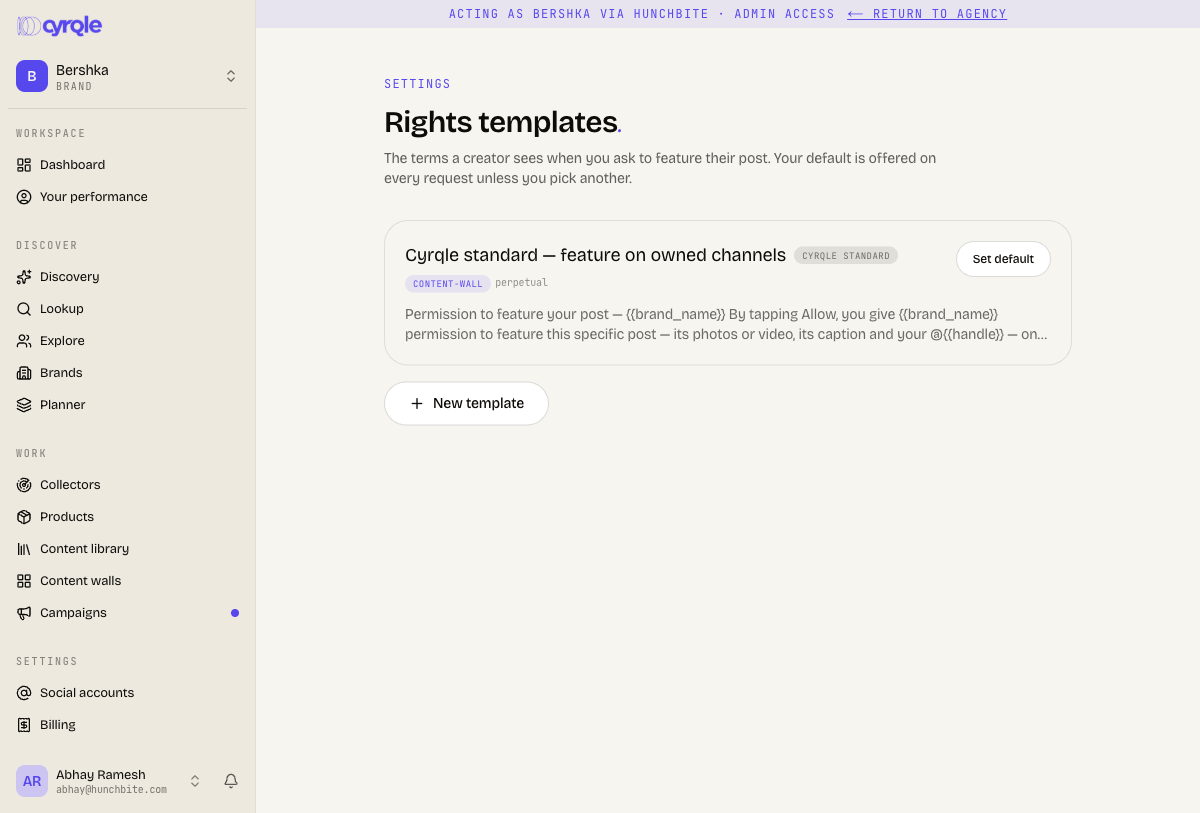
Settings → Rights templates holds the terms a creator sees when you ask to feature their post. Your default is offered on every rights request unless you pick another. Edit the wording (it supports merge tags like {{brand_name}} and {{handle}}), add more templates with New template, and set any one as the default.
Contract templates
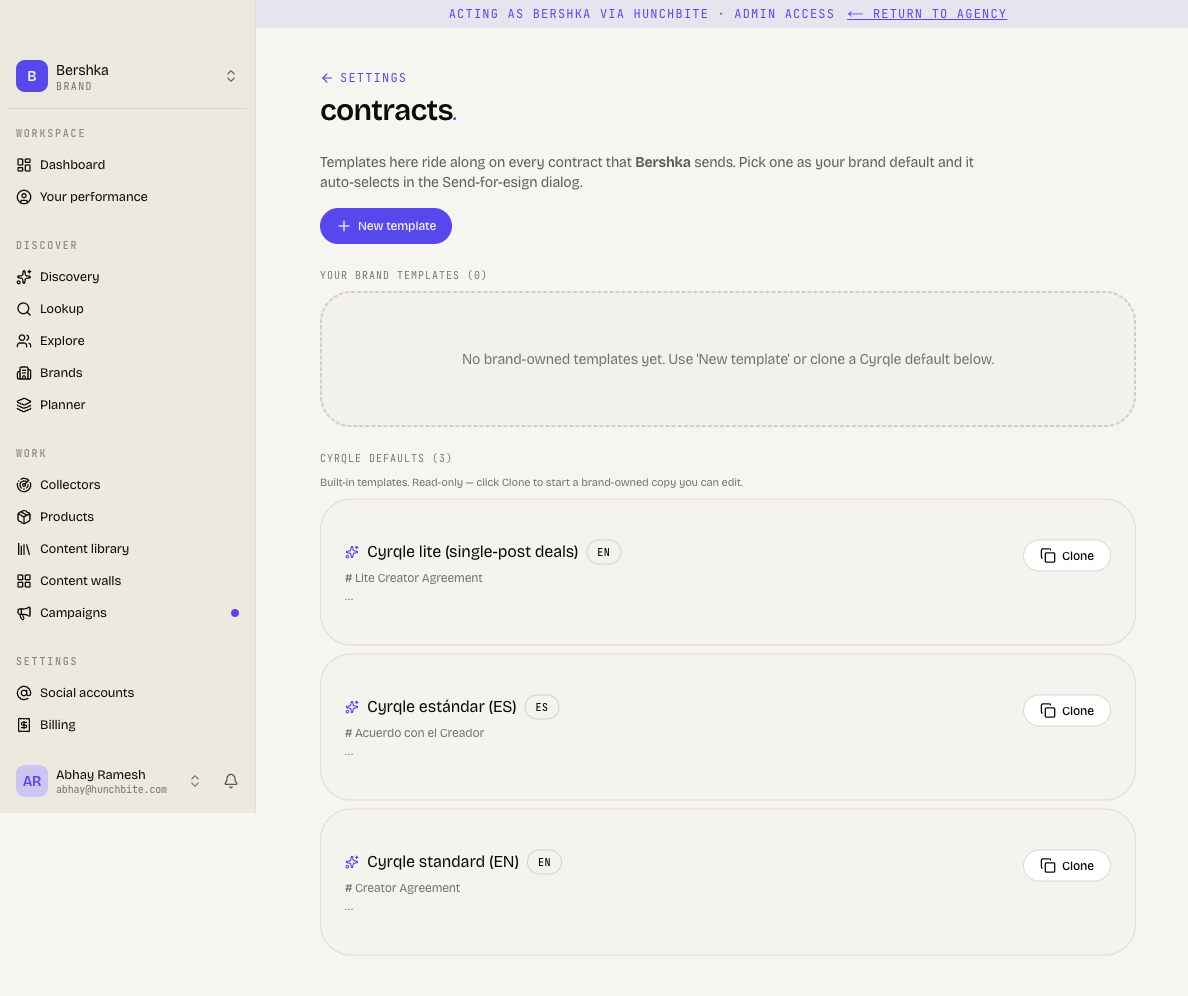
Settings → Contracts holds the e-signature templates that ride along on every contract you send to a creator. Pick one as your brand default and it auto-selects in the Send-for-esign dialog. Start from a Cyrqle default and clone it, or create your own with New template.
The danger zone
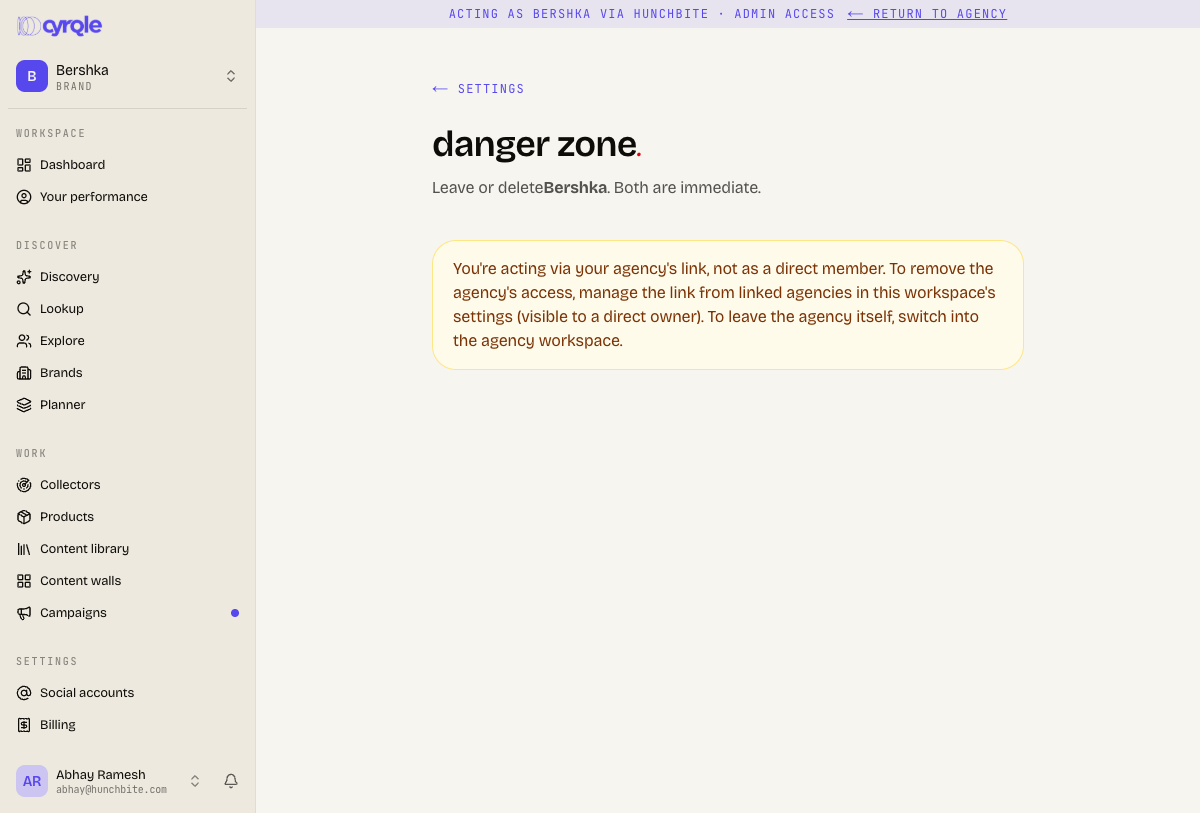
The Danger zone lets you leave the workspace, and — if you are an owner — delete it. Both actions are immediate and ask for confirmation. The same safeguards apply as elsewhere: you cannot leave if doing so would strand the workspace without an owner or, for a brand, without any access path. If you are acting via an agency link, these actions are not available to you.
Tips
- Personal settings (your name, password, notifications) are not here — they live under Your account and are the same no matter which workspace you are in.
- Changing your handle breaks old links with no redirect. Update bookmarks and shared links after you change it.
- Keep at least two owners on important workspaces so you are never blocked by the "only owner" safeguard.
- Plan caps and ingestion credits are independent. Hitting a campaign cap is a plan upgrade; running low on collector budget is a credit top-up.
- Estimate a collector's cost from its per-run figure on the Collectors page before launching, especially across many sources.