Your account
Edit your personal profile, set notification preferences, and switch workspaces in Cyrqle.
Your account settings are personal. They follow you no matter which workspace you are in, and they stay the same whether you are acting in your own workspace or, as an agency, on a managed client. Changing workspaces in the sidebar never changes what you see here.
This is different from workspace settings, which cover the brand or agency profile, your team, and your plan. For those, see Settings and billing at the end of this page.
On your account you can:
- Edit your personal profile (name, sign-in email, password).
- Manage notification preferences with per-category in-app and email toggles.
- Choose your language.
- Switch between workspaces and sign out.
How to get here
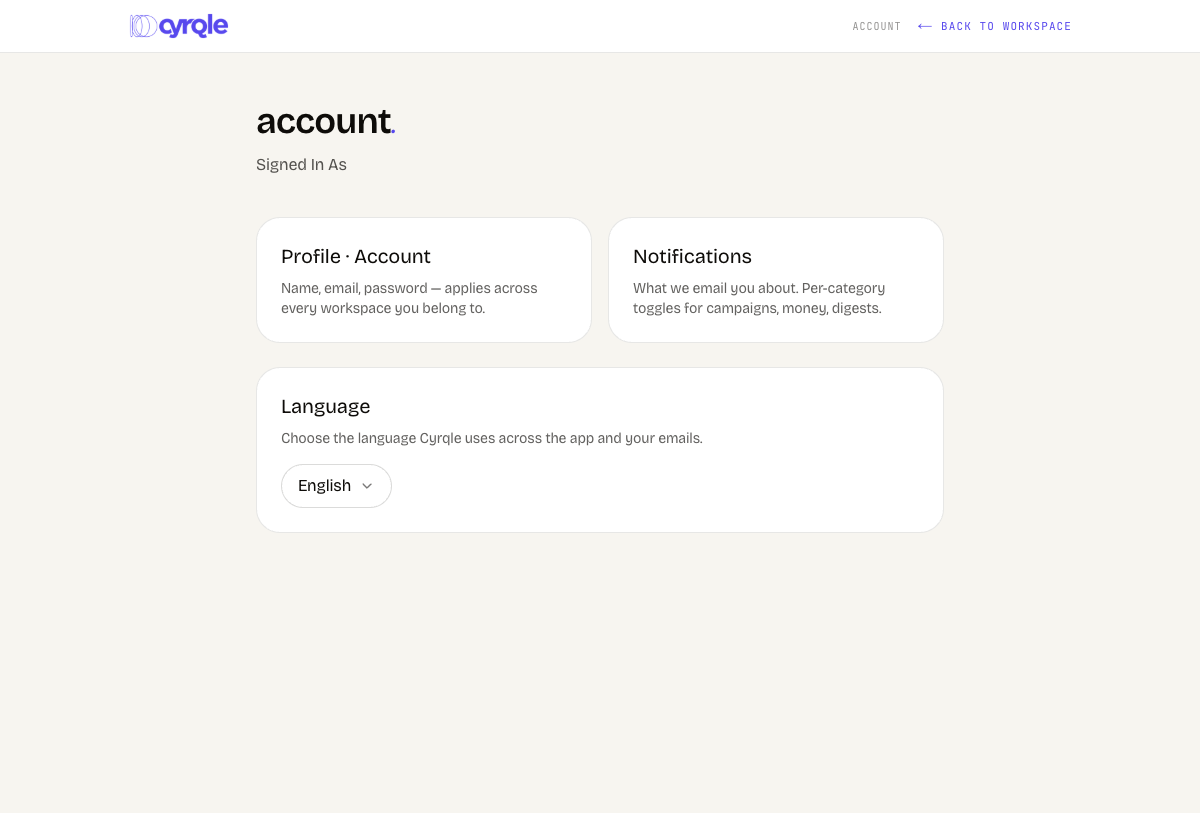
Open the menu at the bottom of the sidebar (your name and email), then choose Account. You land on a clean page with no sidebar, so it is clear you have stepped out of any single workspace. Use back to workspace in the header to return.
Edit your personal profile
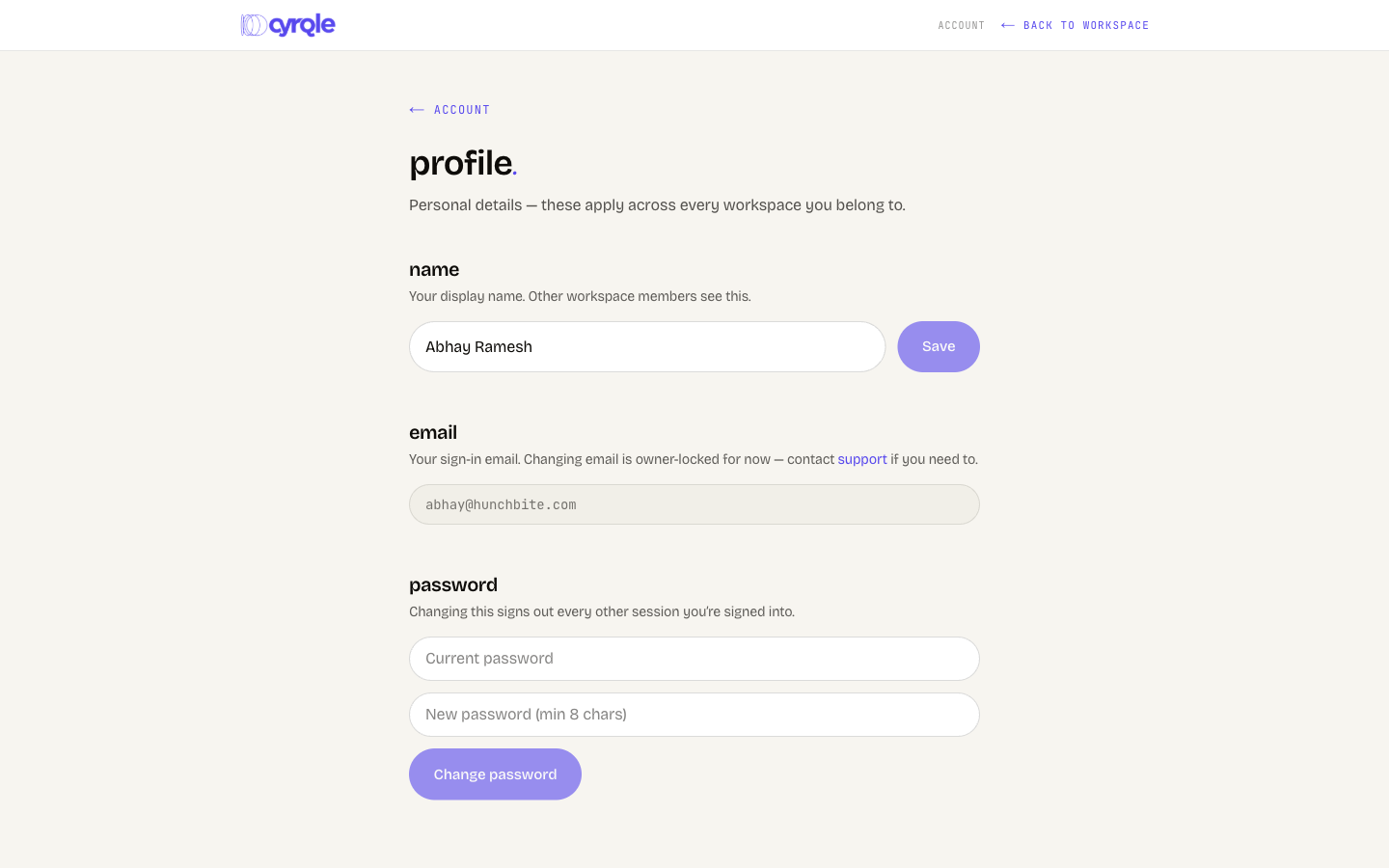
Your profile holds details that apply across every workspace you belong to. This is not your brand or workspace profile.
From the sidebar user menu, open Account, then select Profile.
Under name, type your display name and choose Save. This is the name other workspace members see. The Save button stays disabled until you change the value.
Your email is shown as your sign-in email. It is read-only for now. To change it, use the support link on the page to contact the Cyrqle team.
To set a new password, enter your current password and a new one (at least 8 characters), then choose Change password. For security, this signs you out of every other session you are signed into.
Manage notification preferences
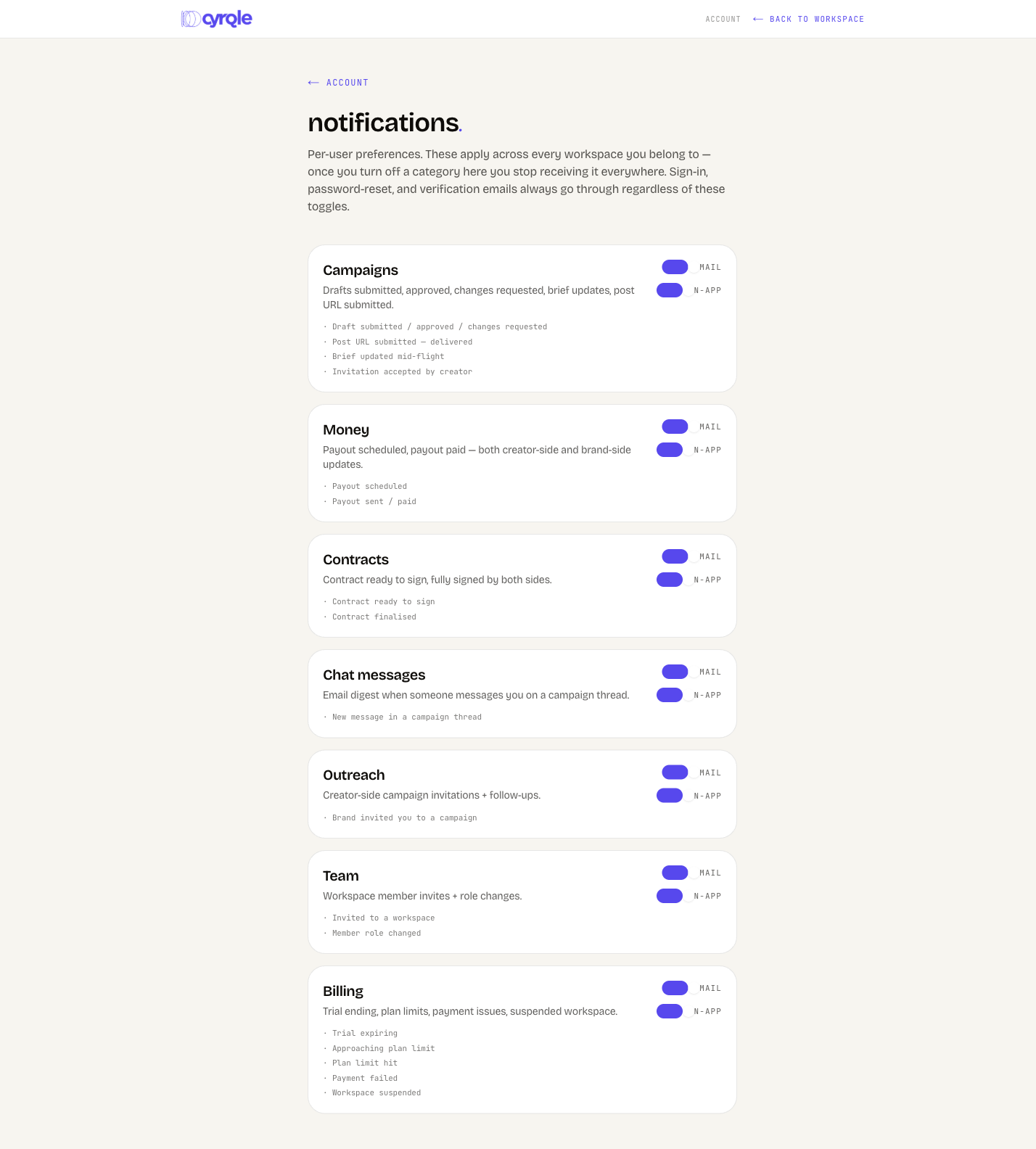
Notification preferences are per-user and apply across every workspace you belong to. Turn a category off and you stop receiving it everywhere.
Each category has two independent toggles:
- In-app controls whether the notification appears in your in-app inbox (the bell).
- Email controls whether you receive that category by email.
From the sidebar user menu, open Account, then select Notifications.
Find the category you want to change. Each card lists the kinds of events it covers.
Flip the In-app or Email switch. Changes save on their own as you toggle. If a save fails, the switch returns to its previous position.
Security messages always send
Sign-in, password-reset, and verification emails always go through, regardless of these toggles. They cannot be turned off.
All categories are on by default. The categories you can toggle are:
Prop
Type
Choose your language
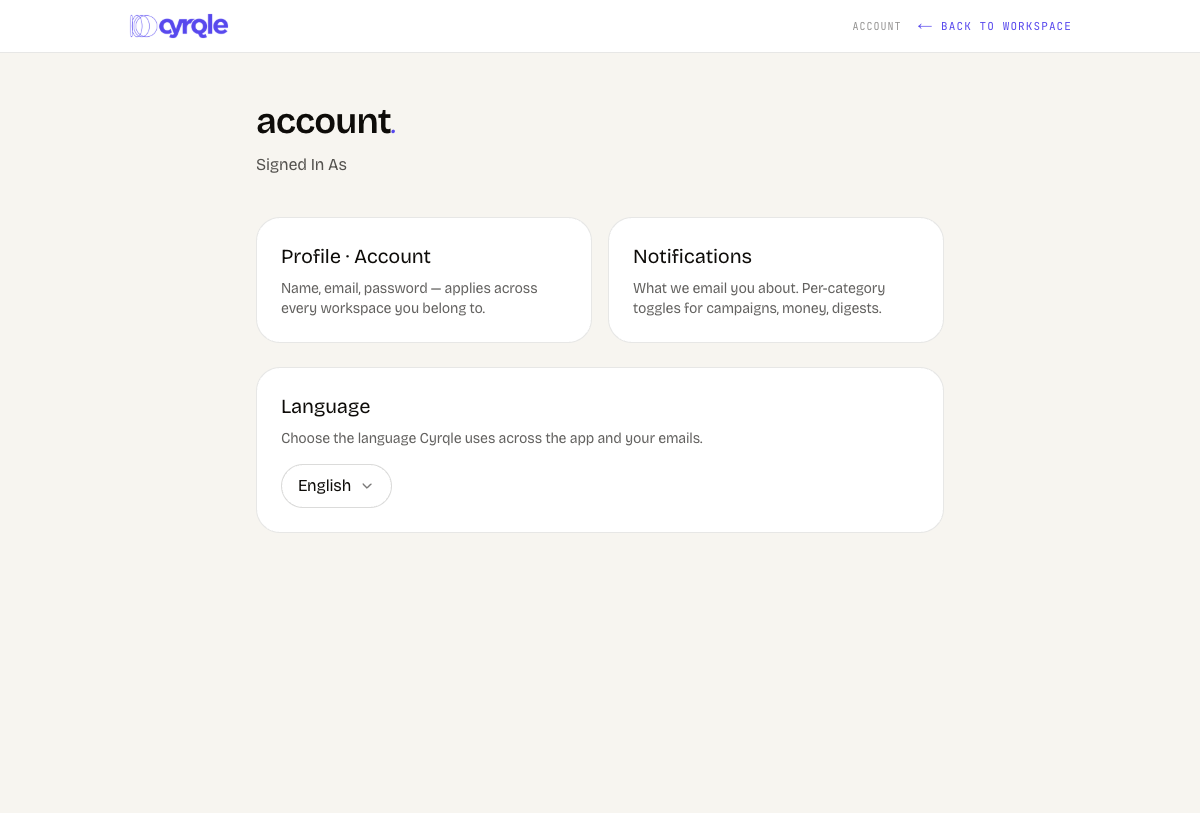
On the account home page, use the language selector to change the interface language. Your choice is saved as soon as you pick it, and you will see a brief confirmation.
Switch workspaces and sign out
You can belong to more than one workspace. The workspace switcher and sign-out live in the sidebar, not on the account page.
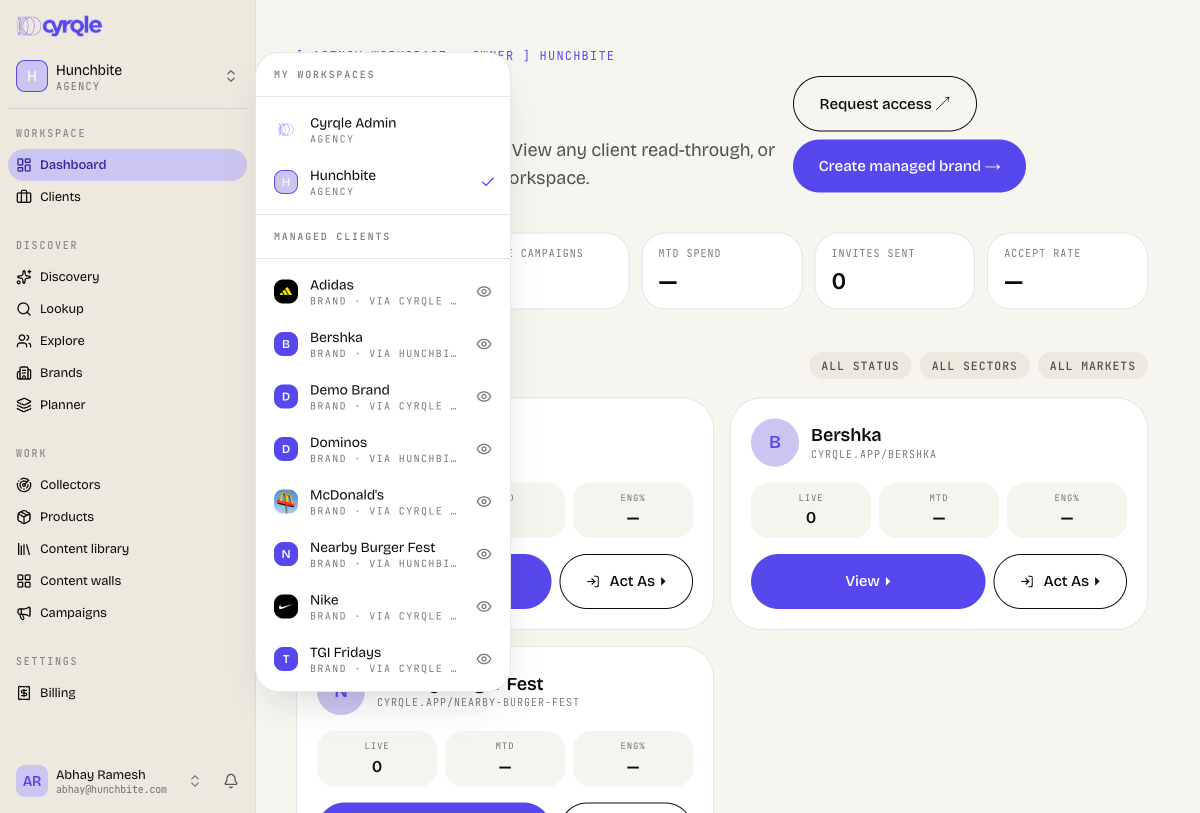
Switch workspaces: at the top of the sidebar, select the current workspace row (name and role). If you have more than one workspace, a menu opens grouped into My workspaces and, for agency users, Managed clients. Choose one to switch into it. A check mark shows the active workspace.
View a managed client (agency users): managed client rows have a small eye icon. Select it to open a read-through view of that client instead of acting as them.
Sign out: open the user menu at the bottom of the sidebar and choose Sign out. You are returned to the sign-in page.
Tips
- Account settings are personal and follow you everywhere. Workspace and brand details live in workspace settings instead.
- A notification toggle applies across all your workspaces. There is no per-workspace override.
- Use the in-app and email toggles independently. For example, keep Campaigns in-app on but turn its email off.
- Changing your password signs out your other sessions. Sign in again on those devices afterward.