Your dashboard
The agency home rolls up your managed client brands into one portfolio view, with quick links to view or act as any client.
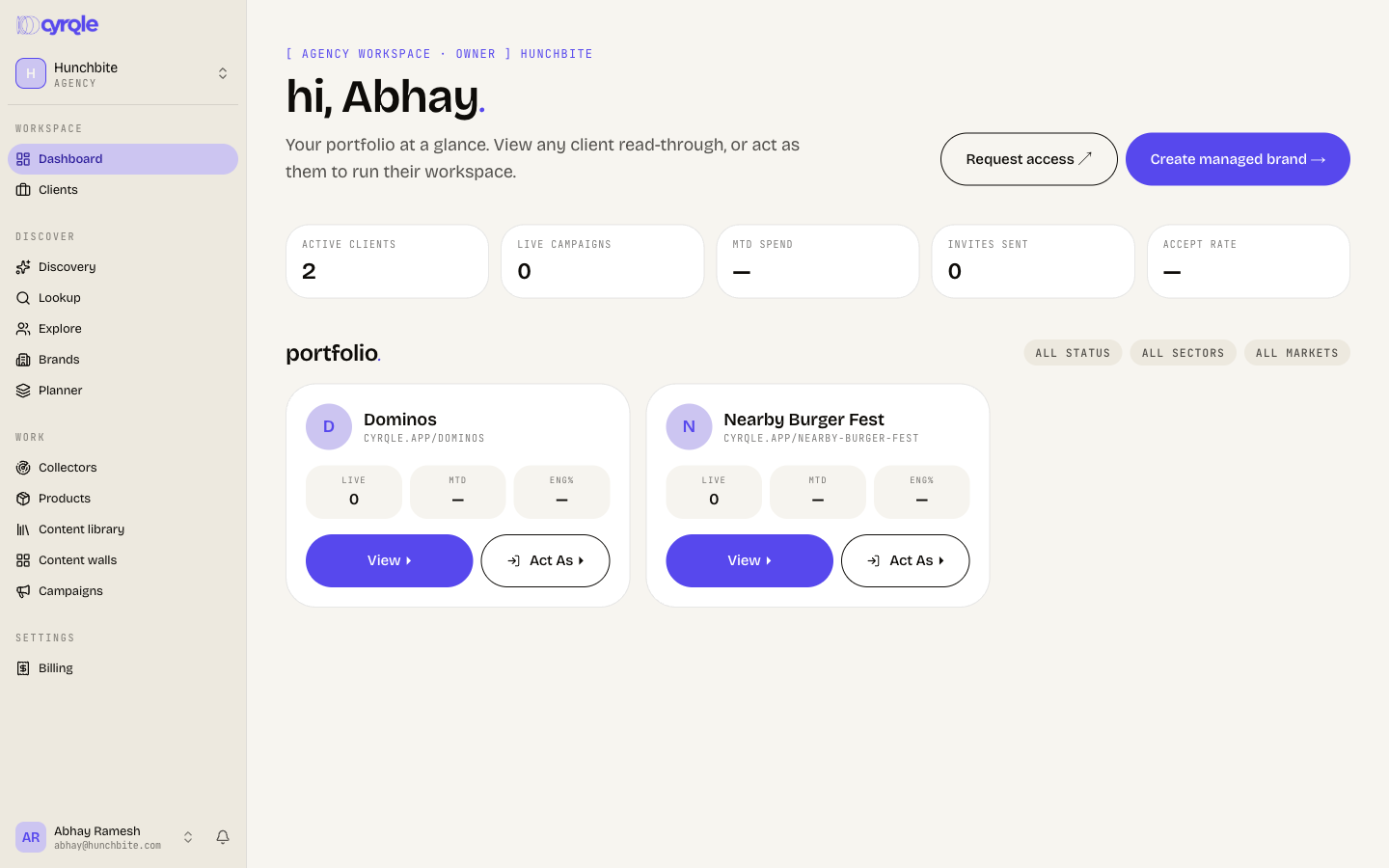
When you land in your agency workspace, Cyrqle greets you by name and shows your portfolio at a glance. Everything here rolls up across the client brands you manage: a summary row of headline numbers, then a card for each client with the quickest path into their work. You do not run campaigns from this page. Instead, you read a client's data in place, or switch into their workspace to operate as them.
Read the cross-client roll-up
At the top of the page, under the "agency workspace" label and your workspace name, a row of five tiles summarizes your whole portfolio:
Prop
Type
Active clients and Live campaigns are live numbers today. MTD spend, Invites sent, and Accept rate are still being wired to the metrics data, so for now they read as 0 or a dash (—). They are placeholders, not errors. Treat the live campaign count as the dependable signal until the rest fill in.
Scan your portfolio
Below the summary, the portfolio section lists one card per managed brand. Each card shows the client's logo (or a lettered monogram), its name, and its workspace address (cyrqle.app/<slug>). Three small metrics sit under the name:
- live — the client's current live campaign count.
- MTD — month-to-date spend for that client.
- eng% — average engagement.
As with the summary row, MTD and eng% are placeholders for now and show a dash until the metrics data lands. The live count is real.
The "all status", "all sectors", and "all markets" chips above the portfolio are visual placeholders. They are not filters yet and do not change what you see.
If you have not linked or created any clients, the portfolio shows an empty state instead of cards, prompting you to Create managed brand or Request access to an existing brand workspace. Setting clients up is covered in the For agencies guide.
Jump into a client
Each portfolio card has two actions, and the header has two more for adding clients.
View ▸ opens a read-through of the client's data while you stay in your own agency context. You can see their numbers and activity, but you cannot make changes from this view. Use it for a quick look or to pull a status check without touching anything.
Act As ▸ switches you into that client's workspace and lets you operate as if you were them, including running their campaigns. Any edits you make are recorded under your agency account in the audit log, so the trail stays clear.
The header buttons add to your portfolio. Create managed brand → spins up a brand workspace you own and operate on a client's behalf. Request access ↗ asks to co-manage an existing brand workspace alongside their team. Both flows are explained in For agencies.
For a full list of clients (rather than the dashboard's card view), open Clients from the navigation.
Billing that needs you
If your agency workspace has a billing signal that needs attention — a past-due payment, a trial about to expire, or a usage cap you are near or over — a banner appears at the top of the dashboard and a companion list surfaces each actionable item as a clickable row. These are the only "needs you" prompts on the agency home; per-campaign action items (invites, counters, contracts, drafts) live inside each client's own workspace, so switch into a client with Act As to handle those.
Build client reports
Open a client and go to Reports to generate shareable performance reports for that brand. Each report type is a card listing the subjects you can run it against:
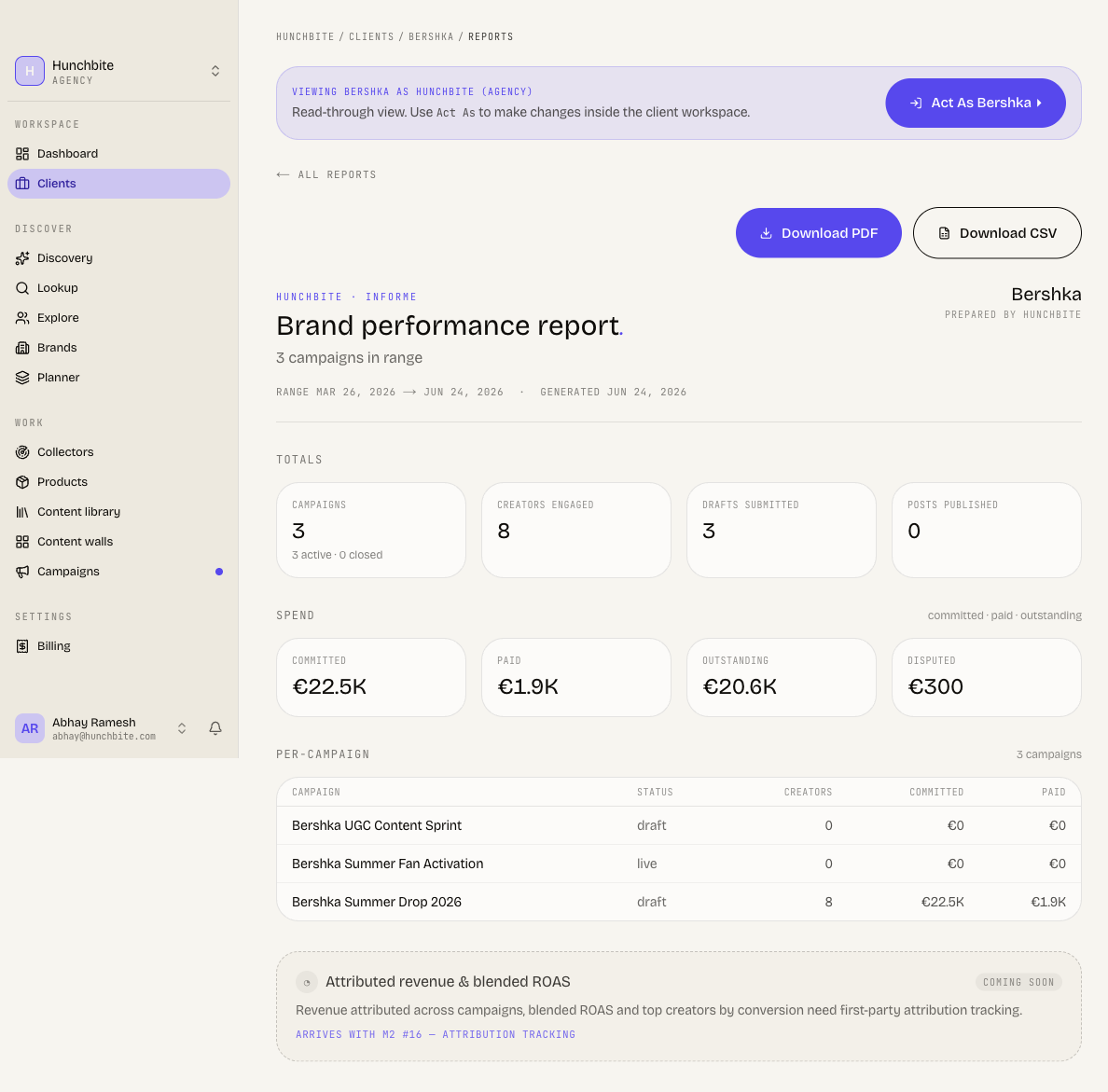
- Brand performance — a cross-campaign rollup: spend, creators, content, and trend over the last 90 days.
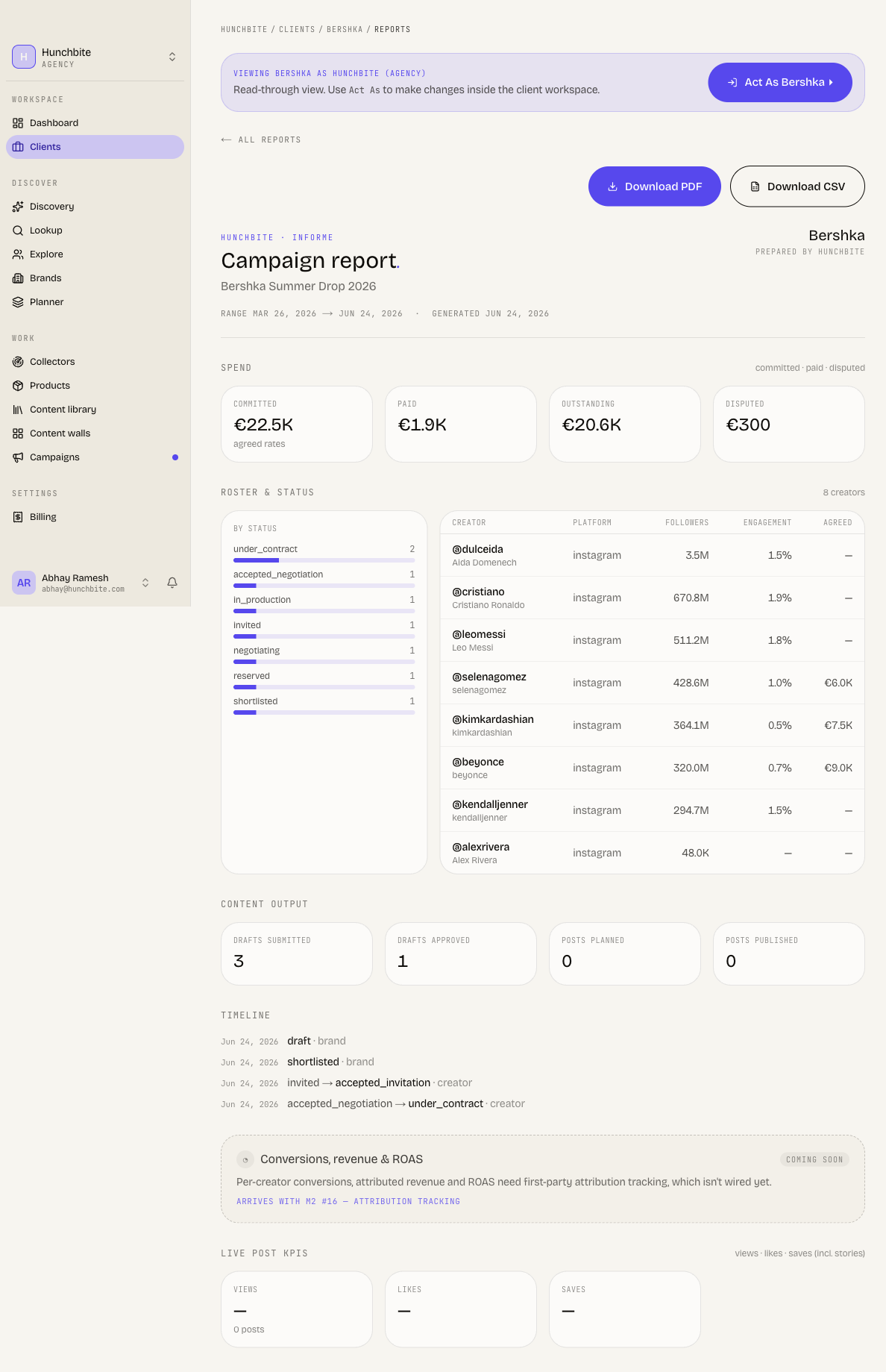
- Campaign report — one campaign's performance: roster, spend, content output, timeline.
- Creator list report — aggregate reach and engagement for a campaign roster.
- Cluster report — a saved creator cluster's reach, engagement, and composition.
- Creator media kit — a single creator's profile and stats.
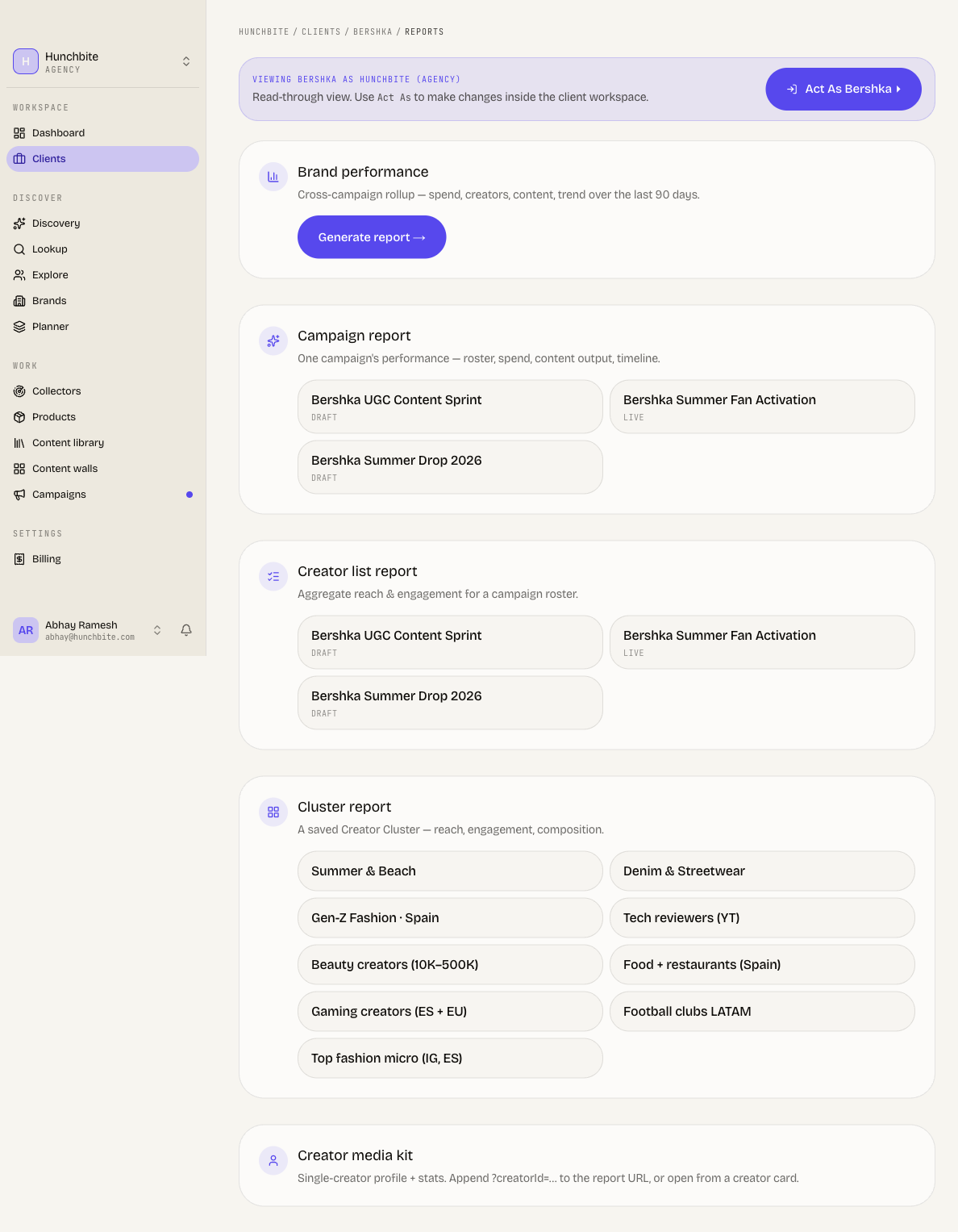
Pick a subject to generate the report. It renders inline with totals, a spend breakdown, and a roster table, and you can Download PDF or Download CSV to share it with the client.
Brands can run these too
The same report builder is available inside a brand workspace under Reports — agencies just reach it through the client view. Reports are read-through, so generating one never changes the client's data.
Tips
- Use View for a no-risk look and Act As only when you actually need to change something in a client's workspace; the audit trail will attribute those edits to your agency account.
- Trust the live campaign counts on both the summary row and the cards. Treat MTD spend, invites, accept rate, and engagement as "coming soon" until they stop showing dashes.
- An empty portfolio is not a bug. It just means no clients are linked yet, start with Create managed brand or Request access.