For agencies
Link client brands to your agency, control how much access your team gets, and run campaigns inside each brand's workspace.
An agency on Cyrqle is its own workspace that manages campaigns for client brands. You do not "own" a client brand or nest it under your agency. Instead, each brand you work with gets a link that says "this agency manages this brand at a set permission level." That link is what lets your team open the client's workspace and run its campaigns, while every action stays recorded under your agency account.
Because links are many-to-many, the same brand can be managed by more than one agency, and your agency can manage as many brands as you like. The permission level on each link is a hard cap: it limits what every one of your agency members can do inside that brand, no matter how senior they are in your agency.
Before you start
You need an agency workspace (an account whose type is "agency"), and you need to be an owner or admin of it. Only owners and admins can create managed brands, request access to existing brands, and decide which team members act on which brand. Your "Clients" area lives at cyrqle.app/<your-agency>/clients.
Link a client brand
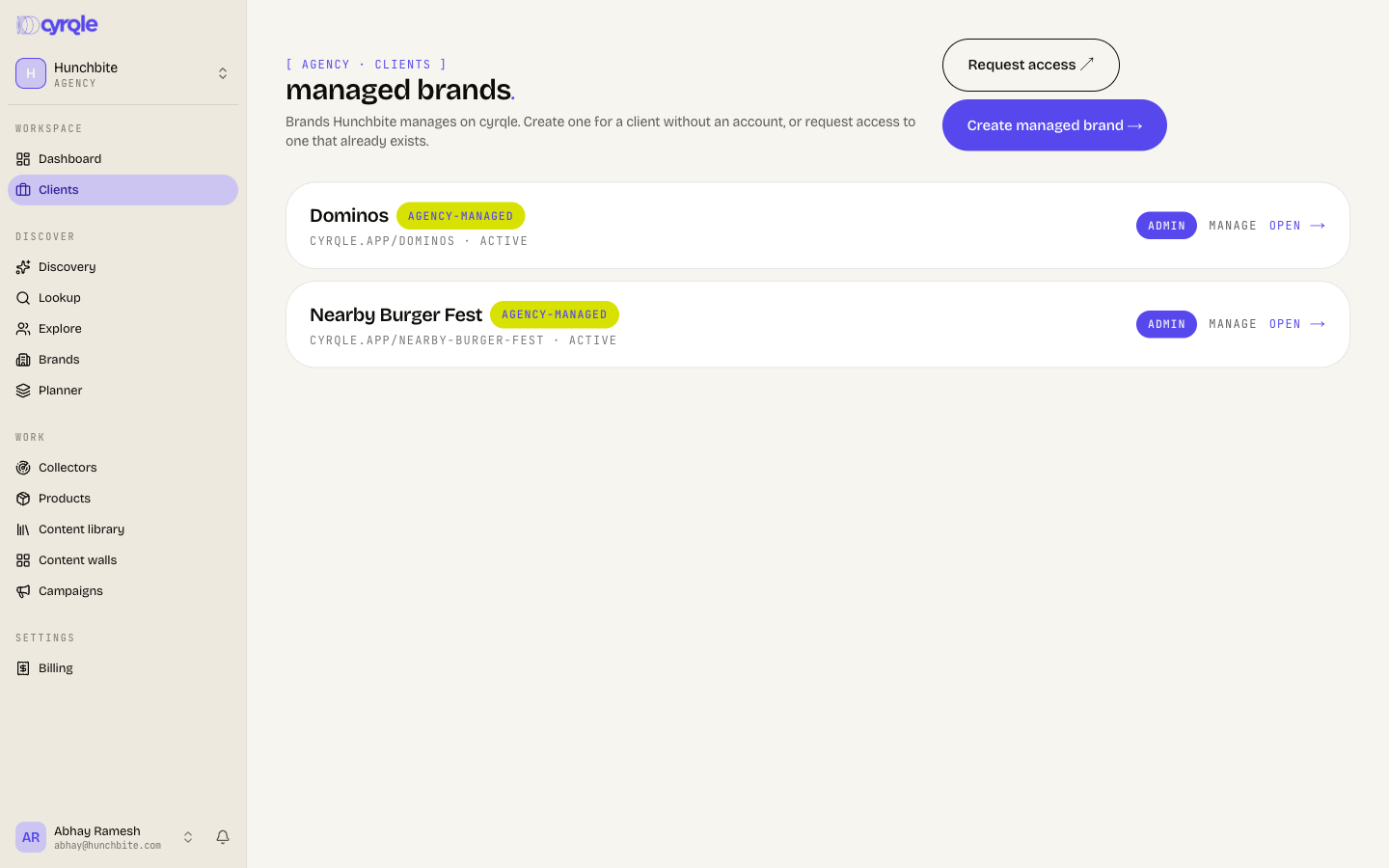
There are two ways to bring a client into your agency, depending on whether the brand already exists on Cyrqle. Both start from your Clients page.
Use this when your client does not have a Cyrqle workspace yet. You create the workspace on their behalf, and your agency is linked to it at admin automatically.
Open Clients and choose Create managed brand.
Enter the brand name and a handle (the address cyrqle.app/<handle>). Availability is checked as you type; if the handle is taken, pick another.
Optionally add a brand contact email. If you do, Cyrqle generates an owner invitation for that person so the client can later claim their own workspace. You can copy and share the invitation link from the confirmation screen.
Select Create managed brand. The brand goes live immediately, your agency is linked at admin, and it appears in your Clients list with an agency-managed tag (it has no direct members of its own yet).
Use this when the brand already has its own workspace and owner. You request access; the brand owner has to accept before the link goes live.
Open Clients and choose Request access.
Enter the brand's handle (the part after cyrqle.app/).
Pick the permission level you are requesting: read, editor, or admin. Editor is the default. See the table below for what each level allows.
Select Send request. The link shows as awaiting brand in your Clients list until the brand owner accepts it from their side. Once accepted, the brand becomes openable by your team.
You can only have one active link or pending request to a given brand at a time. If a request already exists, Cyrqle will tell you instead of creating a duplicate.
Understand the permission levels
The link's permission level is the cap on what your agency members can do in that brand. If a member is a high-ranking admin in your agency but the link is read, they get read access in the client brand, never more. The lower level always wins.
Prop
Type
The brand owner controls the permission on every link to their brand. They can raise or lower it at any time from the brand's Linked agencies settings, and your team's access changes immediately to match.
Scope which team members act on a brand
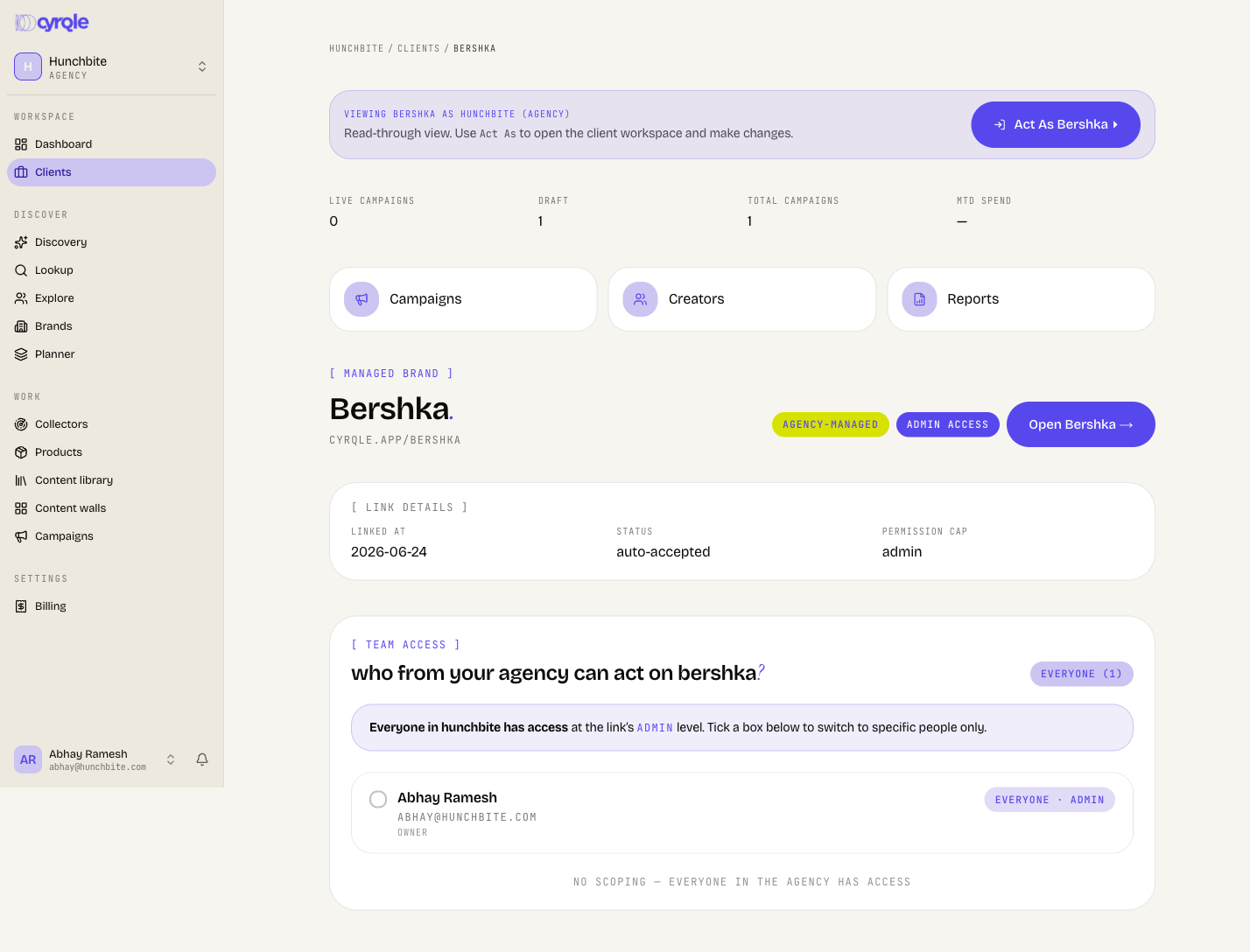
By default, everyone in your agency can act on a linked brand at the link's permission level. If you would rather restrict a brand to specific people, you scope the link to a chosen set of agency members.
On the Clients page, select manage next to the brand.
In the Team access panel, tick the members who should be able to act on this brand. As soon as at least one person is ticked, the link switches from "everyone" to "specific people only" — anyone not ticked loses access to that brand.
Optionally give a ticked member a role override. The override can only lower their access relative to the link's cap (for example, a read override on an editor link), never raise it. Leave it on inherit to use the link's level.
Select Apply changes to save. To go back to giving the whole agency access, untick everyone.
Scoping is per brand. A member you exclude from one client still has access to every other brand where the link is unscoped or where they are ticked.
Switch into a client brand to run campaigns
To actually run work, you open the client brand and operate inside its workspace — there is no separate "agency mode" for running campaigns.
From Clients, select open on the brand (or Act As from the brand's manage page). This takes you to cyrqle.app/<brand-handle>.
You are now inside the brand's workspace. Run campaigns, manage drafts, review creators, and read reports exactly as the brand's own team would — bounded by your link's permission cap.
To return to your agency, switch back to your agency workspace using the workspace switcher. Brands you reach through links appear there grouped separately from your direct memberships.
Everything you do inside the client brand is recorded under your agency account, so the client can see which agency carried out each action.
Unlink a brand
When an engagement ends, you can drop a client by unlinking it. Unlinking is a soft action — the link is marked inactive and moves into previous links, and your team loses access to that brand.
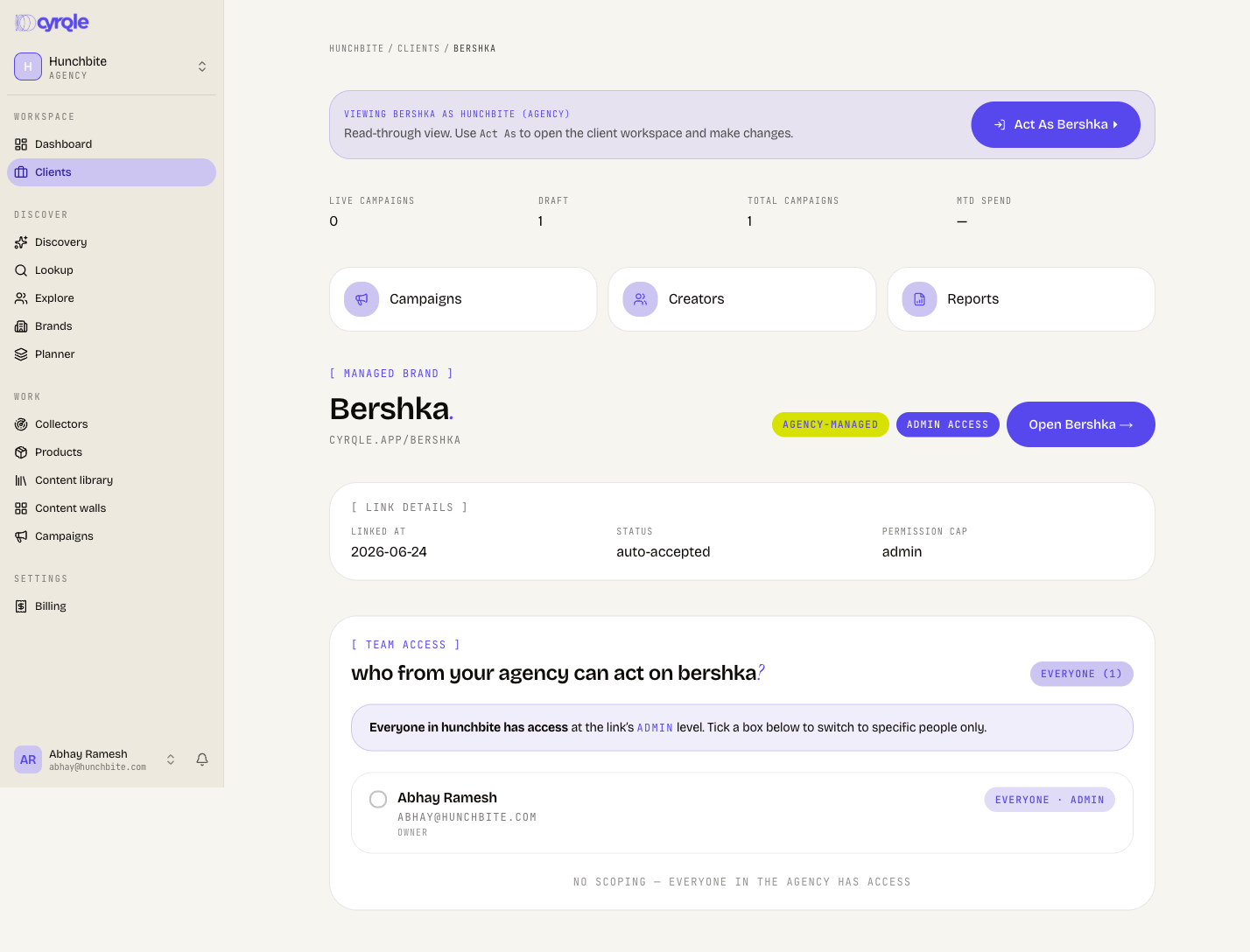
Open Clients, select manage on the brand, and use the unlink action.
Confirm. The brand drops out of your active list. Past links remain visible under previous links for reference.
Orphan protection
A brand workspace must always keep at least one access path — either a direct member or an active link. If your link is the only way anyone can reach that workspace (common for an agency-managed brand whose client never claimed it), Cyrqle blocks the unlink and asks you to add another member or link first, or to contact support to archive the workspace. This stops a brand from becoming permanently unreachable.
Tips
- Use Create managed brand for prospects and clients who are not on Cyrqle yet; use Request access when the client already runs their own workspace.
- Adding a brand contact email when you create a managed brand lets the client claim ownership later without losing any of the work you have already done.
- Keep links at the lowest permission the work needs. The brand owner can always raise it, and a tighter cap is easy to widen but protects the client in the meantime.
- Scope sensitive clients to a named pod of team members instead of the whole agency.