Reports
Build white-label client reports and export each one as PDF or CSV.
Before you start
Build client reports from the client, not from the Reports entry in your agency sidebar. That entry does not open in an agency workspace. Open the client, then the Reports sub-tab.
- You need an active link to the client. A Read link is enough to build and export a report.
- The client's billing must be active. Cyrqle answers a past-due or suspended workspace with an error instead of a file.
- A report needs data. A campaign with no creators produces an empty report.
- Every report carries the client's name and the line "prepared by" plus your agency name.
Open the report builder
Open the client
Open the client from the Clients page or from a dashboard card.
Open Reports
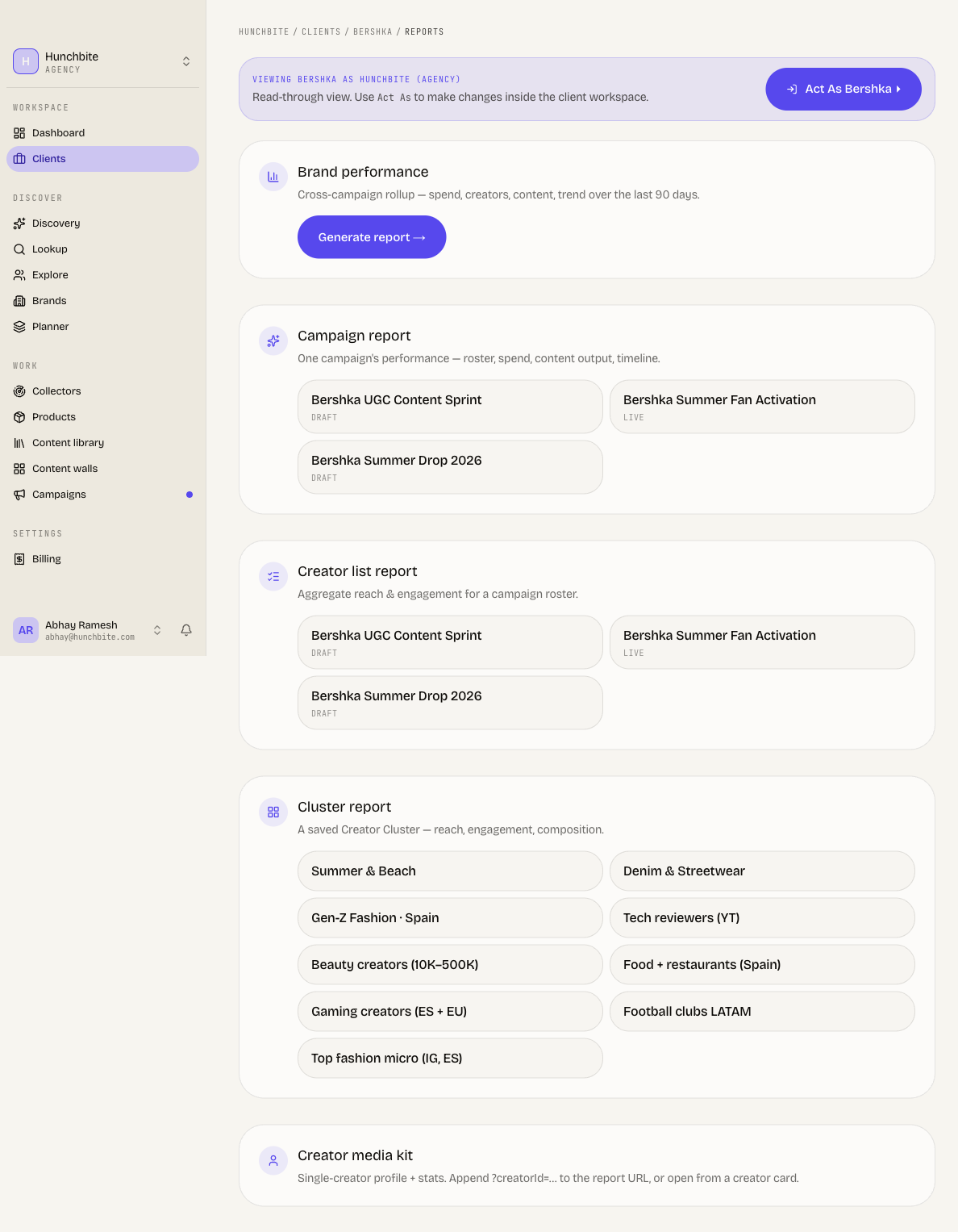
Select the Reports sub-tab. The page describes white-label reports built on the client's data, for you to generate and share.
Pick a report
The builder lists five subjects. Each one opens as an interactive page first.
| Subject | Where you click | What it shows |
|---|---|---|
| Brand performance | Generate report → on the Brand performance card | Spend, creators, content and trend across all campaigns, last 90 days |
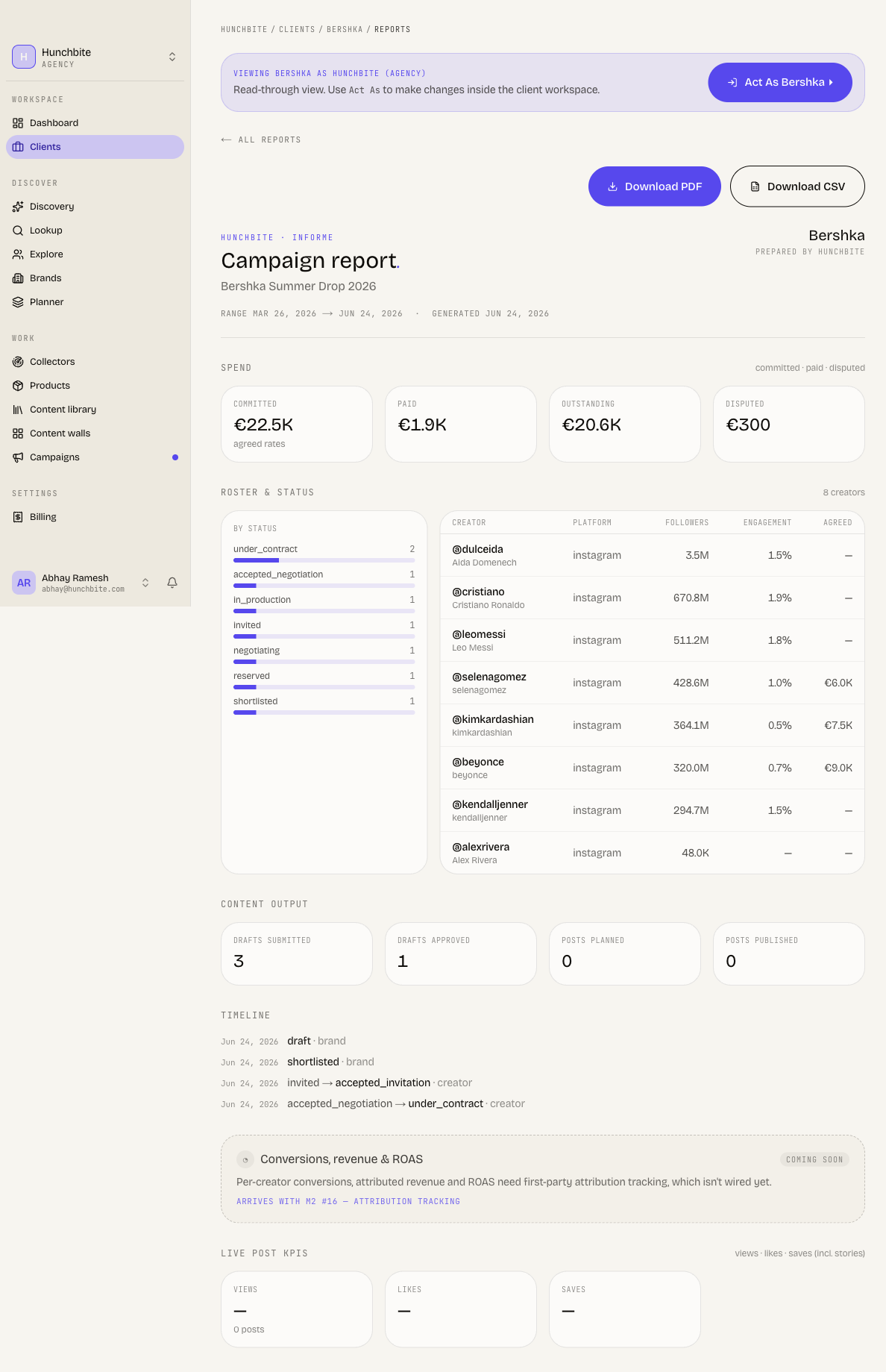
| Campaign report | campaign report → on a campaign row | One campaign: roster, spend, content output, timeline |
| Creator list report | creator list → on a campaign row | Aggregate reach and engagement for that campaign's roster |
| Cluster report | cluster report → on a cluster row | A saved cluster: reach, engagement, composition |
| Creator media kit | Open the report URL with a creator id, or open it from a creator card | One creator: profile and stats |
The Creator media kit is the one report with no row to click. Its card says "Append ?creatorId=… to the report URL, or open from a creator card."
Export the report
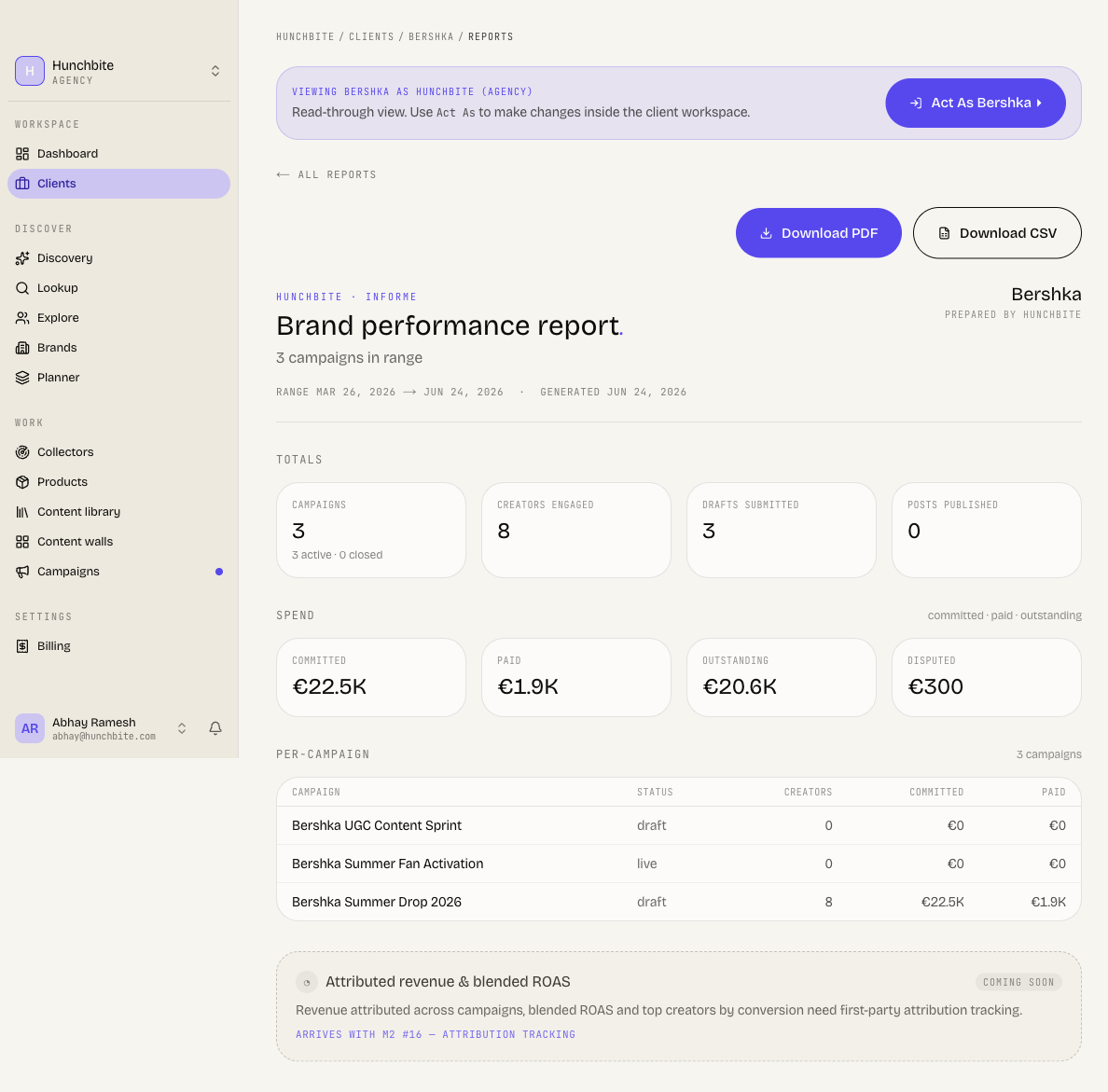
Every report page carries the same two buttons in the top right.
Open the report
Open the report you want from the builder.
Export a document
Click Download PDF. The button reads Preparing PDF… while Cyrqle builds the file.
Export the data
Click Download CSV instead for a spreadsheet of the same report.
A PDF takes several seconds to build. Leave the page open until the file downloads.
Pitfalls
- A past-due or suspended workspace cannot export. Cyrqle refuses the download and names the billing state. Clear the invoice, then export again.
- Generating a report spends credits. Each report costs 2 credits against the workspace that pays for the client.
- Hidden posts are left out of every report but still appear in the campaign Posts tab. Report totals and Posts-tab totals will not match when a post is hidden.
- The browser print output and Download PDF use different renderers. Send the downloaded PDF to a client, not a printed page.
- Roster reports are a snapshot of who is in the campaign or cluster right now. They carry no date range, so two "different" periods give the same numbers.
Reference
- Cyrqle checks your access again at export time. You can only export a report you can already open.
- Generating a report counts against your agency usage.
- The campaign workspace also has its own campaign report view, inside the brand. It offers Sections, Print and Download PDF at the top, plus a separate CSV button on each of the Creator leaderboard, Publications and All posts tables further down the page — each one appears only once that table has rows. Open the client with Act As to reach it.