Clients
Request access to a client brand, read the status chips, set who on your team can act, and unlink.
Before you start
- You need the agency owner or admin role to request access or to change team scoping. A member can open a client but cannot change the link.
- To request access you need the client's workspace handle, not their company name.
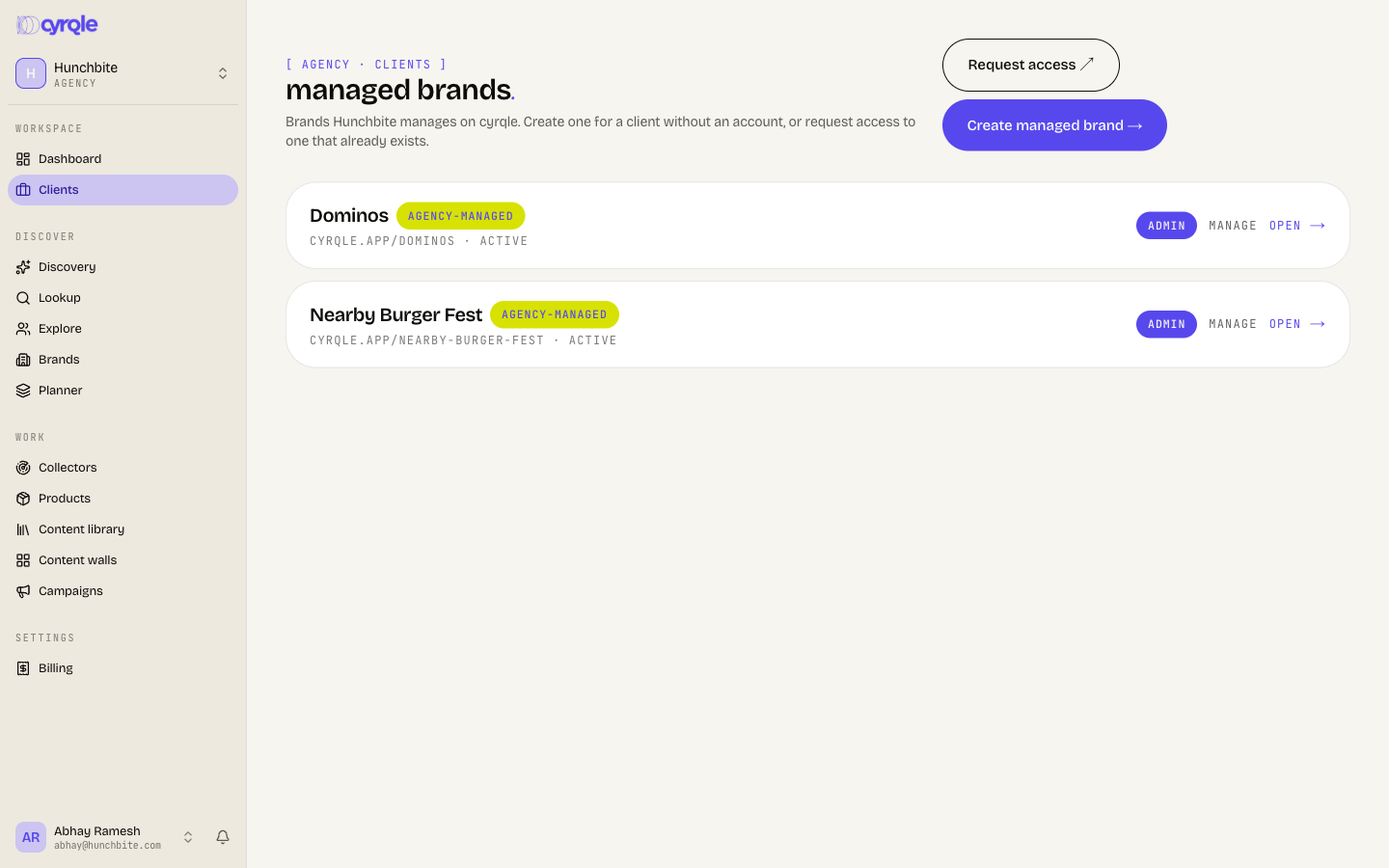
- The Clients page title reads "managed brands".
- To create a new workspace for a client instead, see Managed brands.
Read the list
Switch the view with table and cards. The table columns are brand, status, access, linked and actions.
| Status chip | What it means |
|---|---|
| active | The link works. Your agency can open the brand. |
| awaiting brand | You asked for access. The brand owner has not answered. |
| declined | The brand owner refused the request. |
A brand with no members of its own also carries an agency-managed chip. That is a brand you created and still hold.
Links you have ended are grouped below as previous links with the date.
Request access to an existing brand
Cyrqle does not tell the brand that a request arrived. There is no email, no in-app message and no dashboard card. The brand owner sees the request only if they open Settings and then Linked agencies. Contact your client yourself and ask them to accept.
Open the form
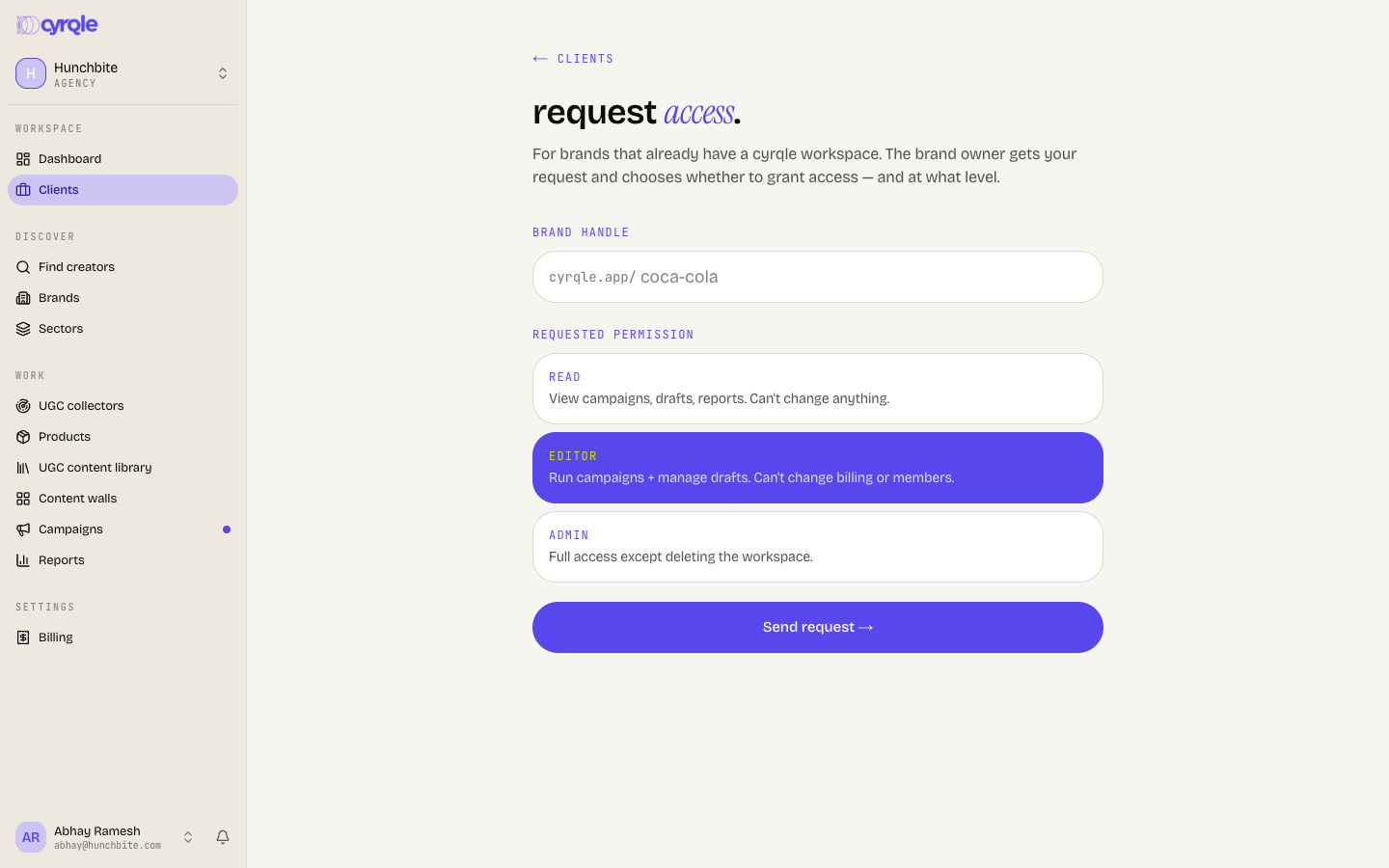
Click Request access ↗ on the Clients page.
Enter the handle
Enter the client's Brand handle. Cyrqle answers "No workspace exists with that handle." if it is wrong.
Pick the level
Select a Requested permission: Read, Editor or Admin.
Send it
Click Send request →. The client appears in your list as awaiting brand.
Chase the client
Message your client outside Cyrqle. Ask them to open Settings, then Linked agencies, and click Accept →.
One link exists per agency and brand pair. A declined request still holds the slot. Unlink the declined row before you request access again.
Understand what the level really gates
The brand owner sets the level, and only the brand owner can change it. The level applies to every person in your agency, whatever their agency role.
- An agency owner on a Read link is blocked from billing actions in that brand. Buying credits, adding the payout card and turning on usage-based billing all need an Admin link. Cyrqle answers: "This agency link is read-level. admin access is required for this action."
- Ask for the level you need, and no more. Cyrqle checks the level on the actions that cost money or change members. Other agency pages are read-only because they show no controls.
Open a client
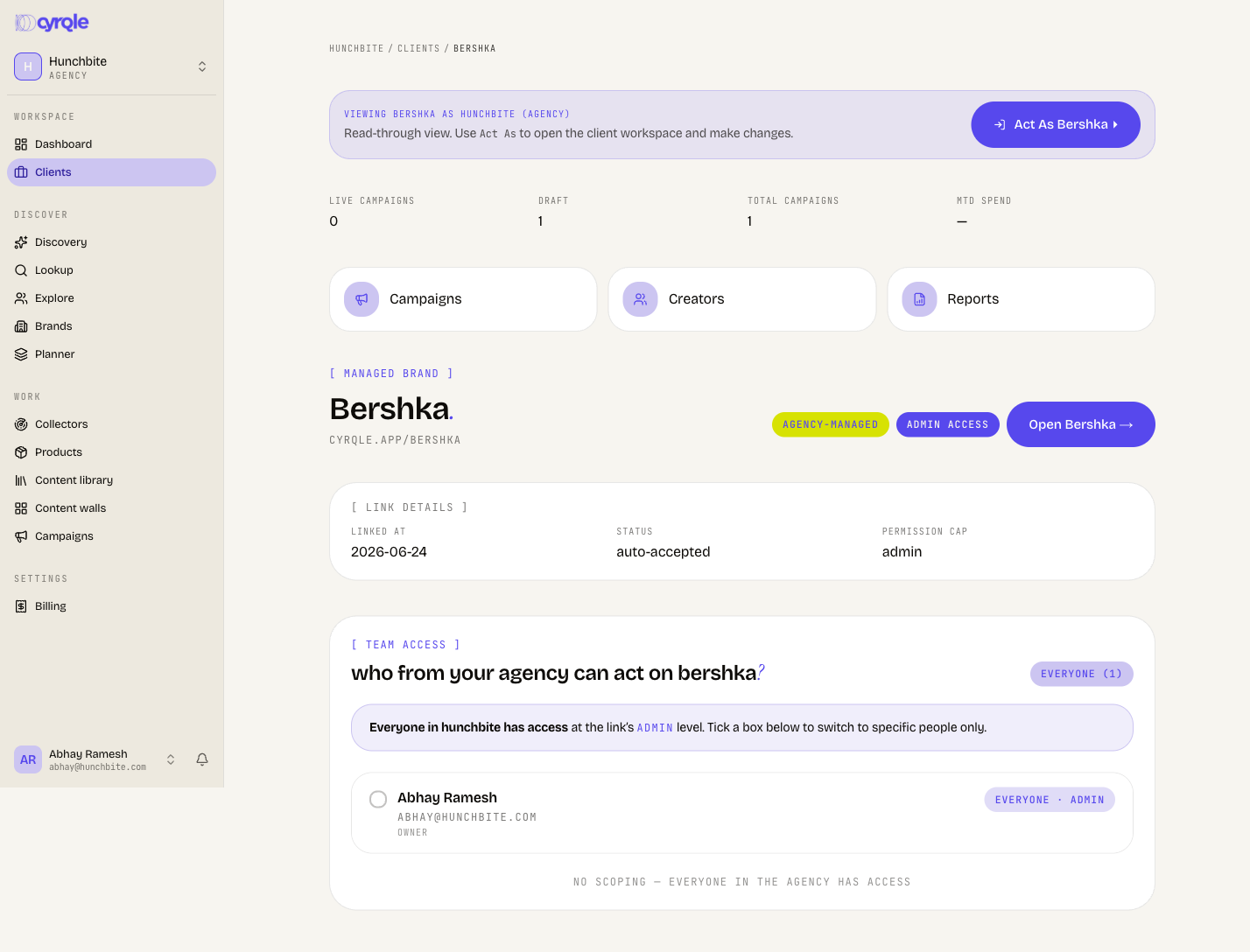
Open a client row to reach the client page. The strip at the top reads "Read-only view of" the brand, "shown through" your agency's "access. To create or edit, open the workspace."
- Open workspace → or Act As with the brand name puts you inside the brand.
- The KPIs are Live campaigns, Draft, Total campaigns and MTD spend.
- The link facts are Linked at, Status and Permission cap.
- The sub-tabs are Campaigns, Creators and Reports.
- The agency-side Campaigns and Creators sub-tabs are read-through summaries. The per-campaign detail reads "campaign detail · coming soon". Switch into the client workspace to manage a campaign.
- The campaign Wall tab does not open from your agency workspace. Campaign detail pages exist only inside a brand workspace. Click Act As with the brand name first. Then open the campaign and its Wall tab.
Choose who can act on a client
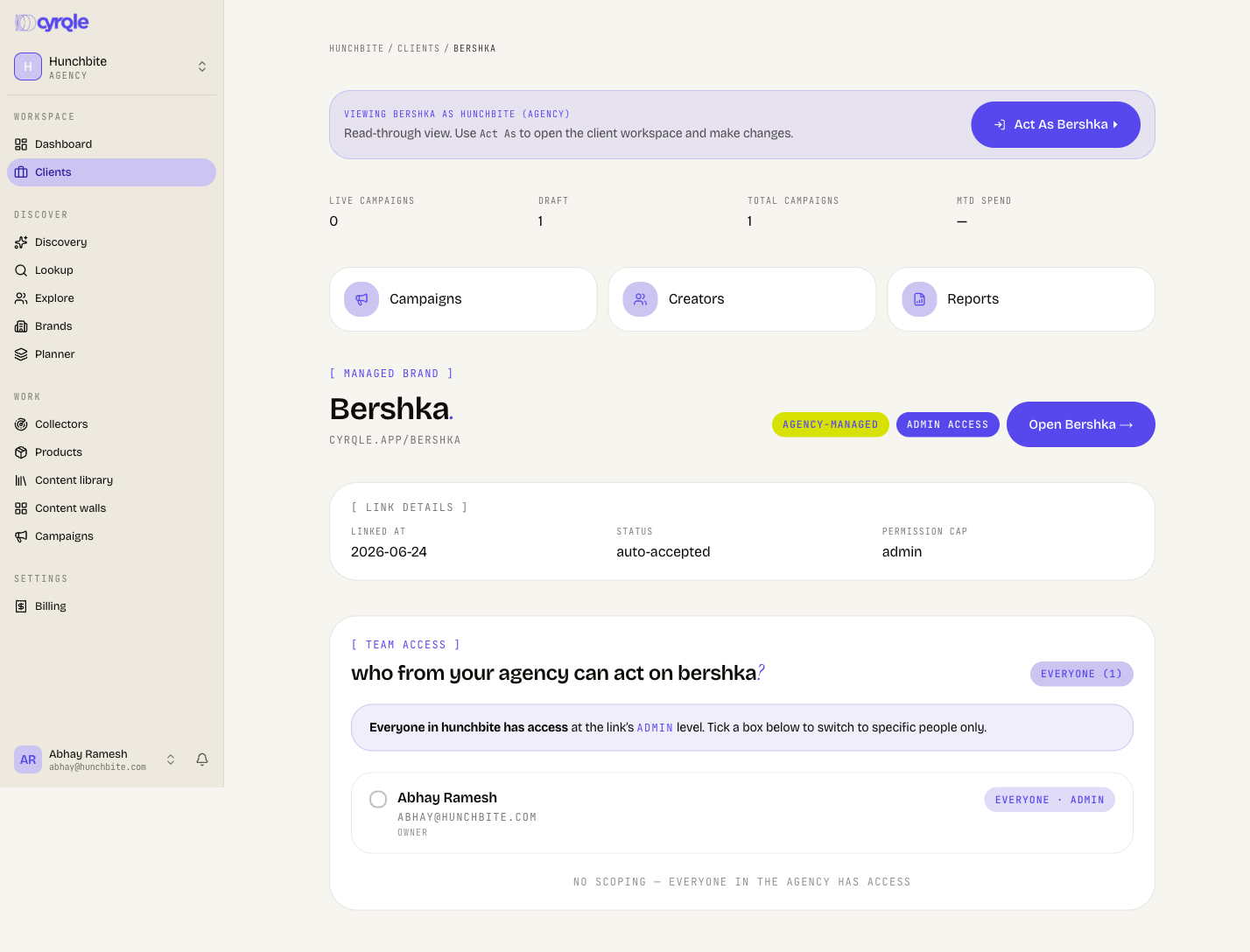
By default every person in your agency can act on every client. Narrow it per client in the who can act on this client panel.
Ticking one member switches the client from "everyone" to "only these people". Every colleague you do not tick loses access to that client the moment you apply.
Open the panel
On the client page, click change in the who can act on this client panel.
Tick the people
Tick each agency member who may act on this client.
Apply
Apply the change. The summary then counts how many of your team can act on this client.
Open it back up
Untick everyone to return the client to the whole agency.
A per-member override can only lower access below the link level. It cannot raise a member above the level the brand granted.
End a client link
Your agency cannot end its own link. The Clients page has no unlink action. Only the brand owner removes an agency, from Settings, then Linked agencies. Ask your client to do it.
Unlinking is soft. The row moves to previous links on your Clients page and keeps the date it ended.
- A brand your agency created stays on your Clients page after the link ends, because your agency is still recorded as its parent. An unlink is not a clean handover on its own. See Managed brands.
- Cyrqle refuses an unlink that would leave the brand with no way in at all. The brand needs a direct owner first.
Pitfalls
- The Clients page is the agency's own view. It does not list the brand's direct members. Open the brand's Team page to see who else has access.
- A member of your agency can open a client but cannot change the link. Only agency owners and admins can request access or scope team access.
Reference
- The brand owner, and only the brand owner, can accept a request, change a level or remove your agency. A brand admin cannot.
- Lowering a link to Read takes effect at once.
- A brand you reach through two agencies appears in both agencies' lists.
Your dashboard
The agency portfolio view, and the first screen after sign-in: every client, live campaign counts, and the two ways into a client workspace.
Managed brands
Create a brand workspace for a client who is not on Cyrqle. Your agency holds an Admin link at once, and you can hand ownership over later.